
You are typing, and your keys stop landing. The window you were in has a gray title bar now, so you click back in to carry on. Sometimes the focus comes back by itself a second or two later.
I would not start with drivers. Windows only lets a program take the front in a few cases, so the one doing it can be logged and named.
It is an old complaint. Opened in January 2014, the Super User question shows 113,278 views. A 2025 Microsoft Q&A thread about games losing focus on every click shows Same question (20+).
Windows does not hand the focus to any program
Microsoft's SetForegroundWindow page is plain about it: "The system restricts which processes can set the foreground window". A program gets the front only in a short list of cases.
One is when "The calling process received the last input event". Another is a program started by the one you are using. When none fits, "Windows flashes the taskbar button of the window to notify the user".
So a thief is rarely random. It is a helper that wakes up, opens a window for a moment and closes it. A Super User answer describes it: "It opens a window, which steals focus, and it is very quickly closed, but the focus does not return".
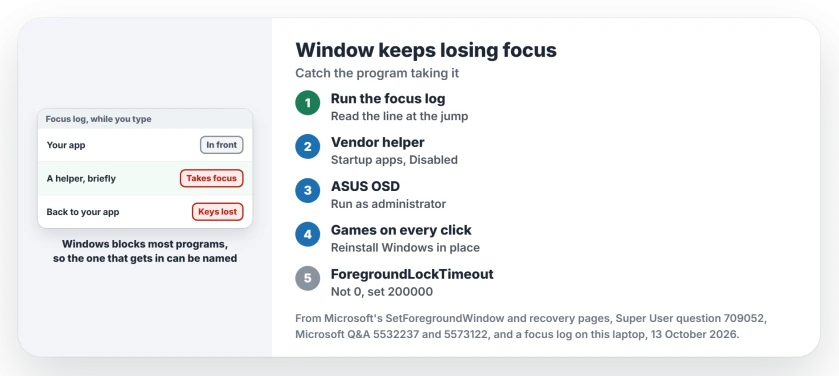
Status: checked 13 October 2026 against Microsoft's foreground window rules, owner reports from Super User and Q&A, and a focus log run on this laptop.
Ours: we opened Character Map from a background script while another app was in front. Its window appeared on the main screen. The log stayed on one line, though, because Windows refused it the focus, as Microsoft's rule says.
Catch the program with a focus log
Guessing wastes your evenings. This PowerShell script only reads which window is in front, ten times a second. It prints a line each time that changes.
Add-Type @"
using System; using System.Runtime.InteropServices;
public static class Fg {
  [DllImport("user32.dll")] public static extern IntPtr GetForegroundWindow();
  [DllImport("user32.dll")] public static extern uint GetWindowThreadProcessId(IntPtr h, out uint pid);
}
"@
$last = [IntPtr]::Zero
while ($true) {
  $h = [Fg]::GetForegroundWindow()
  if ($h -ne $last) {
    $last = $h; $id = 0
    [void][Fg]::GetWindowThreadProcessId($h, [ref]$id)
    $name = (Get-Process -Id $id -ErrorAction SilentlyContinue).ProcessName
    "{0:HH:mm:ss.fff}  {1}  pid {2}" -f (Get-Date), $name, $id
  }
  Start-Sleep -Milliseconds 100
}
Save it as focuslog.ps1. Start it from a PowerShell window with powershell -ExecutionPolicy Bypass -File focuslog.ps1, then keep working.
I would leave it running for a whole work session, since some helpers wake only every few minutes. When the focus jumps, read the last lines. A program that appears for a split second, then hands back, is your suspect. Ctrl+C stops the log.
The game owners on Microsoft Q&A did the same with a tool called FocusLogger. No script? One owner pressed Alt+F4 the moment the focus went, which closed the program that had taken it.
They then compared Task Manager with a screenshot taken earlier. The process that had gone missing was the culprit.
The helpers owners caught
Reported by owners in both forums. Most culprits were a vendor's helper app, and each owner named the file.
- "In my case it was twcu.exe, a program that starts with TP-Link Configuration tool". The Wi-Fi stick kept working once it was out of startup.
- A Lenovo owner traced it to svcguihlpr.exe from Lenovo Access Connections. It kept "taking the focus without UI shown", so they uninstalled it.
- An ASUS laptop owner found AsusOSD.exe doing it. "Fixed by setting AsusOSD.exe to always run as Administrator".
- Others named NMBgMonitor.exe from Nero, and wermgr.exe "(Windows error reporting) started again and again".
- One owner's wallpaper slideshow did it: "every time it changes, the focus goes to the desktop!"
For a helper you do not need, open Task Manager, choose Startup apps and set it to Disabled. Uninstall it from Installed apps if nothing uses it. Then restart and run the log again.
Sticky Keys can grab the front too when you tap Shift five times. Our Sticky Keys page shows how to switch the shortcut off.
Games that lose focus on every click
A newer fault hits games in a window or in borderless mode, on 24H2 and 25H2 builds of Windows 11. Each click flashes the taskbar. The log shows explorer.exe or MSCTFIME UI taking the front for a moment.
Swapping your mouse does not help. Owners turned off overlays, Game Bar, widgets and extra keyboard layouts, and the flashing stayed. A March 2026 reply on 25H2, build 26200.7922, still had it.
Reported working by two owners. One wrote "I could get rid of the taskbar showing up by doing an in-place upgrade/install". That owner added "I could NOT however fix the focus issue".
A second owner wrote "My solution is i did an in-place upgrade like Gonzalo said it fixes everything for me". So the same step gave one owner a partial fix and the other a full one.
Windows 11 has that reinstall built in. Microsoft's recovery options page says "This action reinstalls the current version without affecting your files, apps, or settings".
Open Settings, System, Recovery. Reinstall now sits beside Fix problems using Windows Update. Back up first anyway. Our guide to reinstalling Windows compares it with a full reset.
Check that the focus lock is still on
Windows waits after each key press before it lets an app force itself forward. Microsoft describes that value as the time "during which the system will not allow applications to force themselves into the foreground".
A value of 0 leaves no such wait. A tweak tool that set it there would let any program jump in front. Check yours in Command Prompt.
reg query "HKCU\Control Panel\Desktop" /v ForegroundLockTimeoutOurs: this laptop reads 0x30d40, which is 200,000 milliseconds. If yours shows 0x0, I would put it back.
reg add "HKCU\Control Panel\Desktop" /v ForegroundLockTimeout /t REG_DWORD /d 200000 /fSign out and back in afterwards, since Windows reads the value at sign-in.
The Short Version
- Windows only lets a few programs take the front, so the culprit can be caught.
- Run the focus log and read the line when the focus jumps.
- Disable or remove the helper it names; owners found TP-Link, Lenovo, ASUS and Nero tools.
- Games flashing the taskbar on every click: owners fixed it with an in-place reinstall.
- Make sure ForegroundLockTimeout is not 0.
Where to Next
Which process did your log name? Tell me in a comment, with your laptop's make. That list of helpers grows with each one.

Isaac Smith is the founder and editor of PC Glance, a website that covers computers, laptops, and technology. He is a tech enthusiast and a computer geek who loves to share his insights and help his readers make smart choices when buying tech gadgets or laptops. He is always curious and updated about the latest tech trends.