
You click an app on the screen you are using, and it opens on the other one. You drag it across. Again. Dialog boxes do it too. They land on the main screen while you work on the second.
I would sort your apps into two kinds first. Some remember where they closed, and some do not. Each kind needs a different fix.
Multi-monitor owners have asked about it since 2014, and that Super User page now shows 768,646 views. A Microsoft Q&A thread about Windows 11 opening Mail on the wrong screen shows Same question (10).
Three things decide where a window opens
The first is the app itself. A Microsoft Q&A volunteer put the usual rule simply: "for me Windows 11 opens apps on the monitor they were on the last time". That memory belongs to the app, though, and not every app keeps one.
The second is the taskbar you clicked to start it. Microsoft's STARTUPINFO page says the system hands a program "a handle to the monitor that contains the taskbar or jump list used to launch the process".
What happens next is up to the app, since Microsoft writes that "The process can then use the handle to position its windows". It is a hint, not an order.
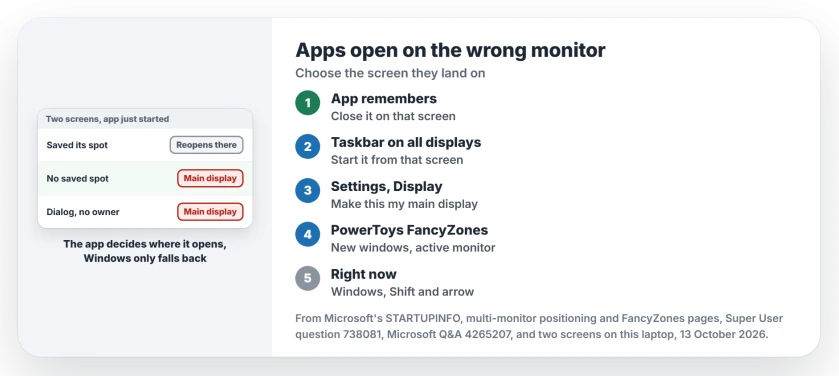
The third is how Windows places dialog boxes. Microsoft's multi-monitor page says that when a dialog "has no owner and the active window is not in the same application as the dialog box, the dialog box appears on the primary monitor".
Status: tested 13 October 2026 on a two-screen laptop, next to Microsoft's window placement and FancyZones pages and what owners posted once it was fixed.
Ours: we opened Character Map and System Information, moved each to the second screen and closed them normally. Both came back on the main screen, at the same spot as before.
Neither keeps a position, so closing them elsewhere changes nothing for them.
1. Close it on the screen you want
For an app that does remember, this is the whole fix, and I would start with it before installing anything. Drag it to the right screen, then close it there with its own X. Next time you start it, it should open in that same place.
Reported by owners. Back in 2014, a Super User answer said closing the app on the wanted screen works for many apps. It warned that some apps load their own way regardless.
Our test with two built-in tools shows that warning in action. If an app ignores where you closed it, skip to step 2 or 4.
2. Open it from that screen's taskbar
This needs a taskbar on every screen. Open Settings, Personalization, Taskbar, then Taskbar behaviors. Tick the box that shows the taskbar on all displays.
Under When using multiple displays, show my taskbar apps on, pick Taskbar where window is open. Each screen's taskbar then holds only the apps that are open on that screen.
Now start the app from the taskbar on the screen you want, and apps that read Microsoft's monitor hint open there. Ours: both labels sit in this laptop's Settings files.
3. Make that screen the main display
Apps with no memory, and dialog boxes with no owner, go to your main display. Work on one screen all day? Make it the main one.
Open Settings, System, Display, click your screen's box and choose Make this my main display. Our two monitors guide explains what else follows the main display, such as the taskbar clock.
Reported working by an owner. A Windows 11 owner whose Mail and Settings kept opening on a switched-off second screen fixed it this way. They "set the second monitor as primary and then set the main monitor as primary again and that seems to have worked".
A commenter on Super User saw a limit. The main display tells Windows where the Start menu lives, and it does not move an app that saved a spot on the other screen.
4. Let FancyZones put new windows on your active screen
Some apps ignore all of this. Microsoft's free PowerToys handles them. Its FancyZones page lists Move newly created windows to the current active monitor.
Microsoft says that when the setting is on and an app "doesn't have a last known zone, it moves the application on the current active monitor". The active screen is the one you are working on. I would turn on only that one setting at first.
Reported working by an owner. In 2020, one owner fixed it with FancyZones, using the setting that sends new windows to their last zone. That one suits apps you always want in the same corner.
Need the same set of apps in the same places every morning? PowerToys Workspaces "helps you launch applications to custom positions and configurations with a single click".
Quick moves while you sort it out
Press the Windows key, Shift and the arrow that points at the other screen, and the window you are in moves across. Microsoft's FancyZones page calls it the way "to quickly move a window to an adjacent monitor".
Owner-reported. The top Super User answer, with 55 votes, said that with that shortcut "you instantly jump it to another screen". It is a workaround, not a fix. A commenter there said as much.
Jumping after sleep is a different fault. Our page on windows that shift screens after sleep covers it.
The Short Version
- Apps that remember their spot: close them on the screen you want.
- Show the taskbar on every screen and start apps from the screen you want.
- Apps with no memory, and ownerless dialogs, go to the main display.
- PowerToys FancyZones can move new windows to the screen you are using.
- The Windows key, Shift and an arrow move a window across at once.
Where to Next
Which app still refuses to stay put? Write its name in the comments. I can check whether it keeps a position at all.

Isaac Smith is the founder and editor of PC Glance, a website that covers computers, laptops, and technology. He is a tech enthusiast and a computer geek who loves to share his insights and help his readers make smart choices when buying tech gadgets or laptops. He is always curious and updated about the latest tech trends.