
Your C: drive is nearly full, and a disk tool points at C:\Windows\Installer. It holds tens of gigabytes, sometimes hundreds. Disk Cleanup finds a few megabytes and stops.
I would not delete anything in it yet. First find out which programs the files belong to, because that decides what is safe to move.
The Super User question about freeing that folder has 1,081,969 views since 2014. A Microsoft Q&A version shows Same question (90+), and in January 2026 one owner reported 876 GB.
What the folder holds, and why cleanup skips it
Every program you installed as an .msi package leaves a copy of it here, plus each update as an .msp file. Windows uses them to repair, update and remove that program later.
Microsoft says in its page on missing Installer cache files that without them, "cumulative updates, service pack installations, repair operations, and uninstalls can fail". It adds that "Manual changes in this directory can cause problems".
Disk Cleanup leaves your Installer folder alone. One owner with a 30 GB folder ran it with every box ticked, and "It only found 73 MB to free up".
Status: measured 13 October 2026 on this laptop with a read-only script, then compared with Microsoft's Installer cache pages and owner results on Super User and Q&A.
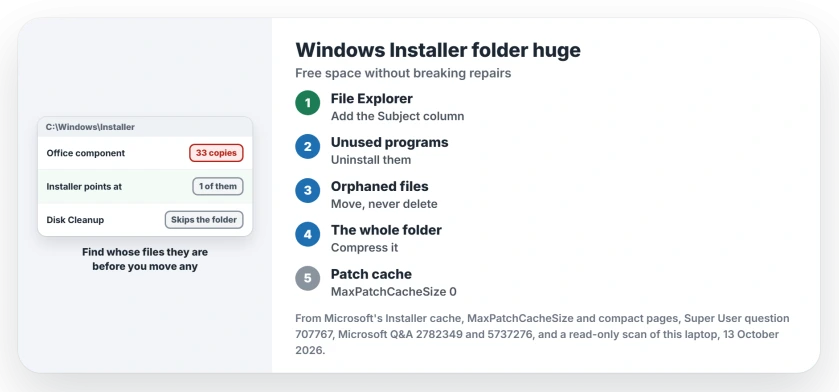
Ours: this laptop's folder holds 1,565 MB, in 144 .msi files. Windows Installer still points at 82 of them, while 62 files, 487 MB, belong to nothing installed for this account.
First, see whose files they are
The files have random names, but each one tells you the product it came from. One owner spotted the product this way: "I just RM clicked on the .msi files and looked at its Properties->Details".
To see it for a whole folder, type C:\Windows\Installer into File Explorer's address bar. It is hidden, but it opens. Switch to Details view, right-click a column title, choose More and tick Subject.
Ours: in this laptop's Explorer, that column named every file, from Office components to an ASUS Update Helper. Sort by Subject, then by size. Two patterns tend to show up.
- Many copies of one product. On this laptop, Office's Click-to-Run Extensibility Component sat there 33 times and Windows Installer pointed at one. Its Licensing Component sat there 14 times, and at none.
- One product growing every day. Sort by Date modified. If the newest files share one Subject and new ones keep arriving, that program is still adding files. Deal with it first.
1. Uninstall what you no longer use
Removing a program you no longer use through Settings, Apps, Installed apps is the clean way out. Windows Installer removes it properly, cached package included.
The 876 GB owner found most of theirs were Adobe Acrobat patches, since "Clicking on the .msp files in the Installer folder opens up an Acrobat Patch installer".
A volunteer there suggested uninstalling Acrobat, restarting and checking again before reinstalling.
2. Move unreferenced files, do not delete them
A file that no installed product points at is called orphaned. The free tool PatchCleaner lists them, and it tops that Super User question, with 280 votes.
From the tool's own author. "I recommend you use the Move action, and move the orphaned patches to external storage, just to be safe". I agree. Microsoft's ProductInfo page says the LocalPackage value does not always give the cached package's path, so a list can be wrong.
PatchCleaner also keeps Adobe files out through a filter. One owner wrote "It only gets 3 files, or 59.91 MB", while Adobe held over 14 GB. The author lists the reason: "Adobe Reader can fail to update after running PatchCleaner".
Keep the moved files for a few months. If an update or uninstall then asks for a missing file, copy it back.
3. Compress the folder
Reported by owners. An answer with 104 votes compressed the folder through its Properties, Advanced, and wrote "You will regain between 10 and 20% of the space". Nothing is removed, so repairs still work.
From a Command Prompt run as administrator, the same job is one line:
compact /c /s:C:\Windows\Installer /i /qMicrosoft's compact page explains that folders "are marked so any files added afterwards are compressed". New updates arrive smaller too.
4. Stop the patch cache growing
Inside the folder sits a hidden $PatchCache$ folder with old copies of files that updates replaced. Microsoft's MaxPatchCacheSize page caps it at 10 percent of the disk unless told otherwise.
"If the value of the MaxPatchCacheSize policy is set to 0, no additional files are saved", the page goes on. You can set it from an admin Command Prompt.
reg add "HKLM\Software\Policies\Microsoft\Windows\Installer" /v MaxPatchCacheSize /t REG_DWORD /d 0 /fMicrosoft notes "The policy does not affect files that have already been saved". Its own blog on that cache warns that removing it means future repairs "may require your original installation media".
On this laptop it is 15 MB, so I left it.
What I would skip
Moving the whole folder to another drive with a junction. One owner freed about 18 GB that way on Windows 10, but another warned that on XP "msiexec broke it and recreated the folder anew".
Old cleanup tools made for 32-bit Windows. A commenter there warned that WICleanup on 64-bit Windows treats "all 64bit MSI files" as removable.
Deleting files by date. Old does not mean unused, since a program installed in 2016 still needs its 2016 package.
For other space on C:, our guide to freeing up disk space goes from a few gigabytes to a lot. If an install now complains about another one running, this page on Another installation is in progress helps.
The Short Version
- The folder holds each program's installer and updates; Windows needs them to repair and remove.
- Add the Subject column in File Explorer to see which product owns the space.
- Uninstall programs you do not use, and fix one that keeps reinstalling an update.
- Move orphaned files to another drive with PatchCleaner, never delete them outright.
- Compress the folder and set MaxPatchCacheSize to 0.
Where to Next
Which product filled your folder? Post the name and the size under this article. In the threads I read, Acrobat and Office came up most.

Isaac Smith is the founder and editor of PC Glance, a website that covers computers, laptops, and technology. He is a tech enthusiast and a computer geek who loves to share his insights and help his readers make smart choices when buying tech gadgets or laptops. He is always curious and updated about the latest tech trends.