

You break the link to an old workbook, and the list goes empty. Then you save, reopen the file, and Excel asks to update links again. The same source is back.
I tested it with a throwaway pair of workbooks, in an Excel window kept out of sight. Break Links fixed the formulas and the chart, but it left a named range alone, and the link came back on reopening.
On Super User, the question about links that Break Links cannot break has 229,735 views since 2014. Microsoft Q&A has several short ones, such as "Link will not break" and "can't break link".
Why Break Links leaves one behind
Break Links rewrites formulas, and in our test chart series too. Microsoft's page on managing workbook links says "all formulas that use the source are converted to their current value".
Links also live outside formulas, and Microsoft admits "There is no automatic way to find all workbook links in a workbook". You have to look in each place yourself.
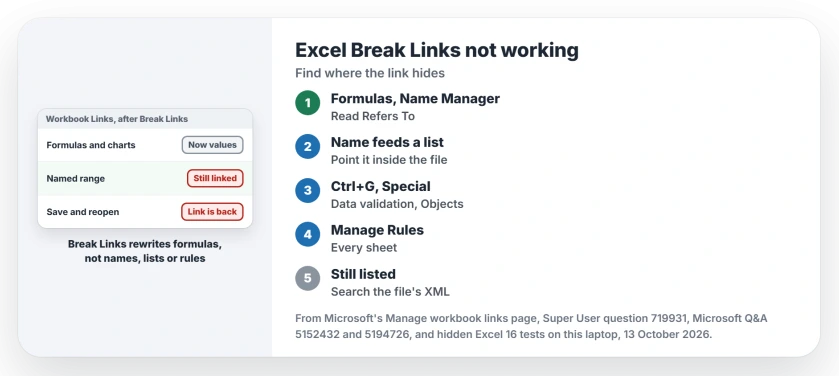
Status: reproduced 13 October 2026 with two throwaway workbooks, then matched against Microsoft's workbook links page and what owners found.
Ours: we copied a sheet that used a list on another sheet into a new workbook. Its formula, a named range and a chart all pointed back at the old file. After Break Links, the formula held its value and the chart held fixed numbers.
The name still pointed at the old file. Excel listed no links until we saved and reopened, and then the old source was back. That is the trap.
1. Look in Name Manager first
Start here. Go to Formulas, Name Manager, and read the Refers To column for every name in the list. Microsoft says a workbook link holds "a reference to another workbook", with the file's name in square brackets.
Reported working by owners. One answer, posted in 2014, pointed out that "Excel is only breaking links inside formulas". An owner replied "That was exactly my issue".
On Microsoft Q&A, an owner sent in a file that would not let go. The reply that fixed it: "You can delete those Names in the Name Manager and you will have no problem breaking links".
Before you delete a name, check what uses it. In our test, a drop-down list on the sheet read its choices from that name. Deleting the name cleared the link, but it also left the list pointing at nothing.
Ours: pointing the name at a range inside the same file instead kept the list working, so I would repoint rather than delete. After a save and a reopen, Excel listed no links at all this time.
2. Check data validation lists
Drop-down lists can read from another file. They often do it through a name. Reported by an owner. Another owner traced theirs to Data Validation and checked each cell under Data, Data Validation, Source.
To find them, open Go To with Ctrl+G, then Special, then Data validation, and click OK. Excel selects every cell with a list or rule, and you can check each Source.
3. Check conditional formatting rules
Reported by an owner. One owner checked objects, formulas, names and charts and found nothing at first. The link sat in a conditional formatting rule, and Break Links only worked once it was gone.
Open Home, Conditional Formatting, Manage Rules, and set Show formatting rules for to This Worksheet. Repeat on each sheet.
Ours: a rule using another sheet was dropped when we copied the sheet into a new file, so we could not test this place.
4. Check charts, shapes and buttons
Charts hide links too. Microsoft lists chart titles and data series, plus "objects (like text boxes or shapes)". For objects, use Ctrl+G again, pick Special and then Objects, then press Tab to step through each one and read the formula bar.
Buttons count too. One can run a macro saved in the other workbook, a place one owner's checklist names. One Super User summary adds that you should save, close and reopen afterwards, since the list may hold the old entry until you do.
Still listed? Look inside the file
Reported working by an owner. The owner who posted it calls this "very reliable". Work on a copy. Change the .xlsx ending to .zip, open it and search the files inside for the old workbook's name.
Ours: in our test file, the old name sat only in xl/externalLinks/_rels/externalLink1.xml.rels, while the named range in workbook.xml read [1]Data!$A$1:$A$3. So search for the file name, then for that number in brackets.
Microsoft also warns that breaking a link to a source "cannot be undone". As with removing duplicates in Excel, keep a copy of the workbook first.
If formulas start returning errors such as #N/A afterwards, our VLOOKUP guide sorts them by error.
The Short Version
- Break Links rewrites formulas and charts; names, lists, rules and objects keep their links.
- Name Manager: point stray names at this file, or delete them if nothing uses them.
- Ctrl+G, Special finds data validation cells and objects.
- Check Manage Rules on every sheet for conditional formatting.
- Save, close and reopen to see whether the link is really gone.
Where to Next
Which place held your hidden link? I would like to know in the comments. Each new place goes into this list.

Isaac Smith is the founder and editor of PC Glance, a website that covers computers, laptops, and technology. He is a tech enthusiast and a computer geek who loves to share his insights and help his readers make smart choices when buying tech gadgets or laptops. He is always curious and updated about the latest tech trends.