
Every time you sign in, a box titled RunDLL says there was a problem starting LogiLDA.dll, and the module could not be found. The file is gone, yet a startup entry still asks for it. I would remove that entry rather than hunt for the file.
That Super User question from October 2013 sits at 233,311 views. One 2021 copy on Microsoft Q&A shows Same question (80+). New ones keep coming: one after a 25H2 update in December 2025, one from a Windows 11 owner in August 2026.
What the box is telling you
LogiLDA.dll belongs to the Logitech Download Assistant, a small helper that looked for Logitech updates whenever you signed in. A volunteer moderator posted the startup line that runs it:
Logitech Download Assistant - rundll32.exe C:\Windows\System32\LogiLDA.dll, LogiFetchSo the box comes from Windows' own rundll32, not from Logitech. Ours: on this laptop, rundll32.exe.mui holds the There was a problem starting line, with a blank for the file name.
A Missing entry line sits next to it. Neither says anything about your mouse or keyboard.
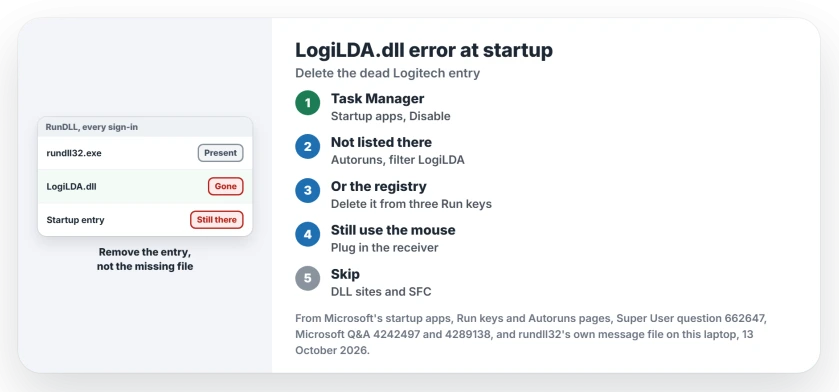
Status: the box is RunDLL failing to load an old Logitech helper (checked 13 October 2026). Switching off or deleting its startup entry ends it, and owners confirm both.
Why the file vanished is less clear. One commenter blamed an upgrade: "Presumably the update wiped out the directory holding the dll." Another pointed at old hardware.
Microsoft says that for a broken startup entry, "a window lists the registry location or the file path that contains the broken path". That check rarely fires here, in our reading.
The command starts rundll32.exe, which your PC has. The missing DLL is just text after it.
1. Switch it off in Task Manager
Press Ctrl+Shift+Esc to open Task Manager, then pick Startup apps on the left. On Windows 10 it is just Startup. Find Logitech Download Assistant or LogiLDA, select it and choose Disable. Then restart the PC and sign in again.
Reported working by owners. The most upvoted Super User answer gives these steps and ends "After a restart, the problem is gone". A reader called it "MUCH better than changing the Registry". Others confirmed it after the Windows 8.1 upgrade.
If your startup feels slow as well, our guide to a slow Windows startup covers the rest of that list.
2. Not in the list? Search with Autoruns
Sometimes Task Manager shows nothing at all. One owner wrote "Tried to disable Logitech Download Assistant - It wasn't installed", and the registry key was missing too.
That owner gave up and wrote "I decided to just format". Your PC needs far less than a fresh install of Windows.
Autoruns is Microsoft's free Sysinternals tool. It shows you far more startup places than Task Manager does.
Run it as administrator, open the Everything tab and type LogiLDA in the filter box, then right-click each entry it finds and choose Delete. Delete only the LogiLDA rows.
Reported working by an owner. A Windows 11 owner saw the box after a January 2023 update. They used exactly this route and replied "That was perfect - problem solved!" Autoruns also lists scheduled tasks, which the Run keys never show.
3. Or delete the entry from the Run key
Microsoft documents that "The Run key makes the program run every time the user logs on". Its startup apps page names three places for these entries. Two sit under HKLM, one of them in Wow6432Node, and one under HKCU.
Start an elevated Command Prompt, then paste in your three lines. A line that finds no value is harmless.
reg delete "HKLM\Software\Microsoft\Windows\CurrentVersion\Run" /v "Logitech Download Assistant" /f
reg delete "HKLM\Software\Wow6432Node\Microsoft\Windows\CurrentVersion\Run" /v "Logitech Download Assistant" /f
reg delete "HKCU\Software\Microsoft\Windows\CurrentVersion\Run" /v "Logitech Download Assistant" /f
Reported working by an owner. The accepted Super User answer deleted the same value with reg delete. Its author found that "nothing seems to be messed up with the file missing".
Do you still use a Logitech mouse?
Then let your device put its files back. Reported by an owner. One wrote "Plugged in the USB dongle for the mouse and the hardware installation set ran", and the box was gone after a reboot.
Another owner needed it twice and wrote that "The solution still works" after a Windows 10 update. For buttons and settings, install Logitech's current app for your model rather than chasing the old helper.
Skip the DLL download sites
Copying the DLL back did not help. The 2020 owner placed a fresh LogiLDA.dll in System32 from another laptop. In their words, it "Made no difference".
A 2021 owner ran the System File Checker, and "the error recurs on startup". SFC repairs Windows' own files, as our SFC guide explains. This file never belonged to Windows.
One reply on Microsoft Q&A put it plainly: "You do not need to worry about having deleted a critical Windows file".
The Short Version
- The box is Windows' rundll32 failing to load a leftover Logitech helper.
- Task Manager, Startup apps: disable Logitech Download Assistant, then restart.
- Not listed? Autoruns as administrator, filter on LogiLDA, delete what it finds.
- Or delete the Logitech Download Assistant value from the three Run keys.
- Skip DLL download sites and SFC; neither touches the startup entry.
Where to Next
Where did the entry sit on your PC: Task Manager, Autoruns or the registry? I read every comment, and I will note which place turns up most.

Isaac Smith is the founder and editor of PC Glance, a website that covers computers, laptops, and technology. He is a tech enthusiast and a computer geek who loves to share his insights and help his readers make smart choices when buying tech gadgets or laptops. He is always curious and updated about the latest tech trends.