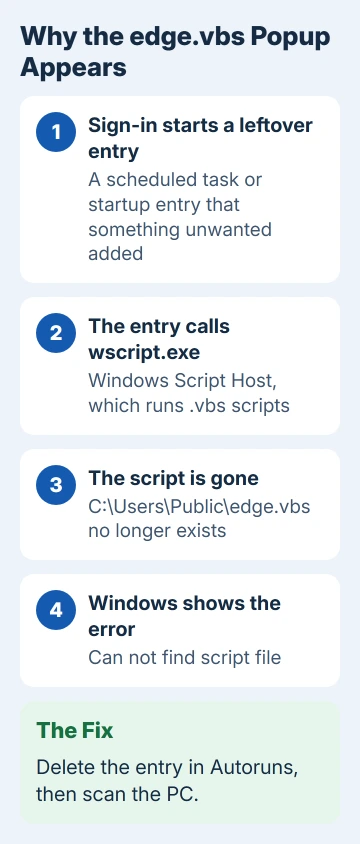
That Windows Script Host box means something set to run at sign-in still points at C:\Users\Public\edge.vbs, a script that's no longer on the PC. The script is gone, but the entry that launches it stayed behind.
Delete that leftover entry and the popup stops for good. Microsoft's free Autoruns tool finds it fastest, but the entry often hides in Scheduled Tasks, where a search for edge.vbs can come up empty.
In this guide
What the popup is telling you
Windows Script Host (wscript.exe) is what Windows uses to run .vbs scripts. At sign-in, something asked it to run edge.vbs, it found nothing at that path, and it showed you this:
Windows Script Host
Can not find script file "C:\Users\Public\edge.vbs".
Despite the name, edge.vbs isn't part of Microsoft Edge, and Windows doesn't keep its own scripts in the Public folder. Every account on the PC can write there, so I'd treat the script as a leftover from something unwanted.
If your employer set up the PC, ask the IT team before you delete anything, because a logon script with that name could be theirs.
One owner got the same popup for C:\Users\Public\KK.vbs. A volunteer moderator called the seven scheduled tasks behind it malware related, and deleting them stopped the popup.
If it's Microsoft Edge itself that opens when you sign in, that's a different startup problem, and Edge opening by itself has its own three switches.
1. Find the entry with Autoruns
Autoruns, a free Sysinternals tool from Microsoft, shows every program and script Windows launches by itself, scheduled tasks included. It doesn't need installing: download it from Microsoft's Autoruns page and unzip it.
Open Autoruns64.exe with Run as administrator from its right-click menu, because a normal run can miss entries. When the scan finishes, type vbs into the Filter field, and the list narrows as you type.
Each row shows the entry's name, its description, the publisher and the file it starts. If one mentions edge.vbs, right-click it, choose Delete and restart the PC. If the popup stays away at the next sign-in, that was the one.
If the filter shows nothing, the entry is hiding under another name. That happened to both the edge.vbs and KK.vbs askers, so move on to the Scheduled Tasks check rather than giving up on Autoruns.
2. Read the Scheduled Tasks tab yourself
Searching for vbs isn't enough on its own. In the KK.vbs case the search came up empty even with administrator rights, and the popup only stopped once seven tasks named ServiceMonitor were deleted.
Clear the filter, open the Scheduled Tasks tab and read down the list. Look for tasks with no publisher or description, names that try to pass as Windows or Edge, and rows Autoruns marks as File not found.
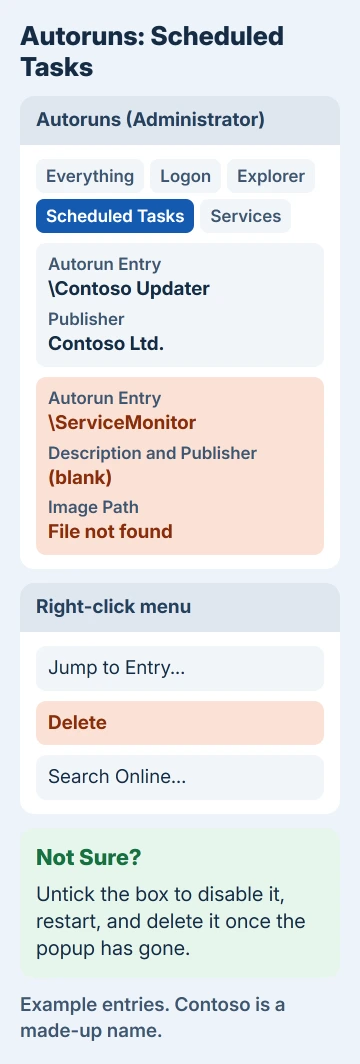
When a task looks wrong but you aren't sure, untick its box instead of deleting it. Autoruns treats an unticked entry as disabled, so you can tick it again if something you need stops working.
Restart and check that the popup is gone. If it is, come back and delete the entries you unticked.
Give the Logon tab the same read. It covers the Startup folder and the registry's Run keys (lists of programs Windows starts when you sign in), and either one can launch a script just as easily as a task can.
3. Or delete the task in Task Scheduler
Prefer not to download anything? Search for Task Scheduler in Start, open Task Scheduler Library and click through the tasks you don't recognize, including the ones in subfolders.
On each task's Actions tab, the culprit starts wscript.exe with the edge.vbs path after it. Right-click that task and choose Delete. It's slower than Autoruns, since you have to open every task one at a time, but it's the same fix.
4. Scan the PC once the popup stops
The script came from somewhere, and deleting its task doesn't remove whatever put it there. Two scans in Windows Security take care of that side.
Open Windows Security > Virus & threat protection > Scan options and run Full scan first. Then come back, choose Microsoft Defender Antivirus (offline scan) and select Scan now. Save your work before you click it.
The PC restarts, scans from the Windows Recovery Environment (the repair system built into Windows) and boots back by itself. Because Windows isn't running during that scan, stubborn malware has fewer places to hide.
When you're back at the desktop, Protection history in Windows Security lists anything it found.
When the popup comes back
If the popup returns after you've deleted the entry, something else on the PC keeps putting it back. At that point, having a volunteer read your logs beats deleting entries at random.
The owner with this exact edge.vbs popup ended up there. Autoruns found nothing even as administrator, so a volunteer moderator had them run the Farbar Recovery Scan Tool (FRST) and wrote a fix script from its logs.
The asker accepted that answer. To get the same kind of help, post your own question in Microsoft Q&A under Windows security, or ask on a forum that specializes in malware removal, and say you can share FRST logs.
Don't run a fix list written for someone else's PC, though. Each one is built from a single machine's logs.
Deleted DLL files cause the same kind of popup. A LogiLDA.dll error at startup is a deleted file with an entry that still calls it, just like this one.
If you can no longer trust the PC, copy your files somewhere safe and start over with Reset this PC. Look for it under Settings > System > Recovery on Windows 11, or Settings > Update & Security > Recovery on Windows 10.
The Short Version
The edge.vbs popup is a startup entry calling a script that's gone. Run Autoruns as administrator, filter for vbs and delete whatever points at edge.vbs.
If nothing shows, read Scheduled Tasks for unknown entries like the ServiceMonitor tasks behind the KK.vbs popup. Finish with Defender's offline scan, and if the popup returns, get a volunteer to read your FRST logs.
Checked November 20, 2026.
 If you have any business, I can build it online