

The client32.ini (80) message means NetSupport Client can't read its configuration file. If that program is unexpected on a personal PC, scan for unwanted software, then check the startup entry that keeps launching it.
An owner fixed this by removing the specific startup entries and leftover executable identified in their logs. Don't download a replacement INI file: the question is why this remote-access program is running on your computer.
In this guide
1. Decide whether NetSupport belongs on this PC
Read the complete error, including its path. The reported case named C:\ProgramData\Client32.ini (80). A similar message can point to another folder, so keep a note of your own path rather than assuming it matches.
Ask whether an employer, school or support provider installed NetSupport. It's remote-access software, which lets another computer connect for support or management. Its presence on a managed PC can be intentional.
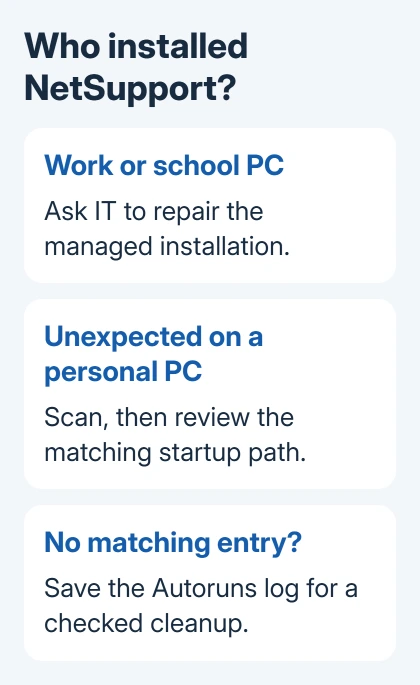
On an employer-managed or school-managed computer, send IT the full error and ask them to repair or remove the NetSupport Client installation. Removing its startup entries yourself could interfere with the support system they use.
For a personal machine where the program is unexpected, continue with the security scan. A familiar company name or a verified signature doesn't tell you who installed the program or whether it belongs there.
Also note when the box opens: at Windows sign-in, when opening a browser, or both. That helps the person assisting you decide where else to look if more than one entry starts the program.
2. Scan before trying to silence the message
Open Start > Windows Security > Virus & threat protection. If another antivirus manages protection, use that app's scan controls. Update its protection information. In Windows Security, use Scan options > Full scan > Scan now.
Check the scan results. For each detected threat, take the action recommended by your security app. Restart if asked. Save the detection names and paths so you can tell which files were removed and which program continues to launch.
The owner in the client32.ini discussion reported that a Malwarebytes scan quarantined suspicious files, but the popup kept returning. The remaining automatic-launch entries needed separate attention.
That distinction matters: scanning the PC and removing a broken startup entry do different jobs. A scan can remove part of an unwanted installation while something still tries to start the leftover program.
Keep detected files quarantined rather than restoring them to silence this message. Leave them in quarantine and use the startup check to see what's still being launched.
For a Windows 11 PC whose security app won't open, the Virus & threat protection access guide covers that problem first. Run a working scan before cleanup.
3. Find the matching launch entry with Autoruns
Download Autoruns for Windows from the Microsoft Sysinternals page. It's a tool that lists programs configured to start automatically, including entries outside Task Manager's Startup apps list.

Extract the ZIP before using the program. On a typical 64-bit Intel or AMD Windows PC, right-click Autoruns64.exe and select Run as administrator. Accept the license prompt and wait for its scan to finish.
On an ARM64 PC, use Autoruns64a.exe if supplied in the download. The shorter Autoruns.exe is the 32-bit version. Use the graphical app for these steps, rather than the separate Autorunsc command-line tool.
Choose File > Save to keep the current results before making changes. That record helps if a support technician needs to review the original entries rather than only the state after cleanup.
Enter client32 in the Quick Filter box. Read each matching entry's image path (the program's file location) and description. Look for the executable connected to the message, not simply anything containing the word Client.
The original fix used kava in Quick Filter to match that owner's log. Another participant found no match and had a different startup name and folder. Finding no kava entry doesn't mean the unwanted program is gone.
If client32 returns nothing, save the results and ask a qualified technician or malware-removal specialist to review them. Keep the error path with the log. Avoid deleting unrelated entries while guessing which one starts the popup.
4. Disable only the unwanted entry and restart
Once you've confirmed that an entry launches the unexpected NetSupport executable, clear its checkbox in Autoruns. This disables that launch entry. Restart Windows, sign in and watch for the original error box.
You can turn the entry back on if needed. If the popup stops, you've stopped that automatic launch. It doesn't mean every file from the unwanted installation has been removed, so finish the security cleanup afterward.
If the error returns, compare its path with the entry you disabled. There can be another launch location. Reopen Autoruns, let it finish scanning and look again, or give the saved results to the person helping with removal.
I'd disable a confirmed entry before deleting it. Autoruns supports both actions, but keeping the entry visible makes it easier to check exactly what changed if a legitimate application turns out to depend on it.
For other programs loading at sign-in, the Windows startup checks cover ordinary startup apps. The client32 cleanup applies specifically to the executable and configuration named here.
5. Remove the remaining program with help if needed
Once you know which program is launching, have your security tool or a technician remove the unwanted program file and its related files. On a managed device, let IT handle the installation through its normal management tools.
The thread's final deletion command targeted C:\ProgramData\client32.exe, after log review. Another person's copy was in an AppData subfolder. Copying the first person's command wouldn't remove the second person's installation.
The original owner confirmed success after the advised cleanup. The fix was to remove the unwanted startup entries that matched their logs, rather than create a blank client32.ini or change an unrelated Windows component.
When client32 keeps returning
Save a fresh Autoruns log, the security scan results and the full error path. Ask a trusted repair technician to check all automatic-launch locations and whether remote-access software was installed without permission.
If this followed an unsolicited support call or someone remotely controlling the PC, disconnect that session and tell the technician. That changes the job from repairing a missing configuration file to checking unauthorized access.
The Short Version
Confirm whether NetSupport belongs on the PC, scan for unwanted software, then disable the matching startup entry in Autoruns. Have your security tool or a technician remove the remaining files, using the paths from your PC.
Checked November 23, 2026.
 If you have any business, I can build it online






