

An IT administrator restriction on Virus & threat protection can mean an organization policy or a broken Windows Security installation. On a personal Windows 11 PC, try the official app update before changing registry settings.
On an employer-managed or school-managed device, have IT review the restriction first. Repairing the app won't remove policies the organization put in place.
In this guide
1. Check whether the restriction belongs to an organization
Open Settings > Accounts > Access work or school. Look for a connected organization, and consider who supplied or manages the PC. A work account and the Windows account you sign in with aren't always the same thing.
On a managed device, send IT the complete message and explain that Virus & threat protection won't open. Ask them to check Windows Security access policies and the security product assigned to the device.
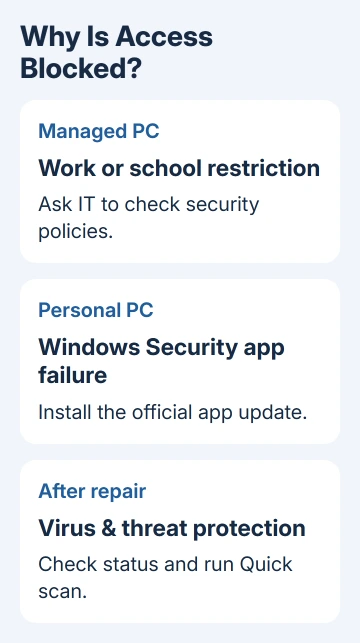
Don't disconnect your employer's account to force the page open. The organization can control security through management settings even when the Windows account has administrator rights.
On your own PC with no organization managing it, continue with the app update. An IT administrator message isn't enough on its own to conclude that someone else controls the computer.
The original asker saw this restriction on their own computer. They had already tried another administrator account and a factory reset without clearing it. That makes another account change a poor first move for the same symptoms.
2. Update Windows Security through Windows Update
Open Settings > Windows Update, select Check for updates, and allow offered updates to install. Restart if requested, then open Start, search for Windows Security, and select Virus & threat protection.
Microsoft's Windows Security app update includes both the app and its underlying service. It is supplied through Windows Update as KB5007651, separately from the familiar monthly cumulative update.
This update is the repair to try when the security window or the components it needs are missing or damaged. Updating malware definitions alone doesn't replace the Windows Security app update.
If the page opens, look for Current threats and the scan controls. You're checking whether the page works again. If a protection warning remains, read what it says; opening the window doesn't resolve every security problem.
I'd use the official update before resetting the whole PC. It targets the component involved and avoids repeating a much larger recovery step that didn't help the original asker.
If Windows Update itself fails, keep its error code. Our Windows Update repair steps can help with an update that won't finish; the app can't receive its repair while that process is failing.
3. Use the official app installer when automatic updating fails
Open the Windows Security app update page linked in the previous section. Its Manually download the update area offers 64-Bit and ARM64 packages. Use your PC's processor type to choose between those downloads.
Check Settings > System > About > System type. A Windows 11 PC with an x64-based processor uses the 64-bit package. An ARM-based PC needs ARM64. Both kinds can run 64-bit Windows, so read the processor type too.
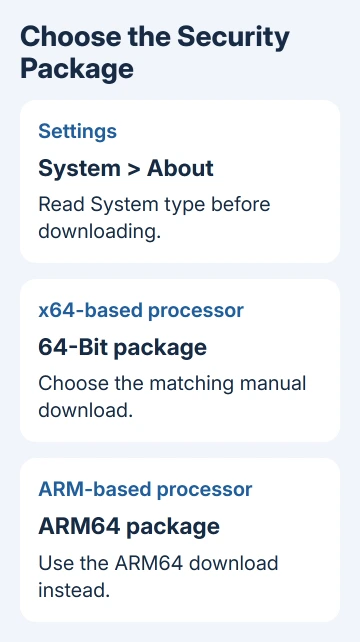
Download only through the official support page. Run the downloaded installer as an administrator, as the page instructs. Confirm that the administrator prompt belongs to that downloaded package before approving it.
After installation, restart the computer and reopen Windows Security. Try the affected page again. If the installer reports an error, write down its exact wording instead of trying packages for other processor types.
In the original forum thread, several owners reported success after installing a SecurityHealth setup package. Those results point to repairing this component. You can use the official installer rather than the forum's ZIP download.
If the page still reports an organization restriction, return to the management question with support. If it remains blank, disappears or crashes, continue to the Windows component repair.
4. Repair damaged Windows components
Back up your documents before beginning this repair. Open Settings > System > Recovery and locate the option named Fix problems using Windows Update. Select Reinstall now if it is available.
Read the confirmation, choose the restart option you want and select OK. Leave the charger attached and keep the internet connection active. Windows downloads and installs a repair copy; restart afterward to finish.
This Windows Update repair option puts the same Windows release back in place, keeping your applications, personal data and settings. It is different from Reset this PC.
Managed computers and older Windows 11 releases may lack this option. If it isn't there, consider your files and installed programs before choosing a factory reset instead.
After the repair, reopen the page. If the error remains, send support the exact message plus the installer result so they can distinguish a policy restriction from a component that still isn't installing.
5. Check protection after access returns
Open Virus & threat protection and read Current threats. Run Quick scan if it is offered, then review the result. If a threat is detected, follow the action shown for it. The app repair isn't a fix for every warning.
A third-party antivirus product can change which security controls Windows displays. Check the status in the product you installed as well. Keep your installed antivirus in place while checking why a Defender scan control is absent.
For the available scan choices after the page works, follow our Windows 11 virus scan instructions. That is the next task once you can access the controls.
When the restriction won't clear
On a personal PC, launch Get Help through Start. Describe the Windows Security access error. Provide your Windows version from winver, the complete IT administrator message, and any KB5007651 installer error.
Ask for help checking Windows Security installation and policy settings. On a managed PC, send that report to IT. Don't keep deleting policy keys without knowing which setting created the restriction.
The Short Version
Check device management first. Apply the Windows Security app update next. Use Windows repair if its components still fail. When access returns, check protection and run a scan.
Checked November 16, 2026.






