
You ran Windows Memory Diagnostic, your PC restarted into the blue test screen, and then Windows came back with nothing. No message after you signed in, and no obvious result anywhere.
I would open the System log and filter it by the tool's name. The verdict is written there once, and the entry you may have found elsewhere is an empty stub.
Super User has held this question since July 2010, and it has 143,011 views. On Microsoft Q&A, two copies have 60+ and 50+ same-question votes, and a fresh one arrived on 6 October 2026.
The verdict goes to one log
Microsoft documents the place in its guide to blue screen stop codes: "use Event Viewer to see the results under the system log". The entry to look for is MemoryDiagnostics-Results.
Ours: we read Windows' own event list for the tool on this laptop. It writes one of four outcomes to the System log, and only those carry a verdict.
- Event 1101 or 1201: "The Windows Memory Diagnostic tested the computer's memory and detected no errors".
- Event 1102 or 1202: detected hardware errors, logged as an Error, with advice to contact the computer manufacturer.
- Event 1103: "The Windows Memory Diagnostic was canceled during execution".
- Event 1104: "The Windows Memory Diagnostic could not complete its tests of the computer's memory".
A fifth event, 2001, goes to a separate debug log and says only Windows Memory Diagnostic results. That is the empty stub.
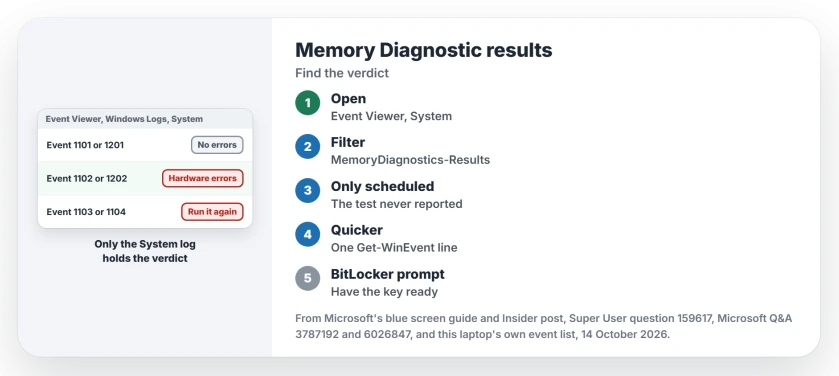
Status: Windows 11 25H2, build 26200, checked 14 October 2026. The tool still posts its verdict to the System log under MemoryDiagnostics-Results, events 1101 to 1104 and 1201 to 1202.
That stub explains the confusion on Super User. The accepted answer sent readers to Applications and Services Logs, and a later answerer found only a blank entry there.
Two commenters agreed the System log is the one that shows "whether a problem was found", so skip the other log.
1. Find it in Event Viewer
- Right-click Start, then select Event Viewer.
- Open Windows Logs, then System.
- Select Filter Current Log on the right.
- Under Event sources, tick MemoryDiagnostics-Results.
- Select OK, then open the newest entry.
Read the General tab and check that its date matches your test. The message names the result in plain words.
Give it time after you sign in. One owner on Windows 10 saw nothing at first, then a notification about 15 minutes later, and the entry appeared with it.
2. Or ask PowerShell for the newest result
A Microsoft Q&A adviser posted this in October 2026, and the owner who asked used it. It only reads the log. It does not run another test.
Get-WinEvent -FilterHashtable @{
 LogName = 'System'
 ProviderName = 'Microsoft-Windows-MemoryDiagnostics-Results'
} -MaxEvents 1 | Format-List TimeCreated, Id, Message
Ours: the command runs in an ordinary PowerShell window on this laptop. This PC has no memory test in its log, so it answered that no events matched. You will see the same answer when your test never reported.
Only a scheduled entry? The test never reported
Two owners found one line and nothing else: "The Windows Memory Diagnostic scheduled the testing of the computer's memory to run immediately".
That entry comes from a different source, MemoryDiagnostics-Schedule. It proves your test was booked and nothing more.
If you see event 1103 or 1104 instead, the test was stopped or could not finish. Run it again and let it reach 100 percent.
A missing result is not a pass. In one 2023 thread with 30+ same-question votes, the accepted reply said "there may have been a problem with that test".
The next reply thanked the adviser and said the RAM had then failed several tests in MemTest86, a free memory tester.
If crashes are why you are testing, read what a MEMORY_MANAGEMENT stop code points at before you buy new RAM.
Did BitLocker ask for your recovery key?
One owner's results only appeared after an odd extra step. Their test ran for about 1.5 hours, and at 100 percent the screen asked for a recovery PIN. They wrote: "Without putting in the bitlocker recovery pin, no results to read were created".
An adviser on the thread pointed out that a 48-digit prompt is BitLocker's recovery key, not your usual power-on password.
The same adviser said to make sure the key is "backed up and accessible from another device before any future testing". The owner reported the bug through Feedback Hub.
I would find that key before you start a long test. Ours covers where the 48-digit key is usually stored.
Did Windows offer the test after a crash?
Windows 11 test builds began suggesting the test themselves in October 2025. Microsoft's Insider post says that after an unexpected restart, "you may see a notification when signing in suggesting a quick memory scan". Microsoft puts that scan at 5 minutes or less on average.
The same post says: "If a memory issue is found and mitigated, you will see a notification post-reboot". So no notification after that quick scan means it found nothing to fix. Check the System log anyway.
Ours: the Learn more link inside the tool on this laptop leads to that very post. A hidden task here, described as one that "Schedules a memory diagnostic in response to system events", waits for crash reports and will not run on battery.
The Short Version
- The result goes to Event Viewer, Windows Logs, System, source MemoryDiagnostics-Results.
- Event 1101 or 1201 means no errors; 1102 or 1202 means hardware errors.
- 1103 means canceled, 1104 means it could not finish. Run the test again.
- Only a scheduled entry means the test never reported. That is not a pass.
- Keep your BitLocker recovery key at hand before a long test.
Where to Next
Event 1104 is the one I would like to hear about. If your test stopped short, write how far the blue screen got, and on which PC, in the comments.

Isaac Smith is the founder and editor of PC Glance, a website that covers computers, laptops, and technology. He is a tech enthusiast and a computer geek who loves to share his insights and help his readers make smart choices when buying tech gadgets or laptops. He is always curious and updated about the latest tech trends.