
Your Word document starts with a table, and you want a heading or a line of text in front of it. There is nowhere to click. Ctrl+Home lands in the first cell, and anything you type goes inside the table.
I would use Split Table on the first row. It works wherever the table sits, and a keyboard shortcut does the same job.
JohnFx raised it on Super User in August 2010, and that page now shows 271,380 views. A 2015 copy on Microsoft Q&A collected 90+ same-question clicks, so plenty of Word users hit this wall.
Why Word gives you nowhere to click
When you insert a table on the very first line, the table becomes the first thing in the file. No empty line sits before it. So your cursor has nowhere to go.
Ours: in a hidden Word session, build 16.0.20430, we added a table to a new document and read its layout. The table started at character 0. The document's first paragraph was the table's first cell, so there was nothing in front of it.
The same trap appears further into a file. A table right after a page break or a section break leaves you no line on that page to type on.
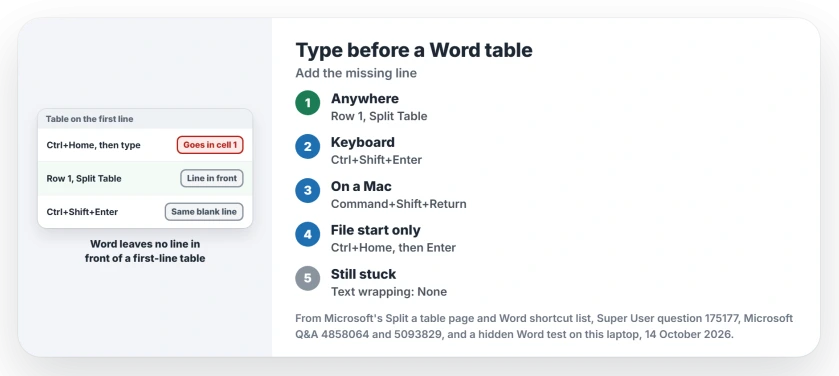
Status: Word build 16.0.20430, tested 14 October 2026. Split Table and the column break behind Ctrl+Shift+Enter both added the line in our test.
1. Split the table at its first row
Microsoft documents the command in its steps for splitting a table, which begin: "Put your cursor on the row that you want as the first row of your second table".
Pick the first row, and there is no first table to make. Word adds a blank line in front instead.
- Click anywhere in the first row of the table.
- Open the Table Layout tab. It only shows while your cursor is in a table.
- In the Merge group, select Split Table.
Microsoft's steps for Split Table are written for Word for Windows, and the Mac menus may differ.
Its reference for the same command covers every other row: "If the selection isn't in the first row of the table, the table is split into two tables".
Ours: we ran Split Table with the cursor in row 1. The table moved to character 1, and a normal paragraph sat in front of it. The first cell kept its text. It was still one table.
Microsoft MVP Stefan Blom gave the same answer on Microsoft Q&A in February 2021. That reply starts with "Click in any cell in the first table row" and ends with your cursor on the new line.
2. Two keyboard routes
Ctrl+Shift+Enter does it without the ribbon. Put your cursor at the start of the first cell and press it.
That shortcut sits in the top Super User answer. One reader wrote later that it worked after 20 years or more of thinking there was no fix.
Ours: Word's own key table on this laptop binds Ctrl+Shift+Enter to a command called InsertColumnBreak. Microsoft's shortcut list calls it "Insert a column break".
With your cursor in row 1, that command added the same blank line as Split Table. It left the cell alone. On a Mac, Microsoft lists Command+Shift+Return for the same column break.
The second route only works when the table is the first thing in the file. Press Ctrl+Home, then Enter.
Microsoft MVP Suzanne S Barnhill gave the limit in an accepted reply: "This can be done only at the beginning of a document; anywhere else, pressing Enter in a table cell will just insert a new paragraph in the cell".
JohnFx first thought it failed, then came back to say "it just doesn't look like it". Your cursor seems to stay in the cell. The new line still lands in front of the table.
Ours: a script cannot press keys in a hidden Word. Its nearest command added a second line inside the first cell, which is what Enter does everywhere else.
When the table starts a new page
Here Enter will not help you, because the table is not the first thing in the file. Use Split Table or Ctrl+Shift+Enter in the first row instead.
Ours: we placed a table straight after a next page section break, on page 2. Split Table put the blank line on page 2, inside the table's own section. Your text stays with your table.
Has the first row got Page break before switched on? Or does a manual page break sit there? Suzanne Barnhill suggests removing the break, adding your text, then putting the break back in front of it.
A table can also leave an empty page after it, the mirror problem. We covered that in the blank last page Word refuses to remove.
Repeating a form on another page? Our Word page-copying steps explain selecting the content and preserving its text formatting.
Still no line? Check how the table is placed
Text wrapping. Your table may have text wrapping turned on, which makes it float instead of sitting in the text. Suzanne Barnhill's fix is to set Text wrapping to None on the Table tab of Table Properties.
One owner on Microsoft Q&A got only "a gap in the table itself" from the advice. They thought the table had been pasted from another source, and the thread stopped there. I would check its wrapping first.
A full-page table. Jay Freedman, a longtime Word helper on the same forum, pointed out that a table filling the page cannot share it with a new line. Make your top and bottom margins smaller, or shrink the table's font.
Keep with next. Your rows may be set to Keep with next in the Paragraph settings. If the table only just fits on one page, a new line in front pushes the whole table onto the next one, as Stefan Blom noted.
The last resort. Charles Kenyon, another regular there, inserts a new row at the top, selects it and converts it to text. You will find Convert to Text on the Table Layout tab.
Inside a table, Tab jumps between cells rather than indenting bullets, so list levels there need other keys.
Is the table headed for Excel next? Then see keeping each Word cell in one Excel cell.
The Short Version
- A table on the first line leaves Word no line in front of it to click on.
- Click in the first row, then Table Layout, Split Table. Word adds a blank line in front of the table.
- Or press Ctrl+Shift+Enter at the start of the first cell. On a Mac, Command+Shift+Return.
- Ctrl+Home, then Enter, works only when the table is the very first thing in the file.
- A floating or full-page table needs its wrapping set to None or more room on the page.
Where to Next
Pasted tables are the odd ones out. If yours came from a web page or a PDF and still refuses, tell me which site or program it came from, because I want to rebuild that case in my own copy of Word.

Isaac Smith is the founder and editor of PC Glance, a website that covers computers, laptops, and technology. He is a tech enthusiast and a computer geek who loves to share his insights and help his readers make smart choices when buying tech gadgets or laptops. He is always curious and updated about the latest tech trends.