
Your PC signs in by itself because its account has no password. Now Remote Desktop refuses that same account from another computer, with a message about an account restriction.
I would give the account a password. Windows blocks blank passwords over the network on purpose, and the policy behind it can be switched off, but only with care.
Super User has carried this exact question since February 2010, and it has reached 445,275 views.
The rule behind the account restriction
Windows ships with a policy named Accounts: Limit local account use of blank passwords to console logon only, switched on out of the box.
Microsoft documents that it covers "Remote Desktop Services, Telnet, and File Transfer Protocol (FTP)". With it on, "a local account must have a nonblank password to be used to perform an interactive or network logon from a remote client".
At the PC's own keyboard, the same account still works. Only remote sign-ins are blocked.
Ours: the registry value behind the policy, LimitBlankPasswordUse, reads 1 here, on a Home edition laptop at version 25H2. Windows' own message files hold the errors you may see.
The Remote Desktop client says "A user account restriction (for example, a time-of-day restriction) is preventing you from logging on". The sign-in screen is shorter: "Unable to log you on because of an account restriction".
That time-of-day example misleads people. Windows' longer wording for the same error, printed by net helpmsg 1327, names the real cause first: "blank passwords aren't allowed".
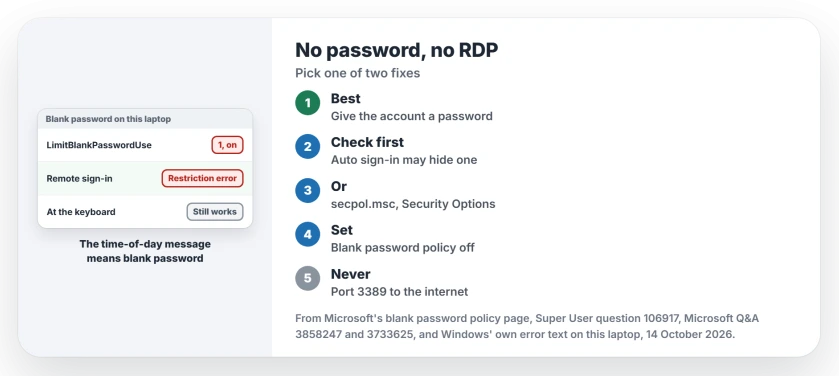
Status: checked on a Windows 11 25H2 laptop, 14 October 2026. The blank password policy still ships switched on, and Windows still names blank passwords in the error.
1. Give the account a password
A password is the fix I would choose. On the remote PC, open Settings, Accounts, Sign-in options, then Password, and add one.
Connect again with the account name and that password, and it should work at once.
The PC will ask for the password at start-up too, so set up automatic sign-in again if you want it back.
Check before you add one, though. In a 2020 Q&A thread, an owner found their PC "did in fact have a password, even though the login never asked for one", because they had set it to sign in by itself.
Remote Desktop worked once they typed it. So try your old password first.
If the account is a Microsoft account, Remote Desktop asks for the Microsoft account password there, not the PIN. That case has its own fix.
2. Or switch the policy off on that PC
Must the account stay without a password? Then change the policy on the remote PC instead. It needs Windows Pro or higher, which hosting Remote Desktop needs anyway.
Press Win+R, type secpol.msc and press Enter, then open Local Policies and Security Options. Set Accounts: Limit local account use of blank passwords to console logon only to Disabled.
One Q&A poster did exactly that on a password-less PC. Their reply said it did what they wanted, adding "yes, I understand the risks".
Super User's accepted answer has the registry form. Set LimitBlankPasswordUse to 0 under HKEY_LOCAL_MACHINE\SYSTEM\CurrentControlSet\Control\Lsa, and 1 puts the default back.
Know what you are opening. Microsoft says blank passwords are "a serious threat to computer security" and advises leaving the policy Enabled.
Anyone on your network could then sign in as that account, with no password needed. So never expose that PC to the internet.
Opening port 3389 on the router is the setup we would not recommend for any Remote Desktop PC.
The same rule blocks shared folders
The policy is not only about Remote Desktop. Microsoft's text includes network logons, so a password-less account cannot open that PC's shared folders from another computer either.
Giving the account a password fixes both. Turning the policy off opens both.
Does Windows 11 Home behave the same?
Windows 11 Home never accepts incoming Remote Desktop sessions, password or not. It has no secpol.msc either; this Home laptop has neither secpol.msc nor gpedit.msc in System32.
A Home PC can still connect out to a Pro PC. The rule only matters on the PC receiving you.
The Short Version
- Windows blocks local accounts with blank passwords from Remote Desktop by default.
- The account restriction error, time-of-day wording and all, points to that rule.
- Give the account a password in Settings, Accounts, Sign-in options.
- Check first: a PC that signs in by itself may already have one.
- Or set the policy to Disabled in secpol.msc, on your own network only.
Where to Next
Did yours show the account restriction message, or ask for credentials again and again? Tell me in a comment, with the Windows edition on both PCs.

Isaac Smith is the founder and editor of PC Glance, a website that covers computers, laptops, and technology. He is a tech enthusiast and a computer geek who loves to share his insights and help his readers make smart choices when buying tech gadgets or laptops. He is always curious and updated about the latest tech trends.