
You connect with Remote Desktop and the remote PC sits in a small window with scroll bars. Maximize makes the frame bigger, but the desktop inside stays the same size.
It often starts after you dock a laptop or plug in another monitor. I would try one shortcut first, then fix the size Remote Desktop has saved.
Super User's question from August 2009 has 150,365 views. A Microsoft Q&A copy shows 70+ on its Same question button.
Why Maximize is not full screen
Remote Desktop Connection picks a desktop size for the remote PC when you connect. Maximize only stretches the window around it.
The accepted Super User answer names the cause: "The problem is that the RDP-client remembers the resolution of your last connection". So a size saved on your laptop screen follows you to the big monitor.
Microsoft says where that memory lives: "Each user has a hidden Default.rdp file in the Documents folder".
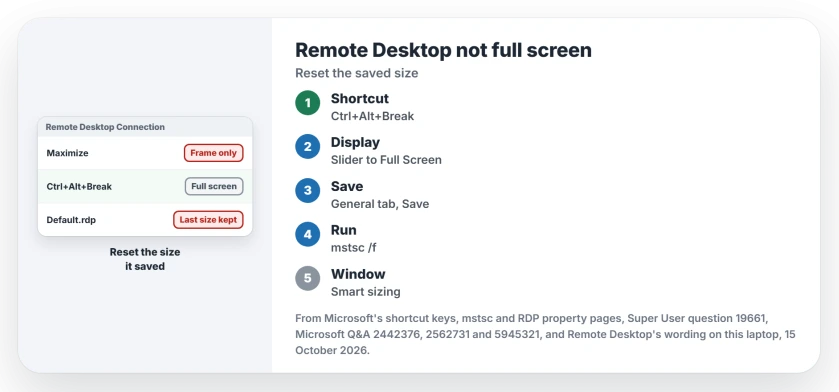
Status: Microsoft's mstsc, shortcut key and RDP property pages checked 15 October 2026, with Remote Desktop Connection's own wording on this 25H2 laptop. No session was opened.
1. Press Ctrl+Alt+Break
Microsoft's list of Remote Desktop shortcut keys gives Ctrl+Alt+Break one job. It "Switches the client between full-screen mode and window mode".
Many laptops lack a Break key. Microsoft notes that makers set their own. The 2010 Super User answer suggests Ctrl+Alt+Pause, Ctrl+Alt+PrtScn or Ctrl+Alt+Fn+ScrLk.
Owners keep confirming it. One commenter wrote "This worked perfectly" in 2010, and a Q&A reader added "its really worked for me" three years later.
If the desktop then sits inside black borders, the size itself is wrong. The answerer's reply to that was to set the display size before you connect, which is step 2.
Your own taskbar on top of the session? That one has a separate cause.
2. Set the Display slider to Full Screen, then save
Before you connect, open the Display tab, which sits behind Show Options. Remote Desktop's own label on this laptop asks you to move that slider to the far right for full screen.
Then select Save on the General tab. The choice stays for your next connection. Both accepted answers, on Super User and on Q&A, give this fix, and 20+ people marked the Q&A one helpful.
Working on two monitors? On the same tab, tick "Use all my monitors for the remote session".
3. Start it with /f from Run
Microsoft's mstsc reference lists a switch that ignores the saved size. It "Starts Remote Desktop Connection in full-screen mode". Press Windows+R and type:
mstsc /f
mstsc /v:yourpc /f
Replace yourpc with the name you connect to. A commenter on the 2009 answer uses /f rather than a fixed width and height, "Which is what I use".
4. Scroll bars in a window? Turn on Smart sizing
A window can still open too small. After a monitor change, a July 2026 asker got "sliding bars on top and right side of the window".
The adviser's answer was to right-click the title bar and choose Smart Sizing. Microsoft's RDP property list says smart sizing makes your device scale "the content of the remote session to fit the window size".
Ours: Remote Desktop Connection's menu text here holds both Smart sizing and Full screen.
Does editing Default.rdp help?
It can. The owner who started the 2010 Q&A thread worked around it by editing the screen mode id line in Default.rdp with a text editor.
Microsoft's RDP property list gives that line two values, and 2 means "A remote session appears full screen". In File Explorer, choose View, Show, then Hidden items to see the file in Documents.
Open it in Notepad, set the line to screen mode id:i:2 and save it. I would close Remote Desktop first, since the app writes to that file itself.
Ours: this laptop has never run a Remote Desktop session, and its Documents folder holds no Default.rdp. Yours is there because you have connected before.
Black screen rather than a small one? Start with the desktop itself.
The Short Version
- Maximize only stretches the window; the desktop size is set when you connect.
- Press Ctrl+Alt+Break, or your laptop's stand-in for Break, to switch to full screen.
- In Show Options, Display, drag the slider fully right, then Save on the General tab.
- mstsc /f from Run starts full screen whatever was saved.
- Scroll bars in a window: right-click the title bar and pick Smart sizing.
Where to Next
What set yours off: docking, or a new monitor? Leave me a comment with your setup and the step that fixed it, and I will add any route this page misses.

Isaac Smith is the founder and editor of PC Glance, a website that covers computers, laptops, and technology. He is a tech enthusiast and a computer geek who loves to share his insights and help his readers make smart choices when buying tech gadgets or laptops. He is always curious and updated about the latest tech trends.