
Your Mac's screen flashes white for a split second, often when you press a key that does nothing or a search finds no match. The setting that should cause it is off, and it keeps happening.
I would test the alert sound first. Owners traced the flash to a sound macOS could not play.
The flash has puzzled Mac owners since 2011, across three Ask Different questions with 97,669 views.
Why the screen flashes instead of beeping
Apple's switch for a visual alert lives in Accessibility, Audio, where you can "Flash the screen when an alert sound occurs". All three askers had it off.
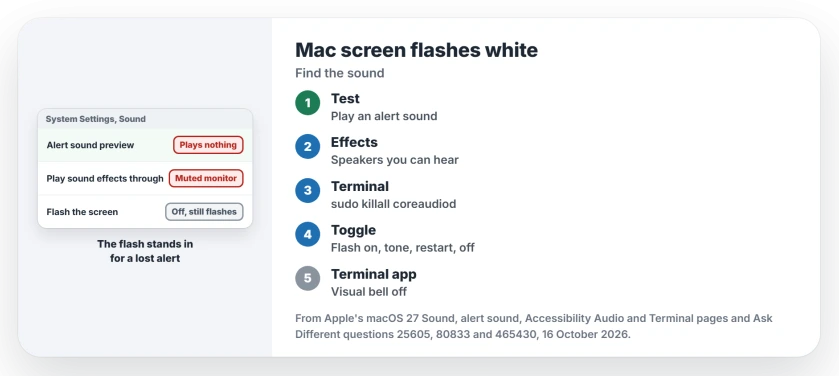
An owner who fixed it in 2015 noticed that previewing alert sounds in Sound settings played nothing. Their guess was that macOS "fails to play an alert sound, and falls back to the visual cue".
The 2023 asker saw it only with one 4K monitor and dock connected and later tied it to the dock's sound output, while another owner noticed it more with sound going out over DisplayPort.
Ours: none. No Mac was available here, so each fix is credited to whoever found it.
Status: put together 16 October 2026 using Apple's current Sound, alert sound, Accessibility Audio and Terminal pages, plus three Ask Different questions (2011 to 2023).
Check the Flash setting once
Open System Settings, Accessibility, Audio. If Flash the screen when an alert sound occurs is on, turn it off.
Apple's Audio settings page sums the switch up: "Make your screen flash when you receive an alert".
Already off? Leave it for now, because owners fixed the flash on the sound side.
Play an alert and listen
Go to Sound and pick any tone from the Alert sound menu. Apple says the alert "plays when you select it so you can hear how it sounds".
Heard nothing? Then you have found the trigger. Owners who heard silence here fixed the flash with one of the next steps.
Send sound effects to speakers you can hear
Apple keeps a separate menu for alerts. Under Sound Effects, Play sound effects through can name a different device from your main output.
An owner on Catalina had alerts going to a muted HDMI monitor while the main output was the headphone port. Matching the alert device stopped the flashing. A second reader said that was their fix too.
The reverse happens as well. Another owner's Mac had switched itself back to the built-in speakers, and choosing the HDMI device again stopped it with no restart.
Restart Core Audio
The top answer, at 77 votes, restarts the Mac's audio service:
sudo killall coreaudiodEnter your password. The answer notes that coreaudiod "will restart by itself, immediately" afterwards.
Leave out sudo and Terminal reports that no matching processes were found, as one reader learned; another confirmed the command "still works in macOS Sonoma (14.5)".
I would try it before a full restart. Your apps stay open.
If your sound also crackles or cuts out, the Tahoe crackling page goes further into Core Audio.
Toggle the flash with a test tone
A 2024 answer with 10 votes uses the setting itself. Turn Flash the screen on and play an alert, so the screen flashes. Restart, turn the setting off, then play the alert again; now it should only sound.
A reader replied "This did it for me" and called it a bug in macOS 14.5 that lasted until the next reboot, and a later comment says the fix works in macOS Sequoia.
Comes back after sleep?
An owner on Sonoma 14.5 found that "After each restart, problem will be solved until first sleep". If that is your pattern, keep the coreaudiod command handy for after each wake.
I would also point alerts at speakers that stay connected, such as the Mac's own, since a monitor or dock that sleeps and wakes can drop out from under them.
Only in Terminal?
Terminal has a flash of its own. In Terminal, Settings, Profiles, Advanced, Apple lists "Visual bell: Alerts with a flash".
Turn it off for your profile. A third option, Only when sound is muted, flashes only when the Mac is muted. An owner pointed to this switch in 2015.
A different visual surprise, a giant arrow when you press Shift, comes from Accessibility too.
The Short Version
- Owners report the white flash stands in for an alert sound your Mac could not play, even with Flash the screen off.
- Play an alert in Sound settings; silence means the sound side needs the fix.
- Set Play sound effects through to a device you can actually hear.
- Run sudo killall coreaudiod; it starts again by itself.
- Still flashing? Toggle Flash the screen with a test tone and restart; in Terminal, check Visual bell.
Where to Next
Did the flash start with a monitor or dock plugged in? Leave the model in a comment; I am collecting which setups set it off.

Isaac Smith is the founder and editor of PC Glance, a website that covers computers, laptops, and technology. He is a tech enthusiast and a computer geek who loves to share his insights and help his readers make smart choices when buying tech gadgets or laptops. He is always curious and updated about the latest tech trends.