
You turn on Desktop & Documents Folders in your iCloud Drive settings. It spins for a while, then the switch flips itself back off. Every try ends the same way.
I would look for what is in the way before anything else. Owners found old folders, aliases and other cloud apps blocking the move.
On Ask Different, the switch problem has 8,677 and 3,906 views across two questions. The old folders behind it have 36,925 more.
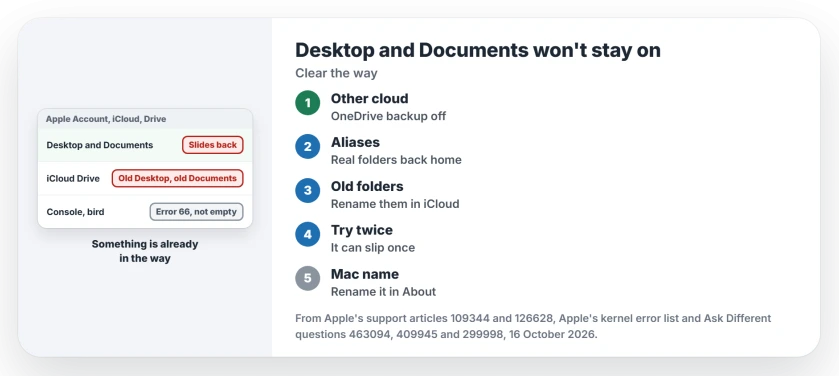
What makes the switch slide back
Turning the feature on moves your Desktop and Documents folders into iCloud Drive. Turning it off does not bring them back. Apple says, "Your files saved to your Desktop and Documents folders stay in iCloud Drive".
So an earlier on and off leaves a pair of folders behind in the cloud. One owner found exactly that: "there was a pre-existing Documents and a preexisting Desktop folder".
Their reading of what follows is that macOS sees those folders are not linked to yours, "and so it then exits the process". The switch goes back to off.
A 2020 asker's Console log points the same way: "Failed to move synced Documents to Home Directory" with error code 66. Apple's kernel source lists 66 as "Directory not empty".
Ours: none. I had no Mac signed in to iCloud for this page, so each step is credited.
Status: researched 16 October 2026 with Apple's Desktop & Documents pages (109344 and 126628), Apple's kernel error list and three Ask Different questions with answers from 2017 to 2026.
Turn off the other cloud app first
Apple is direct about this one: "If you use a feature from another cloud provider that syncs or manages your Desktop folder and Documents folder, you need to turn it off to use Desktop & Documents Folders". OneDrive's folder backup is one.
An owner on macOS 26.2 had OneDrive managing both folders. Their switch held once OneDrive was off.
They did it in General, Login Items & Extensions, App Background Activity. Then they backed up both folders and cleared the old ones before trying again.
Put the real folders back
Another owner had moved Desktop and Documents into Dropbox and left aliases in their user folder. Deleting the aliases and moving the real folders home stopped the switch sliding back.
Check both in your home folder. A real folder is fine; an alias carries a small curved arrow on its icon.
Rename the old folders in iCloud Drive
Open iCloud Drive in Finder. If Desktop and Documents folders already sit there, rename them both, then turn the switch on.
That was the owner's fix from 2023. A reader answered "This worked", adding that the switch slid back once more and stayed on after a second try.
I would rename rather than delete. Those folders can hold files from the last time the feature was on, so copy out anything you need first.
If your files seem to have vanished after an update instead, where Tahoe put the Desktop files is the page to start with.
If Finder still lists your Desktop files but the desktop itself shows none, check Show Items and relaunch Finder instead.
Rename your Mac
It sounds odd. Three people report it worked. The 2020 asker changed the computer name, and "this time it took longer for the spinning wheel and it worked".
A reader called it crazy but said it worked for them as well. In 2025, another owner posted the same fix on the 2023 question.
In current macOS, your Mac's name sits in General, About, as Apple's computer name page shows. Pick a new name and try again.
My reading, not Apple's: Apple says a second Mac's Desktop files go into a folder named after that Mac. A new name gives macOS a folder that cannot clash with an old one.
Old folders keep coming back?
The 2017 asker turned the feature off and deleted the cloud Desktop and Documents folders. In their words, "they keep coming back moments after being deleted".
The accepted answer: delete the empty folder and empty your Trash at once, before iCloud puts it back. Another answer used Option-Command-Delete to delete immediately, and readers confirmed it on macOS 12.5.1 and 15.3.1.
Only do that with empty folders. Copy your files out first. A folder deleted in iCloud Drive disappears from every device you have signed in.
Optimize Mac Storage can also move files into iCloud on its own; the Tahoe offloading page covers that side.
Is it a work Mac?
Apple gives organizations a key that, when set to false, means "the system disables iCloud Desktop and Document services". Check General, Device Management for a profile before you rename anything.
The Short Version
- The switch slides back when something blocks the move: another cloud app, aliases, or old Desktop and Documents folders in iCloud Drive.
- Turn off OneDrive's folder backup, or any other app's, first; Apple requires it.
- Move the real folders back into your home folder and remove the aliases.
- Rename the old folders in iCloud Drive, then try the switch twice.
- Still stuck? Rename the Mac in General, About; owners report it worked when nothing else did.
Where to Next
Was it OneDrive, an alias or old folders for you? A short comment helps me put these steps in the right order.

Isaac Smith is the founder and editor of PC Glance, a website that covers computers, laptops, and technology. He is a tech enthusiast and a computer geek who loves to share his insights and help his readers make smart choices when buying tech gadgets or laptops. He is always curious and updated about the latest tech trends.