

Your Documents folder is full of files that are not really there, which is alarming until you know what is going on. Each one shows a small cloud with a down arrow instead of the file, and it only downloads when you open it. Your Desktop is the same.
And you have plenty of free space, so none of this should be happening.
Nothing has been deleted, and your Mac is not broken.
Let me explain what those little clouds mean, because nothing has been deleted and you can turn it off.
First, do not touch Desktop and Documents
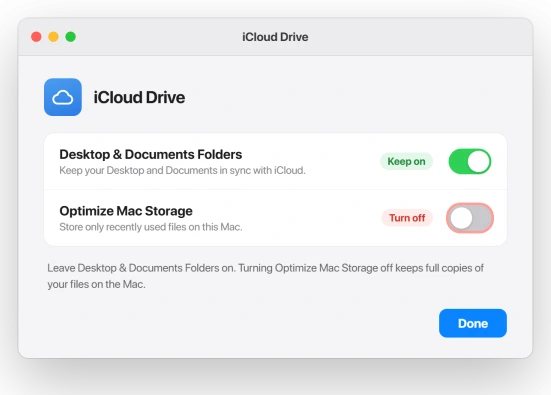
Before you change a single setting, know which one to leave alone. The problem is Optimize Mac Storage.
It is not the Desktop & Documents Folders setting, and switching that one off is how people turn a scare into a real mess.
When you turn Desktop & Documents Folders off, macOS leaves your files up in iCloud Drive and creates brand new, empty Desktop and Documents folders on the Mac.
Now it genuinely looks like everything is gone, and you have to move files back by hand.
Apple spells out that exact behavior in Add your Desktop and Documents files to iCloud Drive.
So leave Desktop & Documents Folders on. Fix the other switch.
If yours is already off and slides back whenever you flip it on, the stuck switch page deals with what sits in its way.
Turn off Optimize Mac Storage
This is the setting that emptied your Mac. Optimize Mac Storage lets macOS remove the local copy of anything in iCloud Drive when it decides you are short on space.
On 26.2 it turned on by itself and fired even with room to spare.
Open the Apple menu, then System Settings, click your name at the top, and choose iCloud. Under Saved to iCloud, click See All if you need to, then open iCloud Drive. Turn Optimize Mac Storage off.
With it off, your Mac starts pulling everything back down from iCloud to live locally again. That needs two things: enough free space to hold it all, and time on Wi-Fi.
If your MacBook's Wi-Fi keeps dropping on Tahoe, sort that out first or the download stalls halfway.
Apple describes the setting in Optimize storage space on your Mac.
Pull specific files back down now
If you need certain files this minute, or your Mac is genuinely too full to download everything, grab them one at a time instead.
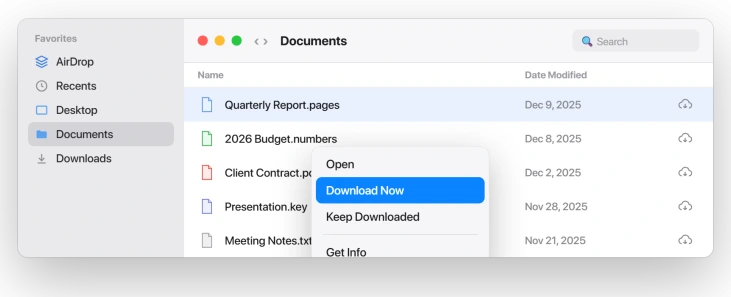
In Finder, find the file or folder with the cloud icon, right click it, and choose Download Now.
To make sure something never gets offloaded again, right click and choose Keep Downloaded, which pins it to stay on the Mac.
For the full where-did-my-files-go rundown, Desktop files missing on macOS Tahoe walks through every hiding spot.
Nothing was deleted, but do not delete the placeholders
The cloud files on your Desktop are real files, just parked in iCloud until you open them. They are safe there.
There is only one way to actually lose them, so steer clear of it. Do not drag those cloud placeholders to the Trash, and do not switch iCloud Drive off while things are still syncing.
Either one, done before the upload has finished, is how the handful of people who lost files lost them.
Status: macOS 26.2 switched on Optimize Mac Storage without asking and offloaded local files to iCloud. Apple has not acknowledged it, so turn it back off and recheck after each update.
What will not fix it, and what makes it worse
- Turning off Desktop & Documents Folders. That relocates your files and leaves empty folders behind. Leave it on. Only Optimize Mac Storage should go off.
- Deleting the cloud placeholders to clean up. Those are your files. Download them, do not trash them.
- Reinstalling macOS or erasing anything. This is a flipped setting, not a broken system. The toggle is the whole fix.
- Assuming a later update put it back. No macOS update has been confirmed to undo the change, so check the setting yourself after each one.
Why did macOS Tahoe move my files to iCloud?
The 26.2 update switched on Optimize Mac Storage, a setting that lets your Mac keep only recently used iCloud Drive files on disk and push the rest to iCloud.
It is meant to run only when your drive is low, but after 26.2 it turned on and offloaded files even on Macs with hundreds of gigabytes free.
How do I stop my Mac from offloading files to iCloud?
Open System Settings, click your name, then iCloud, then iCloud Drive, and turn off Optimize Mac Storage.
With it off, your Mac keeps full local copies of everything in iCloud Drive, as long as you have the space for them. Leave Desktop & Documents Folders on while you do this.
Are my files gone or just in iCloud?
Just in iCloud. A file with a cloud-and-arrow icon is stored in iCloud Drive and downloads when you open it or choose Download Now. Nothing was deleted by the update.
You only risk losing a file if you delete the placeholder or turn off iCloud Drive before it finishes syncing.
The Short Version
- macOS 26.2 turned on Optimize Mac Storage by itself, which offloaded your Desktop and Documents files to iCloud even with free space to spare.
- Fix it at System Settings, your name, iCloud, iCloud Drive, and turn Optimize Mac Storage off. Your files download back to the Mac.
- Do not turn off Desktop & Documents Folders to fix it. That relocates files and leaves empty folders, which is worse.
- The cloud files are safe. Do not trash the placeholders or disable iCloud Drive mid-sync, the only ways to actually lose them.
- Apple has not acknowledged or fixed the flip, so recheck Optimize Mac Storage after each macOS update.
Where to Next
- The full recovery walkthrough if files are truly missing: Desktop files missing on macOS Tahoe
- Downloads stalling because the connection drops: MacBook Pro Wi-Fi dropping on macOS Tahoe

Isaac Smith is the founder and editor of PC Glance, a website that covers computers, laptops, and technology. He is a tech enthusiast and a computer geek who loves to share his insights and help his readers make smart choices when buying tech gadgets or laptops. He is always curious and updated about the latest tech trends.