
Your Automator workflow, Quick Action or saved AppleScript stops with System Events got an error, then a name, then is not allowed to send keystrokes. It worked last week. You already allowed it in Accessibility.
I would read the name in that message before you touch a setting. It tells you whose permission went stale. Often that is not the app you expect.
On Stack Overflow the question about this error has 65,177 views since March 2019. Two Ask Different questions add 15,748 and 10,419 more.
Which name the error gives you
The blocked app is the name between got an error and is not allowed. Owners have seen four kinds.
- Automator, or com.automator.runner.xpc: Automator's own workflow runner.
- WorkflowServiceRunner: a Quick Action you started from another app's Services menu or a shortcut.
- osascript: a script started from Terminal, iTerm2 or an editor's built-in terminal.
- Your own app's name: an AppleScript you saved as an app.
Apple's Accessibility page says an app that controls your Mac this way needs your approval, and you "must specifically grant the app access to your Mac in Privacy & Security settings". A typed keystroke counts.
Ours: none. With no Mac here to run a workflow on, every step names its source, an owner or an Apple guide.
Status: written 16 October 2026 from Apple's Accessibility and Automation pages for macOS 27, set against fixes posted on Ask Different and Stack Overflow from 2019 to 2025.
Turn the switch off, then on
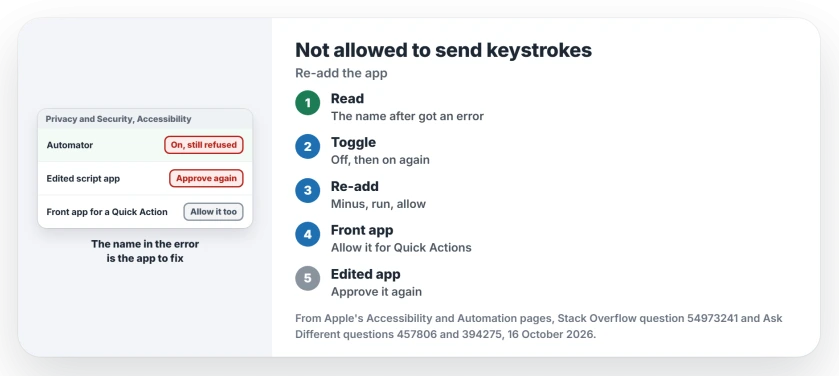
Go to Privacy & Security in System Settings, then Accessibility. Find the app the error named. Turn it off, then on again.
Apple says each app in that list has its own switch. One Stack Overflow reader needed nothing more: "I just had to toggle off and on once, didn't have to remove and readd".
An owner on Sonoma 14.7.1 turned Automator off and back on, and then "The problem went away".
Another switched off Automator, Script Editor and Shortcuts, quit System Settings, then switched all three back on. A reader confirmed that order worked.
Still blocked? Take it out of the list
Select the app in the Accessibility list and click the minus button. Quit System Settings. Then run the workflow again, inside Automator if that is where it lives.
macOS should ask for permission again. Look for that request. One owner found it "appears behind the Automator window", so drag windows aside before you decide nothing happened.
The accepted Stack Overflow answer, with 81 votes, did this after a Catalina update: "I deleted my application and then added it again. After this, all work perfectly". Another reader had to do it twice.
If the app is missing from the list, Apple's route is the add button under it: "search for the app, select it, then click Open".
A Quick Action needs the front app too
A Quick Action types into whatever app is in front when you start it. That app needs the switch as well.
An owner put it plainly: "all applications involved that are targeted by the Automation also need to be given Accessibility permission".
A reader who sends searches to Safari confirmed it, in their words: "Giving Accessibility access to Safari did the trick".
A 2025 owner gave access only to the app receiving the keystrokes and added that "I could even remove Automator from the permissions, and it still worked". I would allow the few apps you actually type into, not every app on the Mac.
Edited your script app? Allow it again
An AppleScript saved as an app can lose its approval the moment you change it. A Ventura owner's app survived the upgrade, but "the first time I made a change, it stopped working".
Re-granting was not enough for another owner, who wrote "I had to rename the application in order to get it to reprompt and actually work". So after an edit, remove the old entry, save under a new name and approve the new one when asked.
Running it from Terminal?
For osascript, the terminal app is the one that needs Accessibility. One owner allowed iTerm2, and that fixed it. Another, inside an editor's terminal, added both the editor and osascript itself.
An error ending in -1743 is a different list. It reads Not authorized to send Apple Events to System Events. Apple keeps that list under Privacy & Security, then Automation, with a switch for each app one program may control.
A blocked privacy switch looks similar in other places. If Terminal says Operation not permitted, that is the Files and Folders list instead. Chrome refusing to share your screen comes back the same remove and re-allow way.
Do spaces in the script name matter?
A few readers blamed spaces in the name and swapped them for underscores. One of them later backed down: renaming "just triggered the same temporary effect where it starts working, but breaks again later". I treat a rename as a fresh approval, not as the cause.
Why does the switch show on but still fail?
Owners hit this after a Catalina update and on an M2 Mac running Sonoma 14.7.1, with the app already in the list both times. Removing and re-adding it fixed the first. Turning it off and on fixed the second.
The Short Version
- The name after got an error is the app macOS blocked.
- Turn that app off and on under Privacy & Security, then Accessibility.
- Still blocked? Remove it with the minus button, run it again and allow the prompt, which can hide behind windows.
- For a Quick Action, the app in front needs Accessibility too.
- After editing a script app, approve it again; a new name forces a fresh prompt.
Where to Next
Toggle, re-add or the front app: which let your workflow type again, and on which macOS? Your comment decides which step I move to the top of this page.

Isaac Smith is the founder and editor of PC Glance, a website that covers computers, laptops, and technology. He is a tech enthusiast and a computer geek who loves to share his insights and help his readers make smart choices when buying tech gadgets or laptops. He is always curious and updated about the latest tech trends.