

Your Mac's desktop is bare. The wallpaper is there. Every file you keep on it is gone. Then you open Finder, click Desktop in the sidebar, and they are all listed.
If Finder shows them, nothing is lost. I would call this a drawing problem rather than a missing files problem, and try the quick settings in order.
On Ask Different, a 2014 question about icons vanishing after an HDMI display was connected has 26,997 views. A 2023 question about a bare desktop after sleep has 8,349.
First, look in Finder's Desktop folder
Open a Finder window and click Desktop in the sidebar. If your files are listed there, the steps on this page fit your case.
The 2023 asker checked the same thing in Terminal: "I see that all the files are present, but the Desktop does not show the files".
If that folder is empty too, your files moved rather than hid, and our page on where Tahoe put desktop files follows them through iCloud Desktop and Documents.
Ours: none. This page was put together without a Mac, from Apple's guide and the owners named in each step.
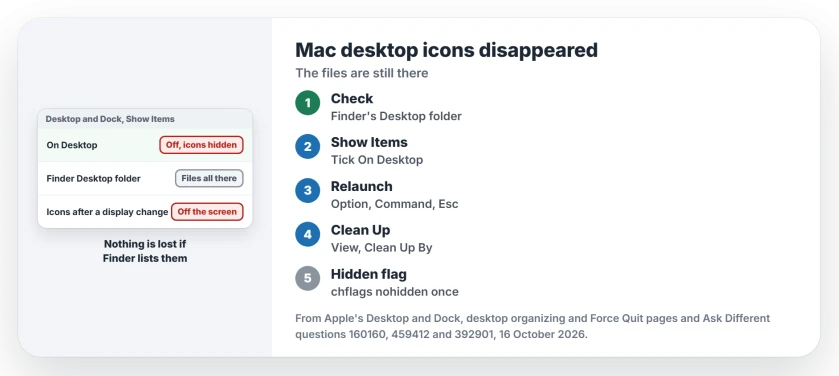
Status: Apple's Desktop & Dock, desktop organizing and Force Quit pages, current for macOS 27, matched on 16 October 2026 with Ask Different reports from 2014, 2015, 2020 and 2023.
Turn Show Items back on
One switch can hide every desktop item. Open System Settings, click Desktop & Dock, and find Show Items under Desktop & Stage Manager.
Apple's Desktop & Dock page lists two boxes there. On Desktop means "Show items on the desktop". With it off, Apple says "items on the desktop are hidden", and only a click on the desktop brings them up.
The second box, In Stage Manager, does the same job while Stage Manager is on. If you use Stage Manager, tick it as well.
Relaunch Finder
Finder draws the desktop icons. A stuck Finder can leave the desktop blank. Press Option, Command and Esc together, select Finder, then click Relaunch.
Apple's Force Quit page covers this exact case: "The Finder is always open, but if it stops responding, you can force it to quit and reopen". The 2023 asker answered their own question the same way after sleep.
A 2015 owner on Yosemite had to relaunch Finder each time before newly saved files would show on the desktop. That question never got an answer.
Clean Up when icons sit off screen
After a second display comes and goes, icons can land past the edge of the screen. One owner described them as "there but off the screen".
The fix in that 2014 thread was a right-click on the desktop and Clean Up. The asker's reply, in their words, was "Thank you! That was it!", and a second owner wrote "it worked for me" too.
On current macOS the command sits in the View menu, where Apple says to "click the desktop, choose View > Clean Up By" and pick an order. I would try this before anything in Terminal, since it only moves icons.
If the icons come back in an order or size you dislike, Finder's view settings control that.
Files hidden by a flag
A file can be hidden with no dot at the start of its name. As one answerer put it, files "can be hidden even if they don't start with period".
In a 2020 thread, desktop files had turned gray and hidden. The accepted fix gave Terminal Full Disk Access first, then cleared the hidden flag:
cd ~/Desktop
chflags -R nohidden ./
killall Finder
The asker's files came back, then vanished again after a forced restart. I would run it once. If the gray files return, the answerer's next step was Safe Mode, to rule out something you installed.
Why did my desktop go blank after sleep?
Finder did not redraw it. The 2023 asker's Mac woke from sleep with a bare desktop while Terminal still listed every file, and relaunching Finder brought them back. A Ventura owner whose desktop came up empty after power on trashed com.apple.finder.plist in their Preferences folder and restarted, which also worked but resets your Finder settings.
Could Spaces or Stage Manager be hiding them?
Possibly. With Stage Manager on, desktop items show only when In Stage Manager is ticked. A 2015 owner with three desktops saw icons flash and vanish when moving between them; closing the two extra desktops brought them back.
The Short Version
- Files listed in Finder's Desktop folder are safe; the desktop is not drawing them.
- Check Show Items, On Desktop, in Desktop & Dock settings.
- Relaunch Finder from the Force Quit window.
- Icons gone after a display change? Use Clean Up, or Clean Up By in the View menu.
- Gray, hidden files? Clear the hidden flag with chflags, once.
Where to Next
The switch, a Finder relaunch, or Clean Up: which one brought your icons home? A short comment from you helps me rank them for the next bare desktop.

Isaac Smith is the founder and editor of PC Glance, a website that covers computers, laptops, and technology. He is a tech enthusiast and a computer geek who loves to share his insights and help his readers make smart choices when buying tech gadgets or laptops. He is always curious and updated about the latest tech trends.