
You want to open the Downloads folder in Windows 10, but the file you just saved seems to have disappeared. It's annoying when the download looked finished.
I'll help you reach the folder, then check whether your browser saved the file somewhere else; Windows 11 has moved one familiar shortcut, so I'll cover that difference too.
Open File Explorer and choose Downloads
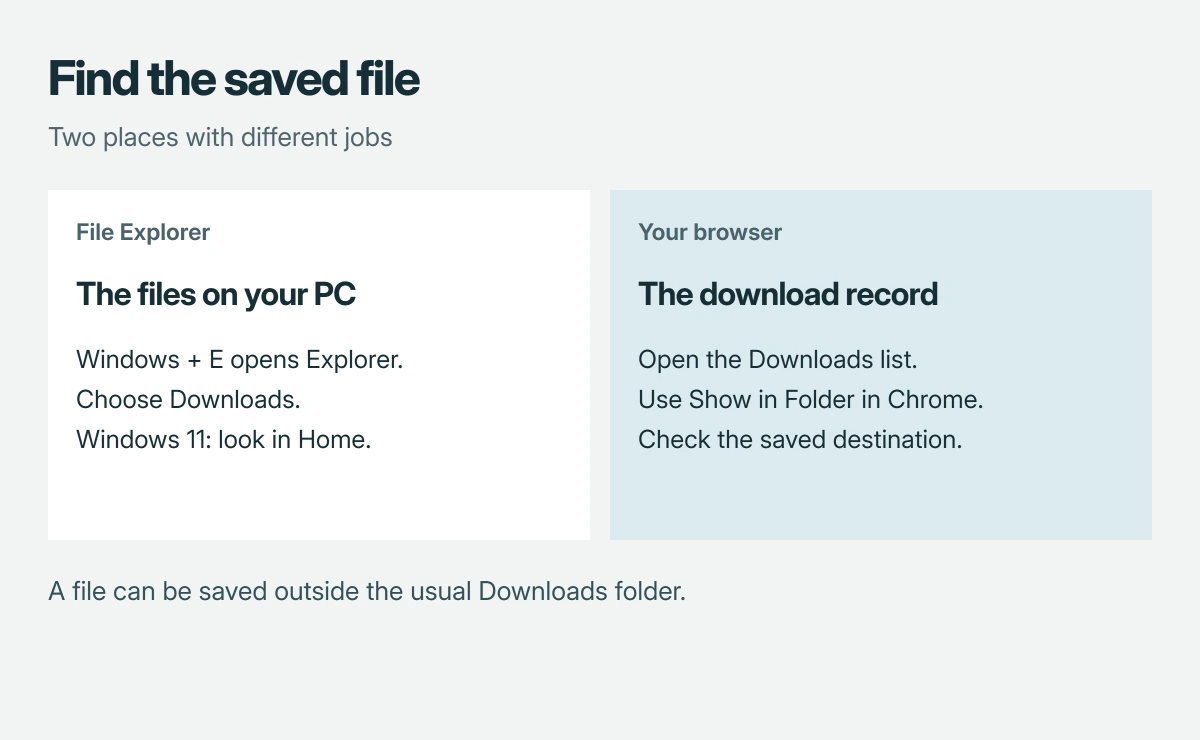
Hold Windows, press E, and release both keys to open File Explorer. On Windows 10, look for Downloads in the left pane, usually under Quick access. You can also look inside This PC.
Microsoft documents the opening shortcut in its File Explorer guide. You don't need to open Edge first. Downloads is a folder on your computer, separate from your browser.
Status: Windows 10 and 11 folder routes checked against Microsoft and Google documentation on 18 October 2026. No downloads or folder settings were changed.
On Windows 11 version 22H2 and later, use Home or the pinned Downloads entry, because Microsoft says those personal folders no longer appear inside This PC by default. Your missing shortcut doesn't mean the files were deleted.
If the folder opens but sits on Working on it, stop here. Our Downloads freezing guide covers that separate problem. This page assumes you can open folders normally.
The folder opens, but your file isn't there
Look in the browser you used for the download; I would check its record before saving another copy, especially if the file took a long time to arrive.
In Chrome, open the three-dot menu and choose Downloads. Find the item you just saved. Google's download instructions explain how to reveal Show in Folder by pointing at its filename in the download tray.
That opens the file's actual destination. It may be a different folder you chose earlier, even though Windows still has its usual Downloads folder.
If Chrome's menu and keyboard shortcut don't respond, our Chrome Downloads shortcut fix addresses that behavior; a browser command failing doesn't prove the saved file is missing.
Read the destination your browser is using
For Edge, open its three-dot menu, choose Settings, then select Downloads. Read the path beside Location. Microsoft's download-location page identifies that field as the folder being used.
For Chrome, choose Settings > Downloads from its menu. Google says Change selects a different default folder, while the setting that asks for a destination on every download lets you choose separately.
I would leave the destination alone until you've found the current file. Changing it affects future downloads. It won't gather older files from the places you previously selected.
Your usual path may look like C:\Users\your-name\Downloads, but use the location your browser actually shows. A customized folder can sit elsewhere. Copying somebody else's username into the path won't reach your files.
A browser entry and a saved file are different things
Google says removing a Chrome download-history entry leaves the actual file on your computer, so clearing that list therefore isn't a way to clear the Downloads folder. You must manage the saved files separately.
The reverse matters too. A browser record can outlast the file it points to after you move or delete that file. Read any message beside the entry before assuming another download is necessary.
If you find the file in Explorer but it won't open, note its extension and the error. Finding the folder has worked. The remaining problem concerns the file or the application opening it.
Found the Zoom installer? Check which Windows build you need before opening it, especially on an ARM laptop.
The Short Version
Use Windows+E to reach File Explorer, then open Downloads; on newer Windows 11, check Home instead of This PC. For a missing individual file, inspect the browser's download record and its configured destination.
Where to Next
Does Downloads itself fail to open, or is one finished download absent from it? Tell me which browser you used and whether Show in Folder reaches anything, because those details will tell me where the next check belongs.

Isaac Smith is the founder and editor of PC Glance, a website that covers computers, laptops, and technology. He is a tech enthusiast and a computer geek who loves to share his insights and help his readers make smart choices when buying tech gadgets or laptops. He is always curious and updated about the latest tech trends.