
Before you back up your iPhone to a computer, you want to know that the copy will actually be there if you need it. That's a sensible thing to check.
I'll explain Finder on a Mac and Apple Devices on Windows, then we'll check the saved backup, including the password choice that affects Health data and saved passwords.
Choose the app for your computer
Use Finder on a Mac running macOS Catalina or newer. On a Windows PC, use Apple Devices. Apple documents these routes in its Mac backup guide and Windows app instructions.
Use a USB cable to connect the phone, then unlock it. Respond to Trust on the computer and phone if prompted, entering the iPhone passcode when asked; on a Mac, approve an accessory connection prompt if it appears.
Status: Finder, Apple Devices and encrypted-backup guidance reviewed 18 October 2026. This is a new-backup procedure. No iPhone backup or restore was performed here.
For an older Mac using Mojave or earlier, Apple still gives an iTunes route, so don't look for an iPhone backup button inside the Mac Music app. It isn't the replacement for that device-management function.
If your phone never appears, our missing iPhone connection guide covers that first, because you need the device listed before these backup controls become available.
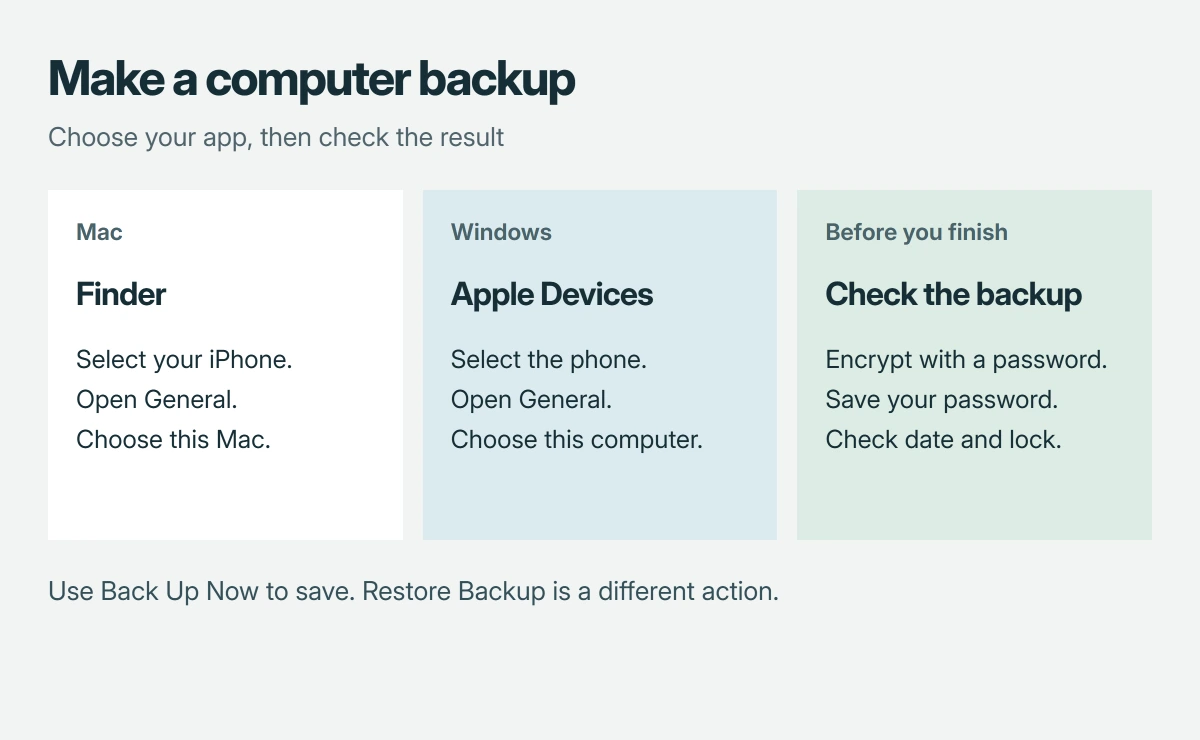
On a Mac, select the phone in Finder
Open Finder and select your iPhone in its sidebar, then choose the General tab; in the backup area, select the option to save all iPhone data to this Mac, rather than the iCloud option.
Leave the phone connected while you make the encryption choice in the next section. The computer destination matters. Selecting iCloud doesn't create the local copy you're trying to make here.
If you intended to save online instead, set up the phone's automatic cloud backup and verify its completion.
On Windows, use General in Apple Devices
Open Apple Devices and select your iPhone from its sidebar, then choose General, then select the backup option ending in this computer. Apple's Windows guide distinguishes this from the option that stores backup data in iCloud.
The app also has a restore control. Leave that alone for this task. You are saving the phone's current information, rather than replacing it with information from an older copy.
Decide on encryption before starting
Apple says an encrypted backup can include saved passwords, Wi-Fi settings, Health information and call history. An ordinary computer backup doesn't include all of those categories.
Encryption isn't enabled automatically for the first backup.
To use it, select Encrypt local backup and create the password when prompted. Keep the password outside the phone. You need it to restore that encrypted copy later.
I would encrypt to preserve Health data. The encryption documentation also says Face ID, Touch ID and the device passcode aren't included, even in an encrypted backup.
Need to keep an older backup? Apple states that first enabling encryption starts a backup and overwrites previous backups. Review Manage Backups and preserve the earlier copy before changing that setting.
Start the backup and check what finished
Select Back Up Now if the backup hasn't already started, and wait for completion. On Finder, Apple says the latest successful backup's date and time will appear. Look for today's completed attempt.
In Finder or Apple Devices, open General > Manage Backups to inspect the saved entry. Apple's backup-management guide documents this list. For an encrypted copy, check for the lock beside the device name too.
I would check both the date and encryption indicator before disconnecting. A selected checkbox shows your intended setting. The completed entry tells you that a backup was actually created.
If the process stops with an error, use our computer backup failure guide; don't treat a progress bar that disappeared as proof that your information was saved.
Know what your computer copy leaves out
Apple's backup-content comparison says computer backups exclude information already synced into iCloud, including iCloud Photos. They also exclude Face ID settings and Apple Pay information.
A local backup isn't an independent archive of every cloud item.
Check any irreplaceable cloud library separately before erasing or trading in your phone. If you lose the encryption password, resetting it for a future backup won't unlock an existing encrypted copy.
The Short Version
Select your iPhone in Finder or Apple Devices, choose the computer as the destination, and decide whether to encrypt. Keep the encryption password safe. After the backup finishes, inspect its date and lock indicator in Manage Backups.
Where to Next
Does your phone stay missing, does encryption refuse its password, or does the backup never finish? Tell me which computer app you're using. Please keep passwords and backup contents out of your comment.

Isaac Smith is the founder and editor of PC Glance, a website that covers computers, laptops, and technology. He is a tech enthusiast and a computer geek who loves to share his insights and help his readers make smart choices when buying tech gadgets or laptops. He is always curious and updated about the latest tech trends.