
Email keeps refusing your attachment, and the same large video or folder has already failed to send twice, so a different route makes sense.
I'll show you how to upload it to OneDrive and send a download link. We'll also check who can open that link, because a successful upload doesn't automatically give your recipient access.
Put the file in OneDrive before sending the message
Open OneDrive on the web using the account where you want to store the file. Check that it has enough available storage for your file. You need room for the complete upload.
Microsoft documents uploading through the website in its OneDrive upload guide: open the destination folder, choose Upload, select your file and choose Open. You can also drag the file into the website.
Status: OneDrive upload and sharing instructions checked 18 October 2026. This guide uses a browser and an existing account. No files were uploaded or shared during research.
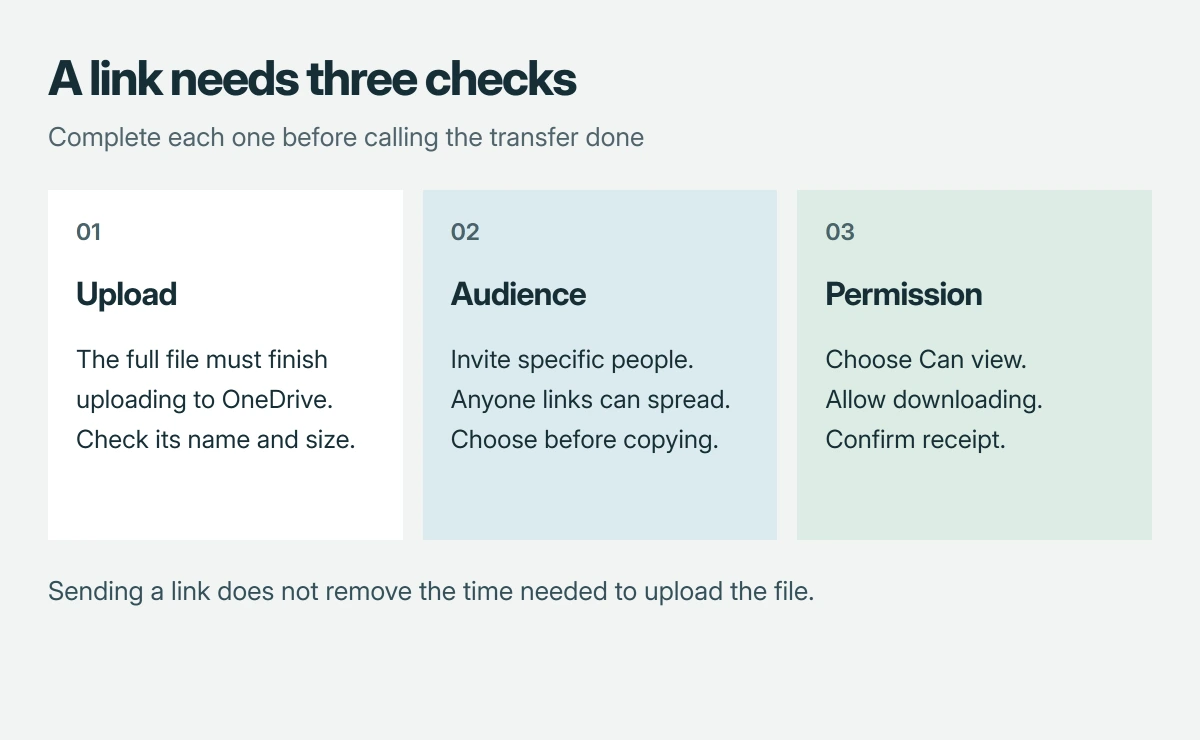
Wait until the upload finishes before sending anything. I would confirm the filename and size in OneDrive so you don't accidentally send a similarly named older version.
If the upload barely moves, our slow upload checks can help you separate that delay from email's attachment limit. A sharing link avoids attaching the file; it doesn't remove the upload.
Choose who can open your link
Select the uploaded item and click Share. Open the link settings, usually through the gear icon, before copying anything. Microsoft's OneDrive sharing instructions distinguish these choices.
| Choice | Who can use it |
|---|---|
| Specific people | Only the people you name, subject to the account's sign-in requirements. |
| Anyone | Anyone who receives or is forwarded that working link. |
| People with existing access | People who already have permission; this doesn't grant new access. |
For a private document, I would name the recipient instead of choosing Anyone; for something intended for public distribution, an Anyone link may suit. Make that choice deliberately.
Microsoft states that your organization can disable sharing options for work or school accounts, including Anyone links. If a choice is unavailable, use an allowed method or ask your organization about that restriction.
Set viewing permission when you only want delivery
Look for Can view or turn off Allow editing in the sharing controls. Microsoft says editing can be enabled by default. Sending someone a file to read shouldn't accidentally let them alter your copy.
For a shared folder, editing permissions reach its contents too. That can include moving or deleting files. Share only the item or dedicated folder that your recipient actually needs.
Apply the settings, then use Copy link and paste it into your message. You can also send the invitation from OneDrive. Either route sends access to the uploaded item rather than a large email attachment.
Need several small files in one package? Our ZIP file guide explains that option. You can upload the finished archive using the same sharing procedure.
For an existing message, attach the email itself in Outlook so the recipient receives it as a message item.
For a temporary file handover, send a WeTransfer download URL and include its download deadline in the message.
Check access from the recipient's side
Ask the recipient to open the link and confirm they can download the file. Opening it in your own signed-in account isn't enough. As its owner, you already have permission.
Microsoft's external sharing guide says the recipient's experience depends on your account and sharing choice; a personal-account invitation to specific people requires their Microsoft account.
An Anyone link doesn't require that sign-in. It can also be forwarded, so don't switch a private file to Anyone merely to avoid checking the invited address.
If the file opens but downloading is blocked, review whether Block download was selected where available. That restriction conflicts with a transfer where you want the recipient to keep their own copy.
Finish the handover, then remove access if needed
Keep the uploaded file available until your recipient confirms they have it. Moving it within OneDrive can break its existing sharing link, according to Microsoft. Create a fresh link if that happened.
To withdraw access later, select the file, open its information pane and choose Manage access; Microsoft's sharing-management steps explain removing a link or changing a person's permission.
Removing access stops future use of that sharing route. It cannot pull back a copy that someone already downloaded, so treat the original permission choice as the important one.
The Short Version
Upload the complete file, choose the intended recipients, and use viewing permission for delivery. Send the OneDrive link in your message. Check that the recipient can download it before moving the uploaded file or removing access.
Where to Next
What happens when the recipient opens your link: a sign-in request, an access error, or a download restriction? Tell me whether your OneDrive account is personal or work-issued. Please don't post the private sharing link itself.

Isaac Smith is the founder and editor of PC Glance, a website that covers computers, laptops, and technology. He is a tech enthusiast and a computer geek who loves to share his insights and help his readers make smart choices when buying tech gadgets or laptops. He is always curious and updated about the latest tech trends.