
Calling your Samsung phone won't help if it is on silent, but it can still be made to ring or show where it is.
I'll start with Samsung's website, which you can use from another device. Then we'll choose between ringing it, checking its location and protecting it while it's missing.
Sign into Samsung Find with the phone's account
Open Samsung Find in a browser and sign in with the Samsung account already used on the missing phone. Select that phone from the device list to see the available location information.
Samsung documents this in its lost Galaxy guide. Its SmartThings Find website offers a similar route. Creating a different Samsung account now won't add the missing handset to it.
If the existing account cannot sign in, check the failed authentication stage before creating another account.
Status: Samsung Find, SmartThings Find and Google Find Hub guidance reviewed 18 October 2026. Available actions depend on prior setup and connectivity. No phone was located remotely here.
I would check the selected model before pressing any control, especially if the account lists old devices; a familiar nickname can belong to a phone you no longer use.
Nearby and silent? Make it ring
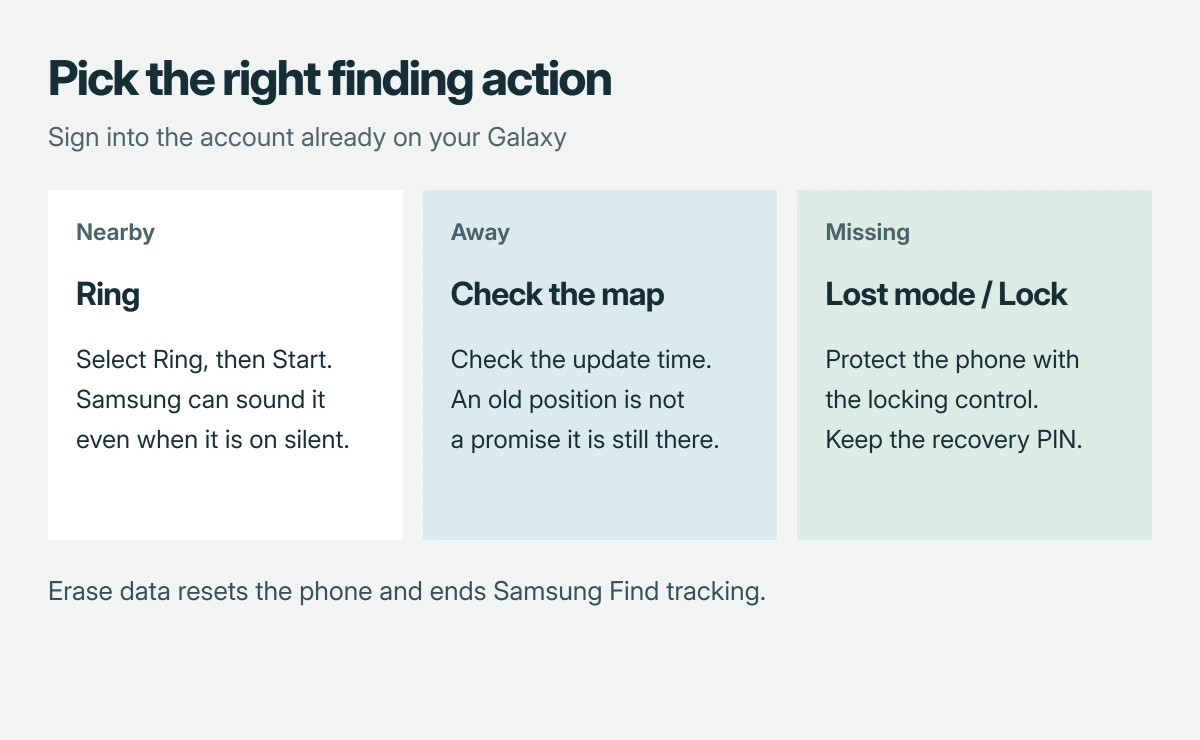
Choose Ring, then Start on Samsung's website. Samsung says this sounds the phone for one minute, including when it is muted or set to vibrate. Listen around the places you last used it.
Stop the sound on the website once you find it, or dismiss it on the phone. You don't need to erase or reset anything to use this search.
After recovering the phone, choose its everyday ringtone or a caller-specific sound in the sound and contact controls.
Silence doesn't tell you where it is. It may be offline or out of power, so check its displayed connection and location information before drawing that conclusion.
Away from you? Protect it while checking the map
Look at when the location was updated. A previous location shows where the phone was detected, rather than promising that it is still there. I would treat an old map result as a starting point.
Samsung's lost-device instructions describe Lost mode. Select your phone, choose that control, create and confirm the recovery PIN, then follow the account-verification and locking prompts.
Some Samsung instructions label the control Lock instead. Read the confirmation for your device. Keep the PIN you create, because it is needed when the phone is recovered.
If you suspect theft, don't confront someone at the map location. Samsung advises involving the authorities. Your carrier can also help protect the mobile service while you deal with the missing handset.
If the carrier requests the device identifier, find the Galaxy IMEI from the handset or its matching packaging.
If Samsung Find cannot show a current location
The service needs the correct account and the phone's finding settings enabled. Live remote actions also depend on power and connectivity; those conditions can't be repaired by repeatedly refreshing the same map.
Samsung's Find My Mobile help requires finding to be enabled on the device. If setup was never completed, signing into the website afterward cannot supply the missing enrollment.
You can also check Google Find Hub at android.com/find, using the Google account on that phone. Google says in its lost Android guide that a last known location may be available when a current one isn't.
Select your device there and inspect the result. Google's Play sound and Mark as lost controls are alternatives when that service can reach it. The Google and Samsung accounts are separate sign-ins.
Keep erasing separate from finding
Erase data is a destructive choice. Samsung states that it resets the device and ends your ability to locate or control it through Samsung Find. Don't choose it as an attempt to refresh a stale location.
If the phone is with you but locked, check Samsung's previous-code recovery window before choosing erasure.
If permanent loss makes an erase necessary, first consider what you have backed up. Our Android backup guide explains why photos and application data can depend on different backup arrangements.
If you need a replacement, our new-phone transfer guide describes the setup routes. Direct transfer requires access to the old device; a missing phone changes which options you can use.
Once the phone is back, check its finding settings
On current Galaxy software, open Settings > Security and privacy > Lost device protection. Samsung lists Allow this phone to be found, Send last location and Offline finding there. Menu wording varies with the model and software.
Check those switches while you have it. Offline finding can help supported devices be detected through the finding network, but it doesn't guarantee that every future loss will produce a current location.
For unfamiliar Galaxy menu text, choose a readable system language before reviewing the recovered device's protection settings.
The Short Version
Sign into Samsung Find with the phone's existing account and select the correct device. Ring it if it's nearby; otherwise inspect the map's update time and use Lost mode or Lock. Erasing is a separate decision that ends Samsung tracking.
Where to Next
Is your Galaxy absent from the device list, listed as offline, or showing an old location? Tell me which of those you see and which finding service you're using. Leave account details and map locations out of the comment.

Isaac Smith is the founder and editor of PC Glance, a website that covers computers, laptops, and technology. He is a tech enthusiast and a computer geek who loves to share his insights and help his readers make smart choices when buying tech gadgets or laptops. He is always curious and updated about the latest tech trends.