
Processing failed at Samsung account sign-in need not mean a wrong password. Check the phone's clock, connection and updates first. A failure after password entry may instead involve two-step verification.
Try the same account at account.samsung.com in a browser. Whether that sign-in succeeds helps separate a phone-specific error from account access trouble; it does not prove a particular component failed.
Check which part of sign-in fails
Enter the account address on Samsung's own sign-in page and follow its prompts. Note whether the error appears before the password is accepted, while requesting a verification code, or after entering that code.
Samsung says its account troubleshooting process includes account identification, password recovery and separate verification methods. A Samsung account password also differs from the PIN used to unlock the Galaxy phone.
Status: Samsung account access guidance reviewed October 26, 2026. Processing failed is treated as a sign-in symptom, not proof of an outage. No Samsung account was accessed.
If the browser signs in but Settings does not, retain that result for Samsung Support. This comparison is ours: it shows that the credentials work in that browser session without promising that phone authentication uses an identical route.
Account access also matters when trying to locate a missing Galaxy. Creating a replacement account will not put devices from the old account into the new one.
Correct the clock and compare connections
Open Settings > General management > Date and time. Enable Automatic date and time and, where available, Automatic time zone. Compare the displayed date and time with a reliable current clock before retrying.
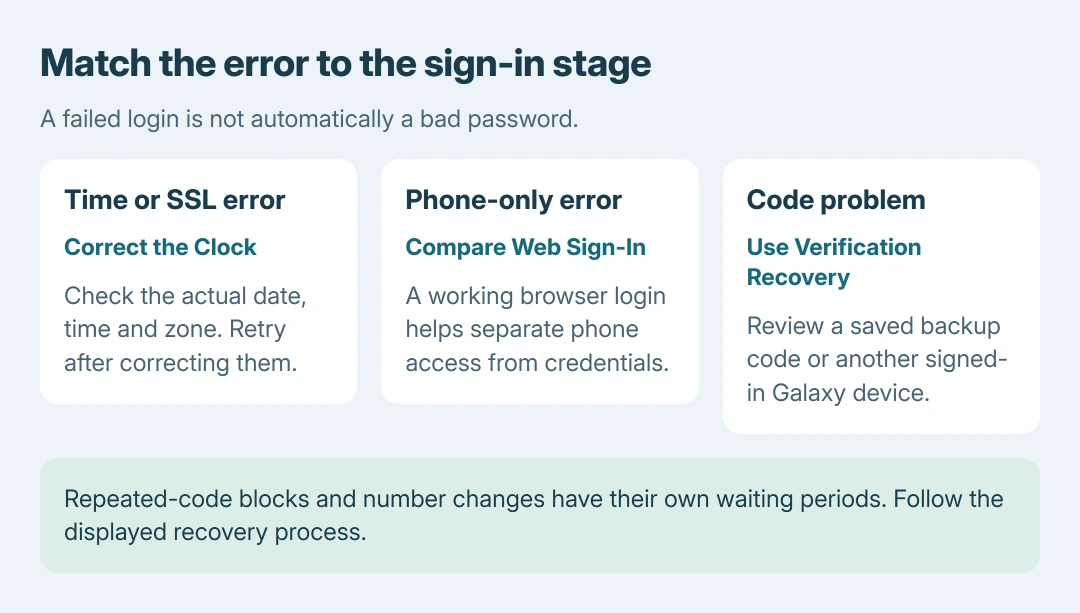
Samsung documents incorrect time as a cause of SSL and time-difference sign-in errors. Its Galaxy clock instructions also explain that automatic time relies on network information.
If network time remains wrong, set the actual date, time and zone manually, then retry. Restore automatic time when the network supplies it correctly. Samsung's remedy corrects the clock; it does not prescribe an arbitrary earlier date.
Confirm a webpage loads, then compare trusted Wi-Fi with cellular data if the plan permits it. Success on one connection directs checks toward the other. Failure on both is insufficient to confirm a Samsung outage.
Samsung's sign-in error guidance names temporary system problems too. Use its account-status link when several services fail together, and follow any active incident instructions.
Update the phone and available Samsung apps
Samsung states that both Android and the Samsung account version should be current. On Galaxy software, open Settings > Software update > Download and install. Carrier versions may instead use System updates and a check-for-updates control.
For application updates, open Galaxy Store > Menu > Updates. Install an offered Samsung account update if listed. The Store may also require sign-in, so an inaccessible Store is a result to report rather than a reason to erase the phone.
After installing available updates, use a normal Galaxy restart and retry the failed sign-in. When no update is offered, the original account fault may still need Samsung's help.
Use verification recovery when the code is the obstacle
At the verification prompt, use Didn't get the verification code? to review the alternatives offered for the account. Samsung documents backup codes and notifications to another Galaxy already signed into that account.
A saved backup code is single-use. Choose Verify with backup code if that option appears and a previously saved code is available. Do not publish the code or give it to someone claiming to repair the account.
For a lost verification number, Samsung provides Need to change your phone number? in its web recovery flow. The documented replacement process takes two weeks; submitting a fresh request restarts that period.
For a repeated-code verification block, stop requesting more codes. Samsung recommends waiting at least 24 hours before retrying that specific restriction. This is not a timer for every Processing failed message.
Take a persistent phone-only failure to Samsung
Give Samsung Support the model, Android and One UI versions, error and failed sign-in stage. Include the browser result and whether another connection helps. Keep credentials and codes out of the report.
The documented next step is support when those checks do not restore access. A factory reset would erase local information without proving that the account or verification problem was repaired.
The Short Version
Check the error's stage, correct the clock, compare connections and apply available updates. Use Samsung's verification recovery for a code problem. Observe the stated wait only when that specific verification restriction appears.

Isaac Smith is the founder and editor of PC Glance, a website that covers computers, laptops, and technology. He is a tech enthusiast and a computer geek who loves to share his insights and help his readers make smart choices when buying tech gadgets or laptops. He is always curious and updated about the latest tech trends.