
Samsung Notes on PC officially supports Samsung computers, including Galaxy Books. If an update stops it working on another brand, reinstalling won't make that PC supported; export the notes you need from your Galaxy phone.
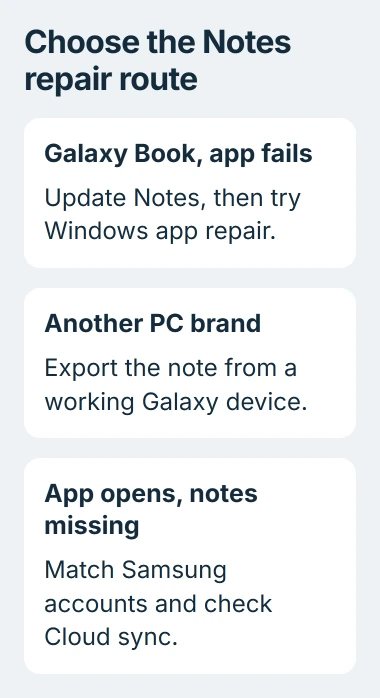
On a Galaxy Book, update the app, check Samsung Cloud sync, then try Windows' repair option. Choose your next step based on what happens: does Notes fail to open, or does it open without your notes?
1. Check the PC model and the failure
In Windows, open Settings > System > About and check your PC's model. If it isn't clear, look on the laptop's label or in its maker's support app. Check the computer itself; the brand on a connected monitor doesn't tell you the PC's model.
Samsung says its PC version of Notes is optimized for Galaxy Books. The Notes team's announcement also states that other manufacturers' PCs aren't officially supported.
Status: Samsung's PC compatibility and sync instructions reviewed November 3, 2026. Its current notice also says OneNote sync isn't available on devices running One UI 9.
A copy installed through an older workaround may have worked for months. Samsung still doesn't support that setup, and an app update can stop it working.
If the message says your hardware isn't supported, skip to the export section. If Notes opens but your notes are missing, try the sync checks. On a supported PC, use the update and repair steps when the app closes or stays blank.
I'd get a readable copy of an urgent note from the phone before working on the PC app. That way, you have the information you need while checking the computer.
2. Update Notes on a supported Galaxy Book
Open Microsoft Store, search for Samsung Notes, and open its listing. Install any offered update. If Notes isn't installed, Samsung's instructions use Get, followed by Open after installation finishes.
Microsoft documents the Store's Check for Updates control in its app-update instructions. Use it when the app listing doesn't show a pending update directly.
After the update, close Notes and reopen it. Try making a short test note and opening a saved note. This checks whether the whole app has stopped working or one particular note won't open.
If you can make a new note but older ones are missing, try the account and sync checks next. If the app still closes, check that you can see your saved notes on another device, then move to the repair section.
On your phone or tablet, Samsung's update route is Notes > Menu > Settings > About Samsung Notes. Tap Update if it's offered so each device has the latest version available to it.
3. Check Samsung Cloud on both devices
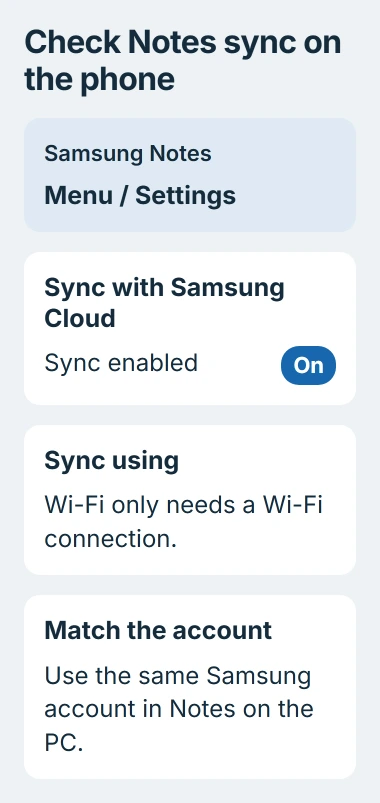
In Notes on your PC, open Settings and select Sync with Samsung Cloud. Use the Samsung account that holds your notes to sign in. Make sure the sync switch is on, then use Sync now if it's available.
On the Galaxy phone or tablet, open Samsung Notes, tap its three-line Menu, then the Settings icon. Turn on Sync with Samsung Cloud and check that the account matches the one on your PC.
Samsung states that using the same account and turning on sync lets you see your notes on both devices. The Microsoft account you use for Windows or the Store doesn't replace that Samsung sign-in.
On the phone or tablet's sync page, check Sync using. If it's set to Wi-Fi only, connect to Wi-Fi before checking for the note on your PC. That setting won't let notes sync over a cellular connection.
Make a short note on the phone with a title you'll recognize, then check the PC after syncing. If it arrives, new notes are syncing. Write down which older notes are still missing instead of resetting everything.
If sign-in shows Processing failed, try the Samsung account access checks. Creating more accounts won't bring over the notes in your original account.
4. Use Windows' Repair control
If Notes still crashes or won't open on your Galaxy Book, try Microsoft's Windows app repair control. In Windows 11, open Settings > Apps > Installed apps and find Samsung Notes.
Use its three-dot menu to open Advanced options. Select Repair if available, let Windows finish, then launch Notes and test the same action again. Windows 10 names the app list Apps & features.
The Windows app-repair guide notes that some apps don't offer these controls. If they're missing, ask Samsung Support for help with your installation.
Don't select Reset or uninstall while the PC may hold the only copy of a note. Those actions can remove local app data. Check important content on the phone or export it from any device where it still opens first.
If Notes opens after Repair but your notes are still missing, go back to the account and sync checks. Reinstalling an app and recovering notes that never reached Samsung Cloud are separate jobs.
5. Export notes for a PC that isn't supported
Use a working Galaxy phone or tablet to open the note. Samsung documents More options > Save as file in its export instructions.
Choose PDF file for a readable copy. Choose a folder for the export and tap Done, then name the file and tap Save. You can also use the note's Share control to send a PDF to another device.
Open the PDF on your PC and check every page you need. Make sure you can read the handwriting and drawings, especially in a note with several pages or an imported document.
A PDF is a separate copy. Changes you make in the original note afterward won't automatically update the PDF already on the PC. Export again when you need a newer version.
You can also export Word, text and image files. Pick the format that suits what you'll do with the note, then check how the exported file looks. I'd start with PDF for a page you mainly need to read or print.
Exporting a note is different from making a device backup. The Samsung Cloud recovery guide explains why you can't browse individual apps' data on the Cloud website and download it to Windows.
6. Account for the OneNote sync change
Samsung's current OneNote sync notice says OneNote syncing isn't available on One UI 9 devices. It recommends Samsung Cloud sync; reconnecting your Microsoft account won't restore the feature.
That changes the older setup advice still on Samsung's general Notes features page. If OneNote syncing disappeared after that update, the service has changed. Repairing the PC app won't bring it back.
If Notes still fails on a supported Galaxy Book, send Samsung Support your PC model, Notes version, phone software version and exact message. Say whether a test note syncs and whether the app opens any differently after Repair.
The Short Version
Check hardware compatibility first. On a Galaxy Book, update Notes, match Samsung Cloud accounts and try Repair. On another PC, export from a working Galaxy device. One UI 9 no longer offers the former OneNote sync route.

Isaac Smith is the founder and editor of PC Glance, a website that covers computers, laptops, and technology. He is a tech enthusiast and a computer geek who loves to share his insights and help his readers make smart choices when buying tech gadgets or laptops. He is always curious and updated about the latest tech trends.