
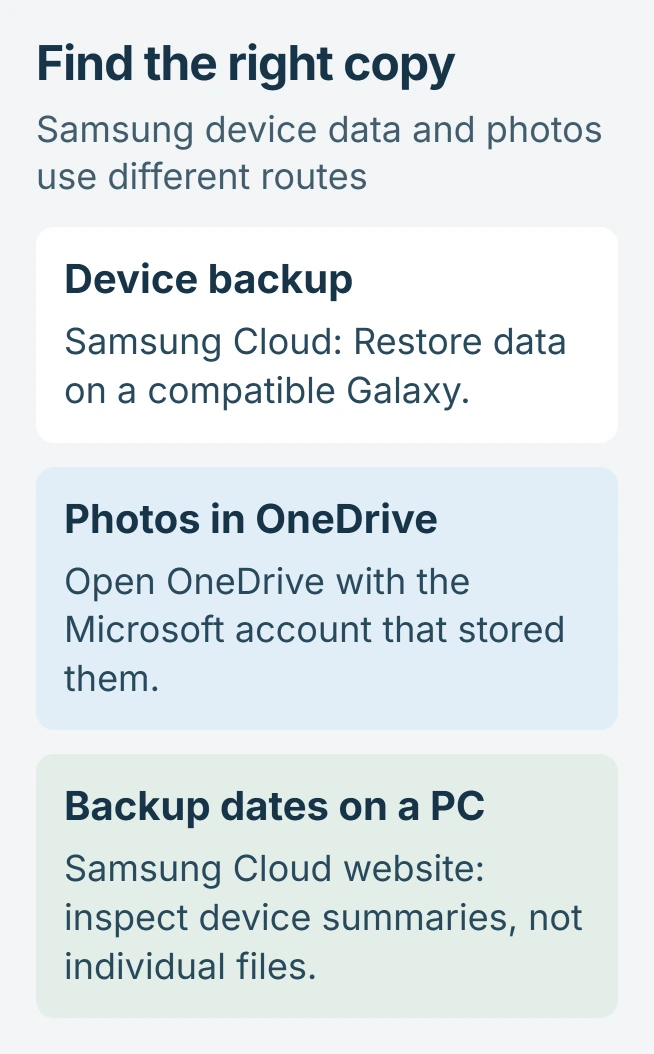
Restoring a backup from Samsung Cloud requires a compatible Galaxy signed into the original Samsung account. Open Samsung Cloud, choose Restore data and select the saved device. The website cannot download the backup as separate files.
Photos need a different check. Samsung Cloud's device backups do not include Gallery photos and videos, and Microsoft ended direct Samsung Gallery syncing with OneDrive on September 30, 2026.
Find the backup under the right Samsung account
Open Settings, tap your Samsung account name at the top, then select Samsung Cloud > Restore data. Choose the backup belonging to the old device, rather than assuming the first entry is the one needed.
Samsung says this route restores previously backed-up content in its Galaxy backup instructions. Review the offered data categories before starting; recovery depends on what that backup contains.
Status: Samsung backup access and Microsoft's September 2026 Gallery-sync change checked November 1, 2026. No account was signed into and no Galaxy data was restored.
An alternative route is Settings > Accounts and backup > Restore data under Samsung Cloud. On a replacement phone, sign into the same Samsung account before looking for its saved devices.
The Android backup coverage page covers Google's separate backup service. Signing into a Google account does not, by itself, select the Samsung account that owns a Samsung Cloud copy.
Restore the offered categories and check their apps
Select the content needed and follow the restore prompts. For messages specifically, choose Messages, tap Restore, and tap Done when the process finishes. Samsung documents those controls in its message restoration guide.
Open the corresponding app afterward and check the items and dates you expected. A completed restore cannot supply material that was never included in the selected backup.
For deleted conversations, first consider the Android message-recovery options. A message retained in its app's Trash may be recoverable without bringing back an older device backup.
Keep current files and the existing backup until the result is checked. Creating a new backup after something disappears does not prove the missing item is preserved.
Use the website to check devices and backup dates
Open support.samsungcloud.com and sign in with the same Samsung account. Complete its two-step verification, then select Devices backed up to inspect the saved-device list and last backup times.
Samsung states that the portal cannot download individual backups or specific synced files in its Cloud access guide. Device recovery requires a compatible phone or tablet.
The portal is useful for confirming that a backup exists under that account. It is not a file browser from which a call log or app database can be extracted onto a PC.
If the old phone is missing from the list, check the account identity before taking any destructive action. Samsung also warns that inactive Cloud data can be deleted after more than 12 months, with advance notice.
Look in OneDrive for photos previously stored there
Open the OneDrive app or onedrive.com, using the Microsoft account connected to the earlier photo storage. That account can differ from the Samsung sign-in used for device backups.
Microsoft says photos already stored in OneDrive remain available there after the Samsung Gallery sync change. Their disappearance from Gallery does not mean OneDrive deleted them.
Samsung's Cloud help still mentions Gallery-to-OneDrive linking. Microsoft's dated notice supersedes that setup advice: direct Gallery syncing ended on September 30, 2026. Check OneDrive itself for the existing pictures.
For future uploads, use OneDrive > account profile > Camera backup. Select the correct account, enable backup and grant photo/video access. This copies photos from the phone; it does not recover a missing old backup.
When an expected copy remains absent, contact Samsung Support with the account identity, old device model and backup date. For files missing inside OneDrive, use Microsoft Support. A reset cannot create a backup that no longer exists.
The Short Version
Restore device content from a Galaxy using the original Samsung account. The website shows backup records; OneDrive holds photos saved there. Check the available copy and its contents before resetting or deleting anything.

Isaac Smith is the founder and editor of PC Glance, a website that covers computers, laptops, and technology. He is a tech enthusiast and a computer geek who loves to share his insights and help his readers make smart choices when buying tech gadgets or laptops. He is always curious and updated about the latest tech trends.