

OneDrive camera upload on a Galaxy S10 can stay paused even with photo access allowed, so check the permission and backup account first. For the older permission loop, removing OneDrive updates and then updating again restored uploads.
Samsung Gallery also stopped syncing directly with OneDrive on September 30, 2026. That change needs OneDrive's own Camera backup, rather than another attempt to turn on the retired Gallery connection.
In this guide
1. Choose OneDrive Camera backup instead of Gallery sync
Open the OneDrive app itself, not Samsung Gallery. Check the signed-in Microsoft account. Your phone's Samsung sign-in can use a different account.
Microsoft's Samsung Gallery change notice explains that existing cloud photos remain in OneDrive after Gallery sync ends. A photo disappearing from Gallery's cloud view doesn't mean the OneDrive copy was deleted.
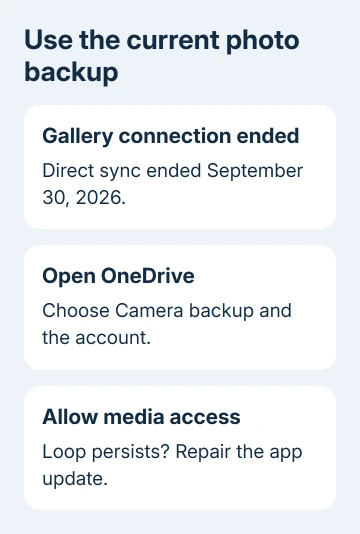
Tap your account picture, select Camera backup, confirm the correct account and turn backup on. Some builds show this under Settings > Camera backup, while older versions call it Camera Upload.
Only one account can use camera backup at a time. When both company and personal OneDrive are connected, check which account will receive the photos before confirming. A photo uploaded to your other account can look like a failed upload.
Return to the app after taking one new photo. Look for that picture inside the intended OneDrive account. If the app still asks for photo access, address the phone permission next rather than changing Gallery settings.
Pictures already uploaded but refusing to open need the Android viewing checks, including a comparison with another device.
2. Allow access to the photos stored on the phone
On the S10, open Settings > Apps > OneDrive > Permissions. Check the permission for files and media or storage, depending on the installed Android version. Allow the access OneDrive requests for photo backup.
Newer Galaxy phones can show Photos and videos with a choice between all photos and selected photos. For automatic backup of new pictures, grant access to all photos. Your S10 won't necessarily show that newer wording.
Reopen OneDrive and accept the camera-backup permission prompt if it appears. Camera permission by itself isn't a substitute for permission to read photos that are already stored on the phone.
The original report used OneDrive 6.23.1 with a work account. The phone showed no denied permissions, but the app kept asking for access. That was the version involved in the old permission loop; keep the current app installed now.
If the correct access is allowed and the app still repeats the same request, try the update repair in section 3. If the warning clears but pictures remain pending, skip to the connection and backup conditions in section 4.
When regular Wi-Fi produces a hotspot warning, compare OneDrive uploads with the VPN disconnected to check that connection condition.
3. Repair the update when permissions are already allowed
Open Google Play Store, find Microsoft OneDrive, and install an offered update. Start the app again and check camera backup. I'd try a normal update first, before removing the app's installed updates.
For a preinstalled OneDrive app that still loops, open Settings > Apps > OneDrive. Tap the three-dot menu and choose Uninstall updates if that option is offered. Install the current OneDrive update from Google Play afterward.
One owner with an S10+ said removing updates alone didn't help, but installing the latest update afterward restored uploads. Another report said an older build worked. For the S10+ owner, leaving that older build installed wasn't enough.
If OneDrive isn't preinstalled, you may see Uninstall instead of Uninstall updates. Use the supported uninstall-and-reinstall route through Google Play, then sign back in and re-enable camera backup for the intended account.
Before removing app data, save a separate copy of files available only inside the app, including offline work that hasn't reached the cloud. Leave the original camera photos in place while you repair backup.
After reinstalling, grant the requested media access and retry the new photo. Signing in isn't the final check. Confirm that the photo appears in OneDrive and the repeated permission prompt stops.
4. Check the conditions that can hold uploads
Open OneDrive > account picture > Settings > Camera backup. Older builds call it Camera Upload. Check the account and storage usage first: a full Microsoft account can't accept new photos.
If backup is restricted to Wi-Fi, connect to Wi-Fi or choose Back up over Wi-Fi and mobile network under Data usage if you want cellular uploads. Check your cellular allowance before sending a large photo backlog.
Check Backup only when charging. The phone can look stuck when it's simply waiting for power as instructed. Connect power or change that choice, then watch for progress in the app.
Turn on Include videos if only photos arrive. For screenshots or pictures saved by other apps, select the folders under Back up device folders. The camera folder setting doesn't cover every album.
Leave OneDrive running while checking the result. Swiping it away can stop automatic backups. The Android backup coverage guide explains what Google saves separately from OneDrive photos.
5. Upload an urgent photo and report a persistent loop
For an urgent picture, open the destination folder in OneDrive, tap the add control, choose Upload, and select the photo. Confirm that it opens from the destination after the transfer completes.
Tell support if manual uploads work while automatic backup stays paused. A successful upload shows the account accepted that file, while automatic backup still needs attention. It doesn't replace ongoing camera backup.
For Samsung account or Gallery recovery questions, use the Samsung Cloud restore guide to keep those controls separate from OneDrive's current photo backup.
If the loop survives, open OneDrive and gently shake the phone to contact support. Send the app version, Android version, account type and prompt. Say that phone access is already allowed and whether manual upload works.
The Short Version
Use OneDrive Camera backup after Gallery sync ends. Allow media access and check the account. Repair the update if the prompt repeats, then check storage, Wi-Fi, charging and video settings for files still missing.
Checked November 16, 2026.






