
Emptying trash on Android starts in the app that deleted the files. Files by Google, Google Photos and Samsung My Files have their own removal controls. No single trash folder covers every app on the phone.
Review the contents first. Deleting items from these bins is permanent, so restore anything needed before confirming the final removal.
Open the bin for the right app
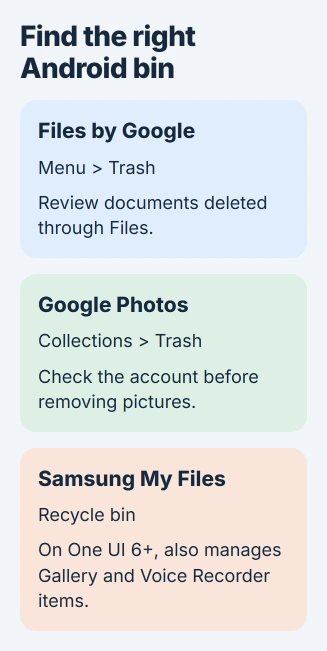
For documents removed with Files by Google, use its Trash. For pictures deleted in Google Photos, open the Photos Trash. Galaxy owners using Samsung apps should check My Files > Recycle bin.
Samsung says My Files can manage deleted items from My Files, Gallery and Voice Recorder together, starting with One UI 6.0. That shared bin does not include Google Photos' account trash.
Status: Files by Google, Google Photos and Samsung recycle-bin instructions checked November 3, 2026. Paths depend on the app; no phone files or cloud content were deleted.
Check the scope of Android backups before assuming a wanted document can be recovered after removal. A backup switch does not prove that a particular file has another copy.
Delete items from Files by Google
Open Files by Google, tap Menu at the upper left, then choose Trash. Select the files to remove, tap Delete at the bottom and confirm Delete in the prompt.
This sequence is documented by Google. Select every item only when the entire bin has been reviewed and all of it is unwanted.
To keep an item instead, select it in Trash and choose Restore, then confirm. Files by Google normally retains trashed files for 30 days before removing them automatically.
The app's Junk files cleanup is different: Google says those deletions bypass Trash. Do not expect everything removed through the Clean menu to remain available for recovery.
Empty Google Photos only after checking the account
Open Google Photos and verify the Google Account shown by the profile control. Then choose Collections > Trash, open More, and select Empty Trash > Delete permanently.
Those are Google's Photos empty-trash steps. For individual pictures, open Trash and choose Select. Mark the items, use the trash control, and confirm Delete permanently.
Google Photos deletion can affect the backed-up library and other devices using that backup. Treat its Trash as part of the photo account, rather than a folder containing only disposable phone copies.
When the aim is freeing phone space while retaining backed-up pictures, Google documents profile picture > Free up space on this device in its local-space cleanup guide.
Confirm backup completion before using that option. It removes eligible local copies while keeping the backed-up library available in Photos; offline access to those removed copies will change.
Clear Samsung's Recycle bin
In My Files, open Recycle bin, tap More at the top and choose Empty. Review and complete the confirmation shown by the phone.
Samsung's My Files recycle-bin guide also provides selective removal: choose Edit, select particular files or All, then Delete.
For Gallery alone, open Gallery > Menu > Recycle bin > Edit. Select the pictures, choose Delete or Delete All, and confirm. That is useful when reviewing only images rather than all the Samsung app categories.
If a wanted file is missing, check the available Samsung backup and photo copies before emptying more folders. Samsung Cloud and a photo-storage account can hold different material.
When the expected files or space are missing
Return to the app used for the original deletion and confirm its account. For an email or messaging app, inspect that app's own deleted-items controls instead of assuming My Files contains its records.
Compare storage in the place being cleaned: phone storage for local documents, or the relevant account for cloud content. An empty bin does not prove that large files elsewhere were removed.
For a bin that fails to load or delete, report the app name, phone model and error to Google or Samsung support. Preserve any needed files while the failure is being checked.
The Short Version
Choose the bin by app, review its contents, then confirm permanent deletion. Samsung My Files groups several Samsung app bins; Google Photos has separate account-wide consequences and a different option for freeing only phone space.

Isaac Smith is the founder and editor of PC Glance, a website that covers computers, laptops, and technology. He is a tech enthusiast and a computer geek who loves to share his insights and help his readers make smart choices when buying tech gadgets or laptops. He is always curious and updated about the latest tech trends.