

The degree symbol refuses to appear in your document. Alt and the number keys should type it.
I'll show you the Windows keypad method, a Word option without a keypad, and the Mac character picker. Choose the route that matches where you're typing.
Windows with a number pad: hold Alt and type 0176
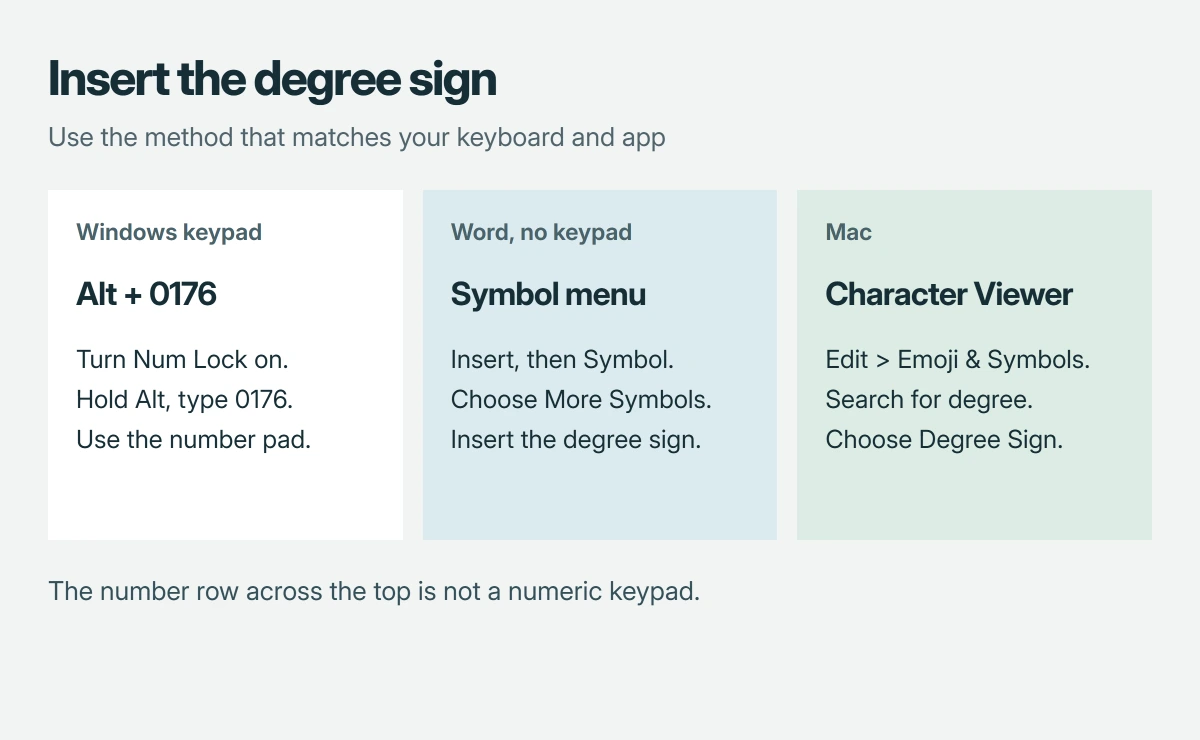
Click where you want the symbol, turn Num Lock on, hold Alt, type 0176 on the numeric keypad, then release Alt. In a supporting text field, the degree sign appears at the cursor.
Microsoft documents this combination in its degree-symbol instructions. The separate number pad is the important part. Typing those digits across the top row doesn't perform the same entry method.
Status: Microsoft symbol-entry and Apple Character Viewer instructions checked 18 October 2026. Methods are separated by application and keyboard type. No keyboard settings were changed.
I would try the keypad method in Word first if another app ignores it. Microsoft publishes the combination for Word, which gives you a useful check without assuming every application handles character entry identically.
If your laptop has no number pad, keep reading; you don't need to buy another keyboard for this. Word's symbol menu can insert the character directly.
Word without a keypad: use the Symbol menu
Place the cursor in your document and select Insert > Symbol > More Symbols. Choose a normal text font, then choose Latin-1 Supplement from the subset list if available. Select the degree sign and click Insert.
Close the dialog and check its position; Microsoft says the character then appears in Word's recently used symbols, making later insertions easier. This avoids the keypad requirement entirely.
The letter O isn't a substitute, nor is a small superscript zero, even if the result looks close in your chosen font. Use the character named DEGREE SIGN when the dialog shows its name.
For a document that must use real text, this matters more than appearance alone. Someone copying the value into another application should receive the intended character, rather than a lookalike letter.
Another Word route: convert the character code
In desktop Word for Windows, type 00B0, select just those four characters, then press Alt+X. Word converts the selected hexadecimal code to the degree sign. This doesn't require a numeric keypad.
Microsoft's Unicode-entry instructions explain selecting only the code when other text touches it, which prevents a neighboring number or letter becoming part of the conversion.
Keep this method inside Word. It isn't a universal Windows shortcut for inserting the same symbol in every browser, spreadsheet or message field.
Other Windows apps: copy from Character Map
Search Start for Character Map and open it. Choose a text font, select the degree sign, then use Select and Copy. Paste the copied character into the text field where you need it.
Microsoft describes this built-in tool in its character-entry guide; I would use it when an application's own symbol controls are hard to find.
For currency, copyright and other marks, compare the Windows symbol pickers before memorizing another code.
If ordinary copy and paste fails too, our clipboard troubleshooting guide covers that wider fault. A missing paste result isn't necessarily a problem with the degree character itself.
On a Mac, search the Character Viewer
Click into your text, then choose Edit > Emoji & Symbols from the app's menu. Search for degree in the viewer and select Degree Sign. If the viewer is expanded, double-click the character to insert it.
Apple says this picker supports symbols as well as emoji in its Character Viewer guide. You can add a frequently used character to Favorites in the expanded viewer.
If you're still getting used to Mac modifier keys, our Mac shortcut guide explains Command, Control and app menus. Windows Alt-code instructions don't transfer directly to a Mac keyboard.
For faces and gestures in a message, open the Mac emoji picker with its keyboard shortcut and choose the intended character.
The Short Version
Use Alt+0176 with a Windows numeric keypad. Without one, use Word's Symbol menu or its 00B0 conversion with Alt+X. Character Map serves other Windows apps, while a Mac offers the searchable Character Viewer.
Where to Next
Which application refuses the symbol, and does your keyboard have a separate number pad? Tell me those two details. I'll be able to suggest the right entry method without asking you to change the whole keyboard layout.

Isaac Smith is the founder and editor of PC Glance, a website that covers computers, laptops, and technology. He is a tech enthusiast and a computer geek who loves to share his insights and help his readers make smart choices when buying tech gadgets or laptops. He is always curious and updated about the latest tech trends.