

Mac keyboard shortcuts use different keys from the ones you learned on Windows, so old habits stop doing their jobs.
I'll start with the Command key, then show you where each app lists its shortcuts and how to change a menu command's combination. You don't need to memorize a long chart.
Hold Command, then tap the other key
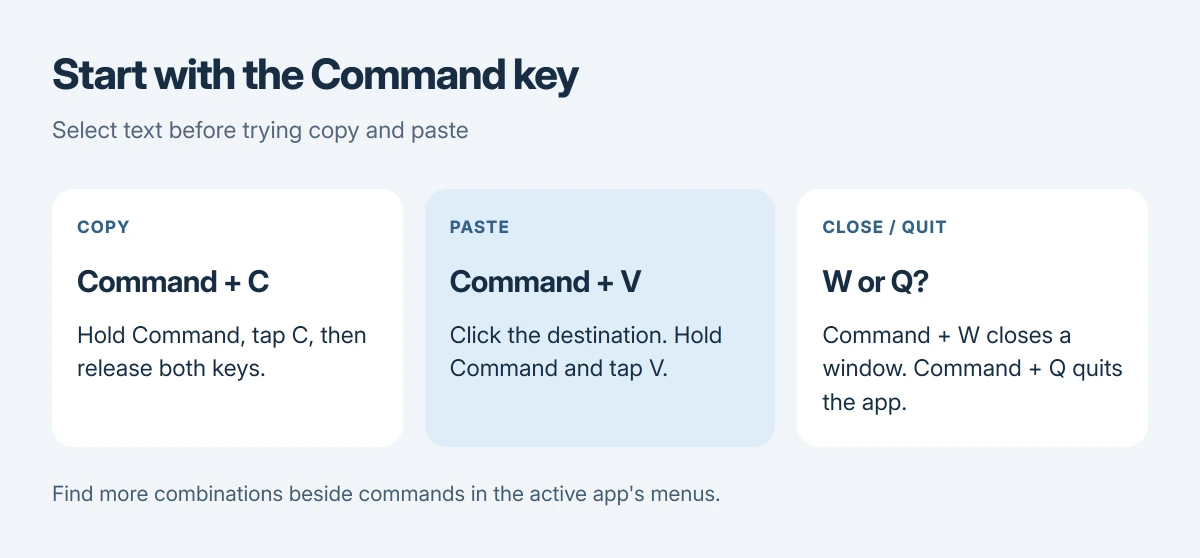
Select a few words in a document, then hold Command, tap C, then release both keys. Click another place where you can type and use Command+V to paste the words there.
Apple documents this hold-and-press method in its Mac shortcut reference. On an Apple keyboard, Command sits beside the space bar. Control is a different modifier key.
Status: Apple's Mac shortcut reference and current App Shortcuts instructions checked 17 October 2026. App-specific combinations can differ. No Mac keyboard was tested here.
I would practice that pair before adding more. Once copying feels natural, the other Command combinations are easier to remember because your fingers already know the movement.
To compare the Windows keys or avoid bringing a source font, choose the right paste method for the computer and receiving app.
Learn a few commands you can use today
Try these in a simple document first. Apple says individual apps can assign different shortcuts, so the active app's menu is your best check when something behaves differently.
| Keys | Usual action |
|---|---|
| Command+A | Select everything in the current document or selection area. |
| Command+Z | Undo the previous action when the app supports undo. |
| Shift+Command+Z | Redo an action you just undid. |
| Command+S | Save your current document. |
| Command+F | Find text or open the app's search control. |
| Command+Tab | Move between applications that are already open. |
Be careful with Command+W and Command+Q. The first closes the front window; the second quits the application. Closing a window can leave its app running, which is normal on a Mac.
If you're learning capture keys too, our Mac screenshot guide explains which combinations save a file and which copy a picture. Those are different destinations.
Find the shortcut beside the menu command
Open your app's File, Edit or another relevant menu. Look to the right of the command you want. Apple's menu shortcut guide shows this approach.
The symbols stand for keys such as Command, Shift, Option and Control. Apple's reference identifies each symbol if you don't recognize the small marks beside a command you want to use.
A command without a displayed combination might still be usable through its menu.
To cross out words, check the editor's strikethrough control before assigning a new key combination.
There isn't one Settings list containing every shortcut from every installed app. System shortcuts and app menus cover different things, so check the application's own Help for the commands its developers provide.
For a character you cannot find on a key, enter a degree mark with the symbol picker. That is separate from customizing an app command.
Assign a different combination to a menu command
Apple states that App Shortcuts works with existing menu commands, rather than arbitrary tasks such as launching an application. Start with a command you can already find and use in the app's menu.
- Open System Settings > Keyboard > Keyboard Shortcuts.
- Select App Shortcuts, then choose the add button.
- Pick the application you want to change.
- Enter the command's exact wording in Menu title, including its punctuation.
- Click Keyboard shortcut, press your chosen combination and select Done.
Apple's custom shortcut instructions explain submenu paths too. Use the exact command name, not a description of what you hope it does.
I would choose one app while learning this. All Applications is useful for shared commands, but a change limited to one app is easier to recognize when you try it.
To revise your new shortcut, select its entry, click the key combination and press the replacement keys. To undo the customization, select the entry and use the remove button.
When pressing the keys has no effect
Check that the command is available in the current window and that your new combination doesn't conflict with another shortcut. Apple warns that a conflicting custom combination won't work; change one of the assignments.
When an edit cannot be reversed, check Undo availability and the correct redo keys before changing a keyboard assignment.
If ordinary letters stop appearing across apps too, use our Mac keyboard input troubleshooting. That broader typing failure needs a different check from an unavailable menu command.
The Short Version
Hold the modifier keys while pressing the final key. Learn copy, paste and undo first, read other combinations from the active app's menus, and use App Shortcuts for an existing menu command you want to customize.
Where to Next
Which menu command are you trying to reach from the keyboard? Please name the application and copy the command's wording into your comment.
I can then tell whether you're looking at a missing shortcut or a command that isn't available there.

Isaac Smith is the founder and editor of PC Glance, a website that covers computers, laptops, and technology. He is a tech enthusiast and a computer geek who loves to share his insights and help his readers make smart choices when buying tech gadgets or laptops. He is always curious and updated about the latest tech trends.