
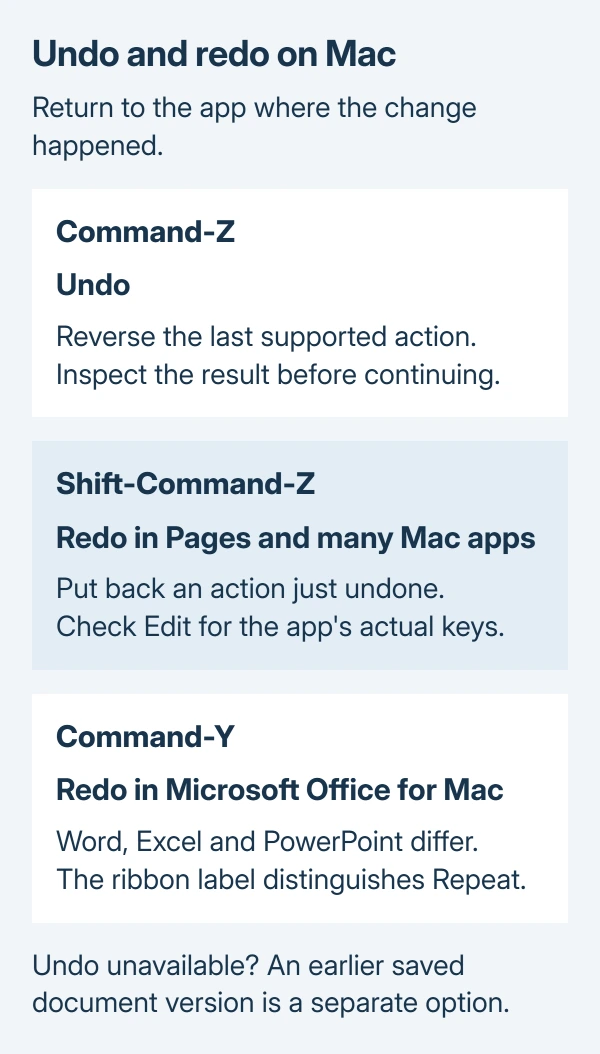
Undo on a Mac uses Command-Z in the app where the change happened. It reverses the last action that app can undo. Shift-Command-Z usually puts the change back; Microsoft Word, Excel and PowerPoint for Mac use Command-Y for redo.
The app's Edit menu shows which action is available and its shortcut. Check it before pressing the keys again if the first attempt does nothing.
Reverse the last edit in the right app
Return to the document or window where the unwanted change occurred. Apple documents Command-Z in its Mac shortcut reference, while noting that combinations can differ between apps.
Hold Command, tap Z, then let go. On an Apple keyboard, Command is beside the space bar; it is separate from Control. Inspect the document to see which change was reversed before trying another undo.
Status: Undo menus and Mac shortcuts verified against Apple and Microsoft documentation on October 29, 2026. No app editing or recovery test was performed.
For example, after removing text in Pages, an available Undo can bring that recent edit back. Apple's Pages instructions also provide Edit > Undo in the screen's menu bar, so a keyboard is not required.
Some apps allow several actions to be undone in sequence. Go one change at a time and stop at the intended result. Apple does not promise the same history depth for every application.
Redo a change you just reversed
In Pages, choose Edit > Redo, or hold Shift and Command while tapping Z. That reapplies the action removed by Undo. It does not mean repeating any arbitrary task.
Microsoft documents a different combination for desktop Word, Excel and PowerPoint on Mac: Command-Y. Their Redo button is in the ribbon's upper-left area and appears after an undo.
The same Microsoft shortcut can also Repeat a supported action, such as pasting again. Check the command's label before using it. Microsoft's undo, redo and repeat guide separates those behaviors.
Command-Y is not a universal Mac redo key. In Finder, Apple assigns it to Quick Look, which previews a selected file.
Read the menu when Undo does nothing
Open Edit in the app being used and inspect the Undo command. Its wording can name the edit it would reverse. After cropping a picture in Preview, for instance, that command is Undo Crop.
Apple says an app's menus display available shortcut combinations beside their commands. Use the one shown for that app instead of assuming another application's keys apply.
If the menu command works but the keys do not, the Mac shortcut setup guide explains app assignments and conflicting combinations.
A grayed-out Undo cannot currently be selected. Check that the intended document has focus. An unavailable command alone is insufficient evidence of a keyboard fault.
Not every operation supports undo. Microsoft says saving a file and certain File-menu commands cannot be undone; its command can display Can't Undo. Repeated key presses cannot make an unsupported operation reversible.
Look for a saved version when Undo cannot reach the change
A document's saved versions offer a different recovery route from its recent editing history. The app must have retained a suitable version for this to help.
For a Pages document, choose File > Revert To, then Browse All Versions. Apple's version-restoration guide explains how to inspect the earlier copies.
To preserve the current document too, hold Option and choose Restore a Copy for the version wanted. Plain Restore replaces the current version. Review the content before choosing either option.
If the required content is absent from both Undo and saved versions, check an existing backup or ask the app's support team about its recovery options. Give them the app version and the exact action that changed the document.
The Short Version
Undo works through the active app and only reaches actions it supports. Read the menu to confirm the target, check the result after each press, and use the app's redo command to reverse an unwanted undo.

Isaac Smith is the founder and editor of PC Glance, a website that covers computers, laptops, and technology. He is a tech enthusiast and a computer geek who loves to share his insights and help his readers make smart choices when buying tech gadgets or laptops. He is always curious and updated about the latest tech trends.