
You want to connect your Brother printer to the computer, but the printer is powered on and still doesn't appear. Setup shouldn't leave you guessing like this.
I'll separate the USB and Wi-Fi routes, then show you where Brother's driver and desktop app fit. Keep the full model number handy, because Brother printers don't all share the same connection controls.
Choose your model before downloading its software
Go to Brother Support, select your country and exact printer model, then open Downloads. Choose your computer's operating system. Match the label on your printer.
Brother documents the Full Driver & Software Package for Windows and Full Software Package for supported Macs in its setup guidance. Where no full package exists, its instructions point to the available printer or scanner driver.
Status: Brother model-specific setup and iPrint&Scan guidance reviewed 18 October 2026. Packages and controls depend on your model. No printer was connected or tested.
I wouldn't substitute a similarly named model. A missing package for your operating system deserves a compatibility check, rather than an unrelated driver download.
Our printer-driver guide explains how Windows driver distribution has changed. Brother's own download page is still the place to check what it supplies for your particular machine.
For USB, follow the installer's connection prompt
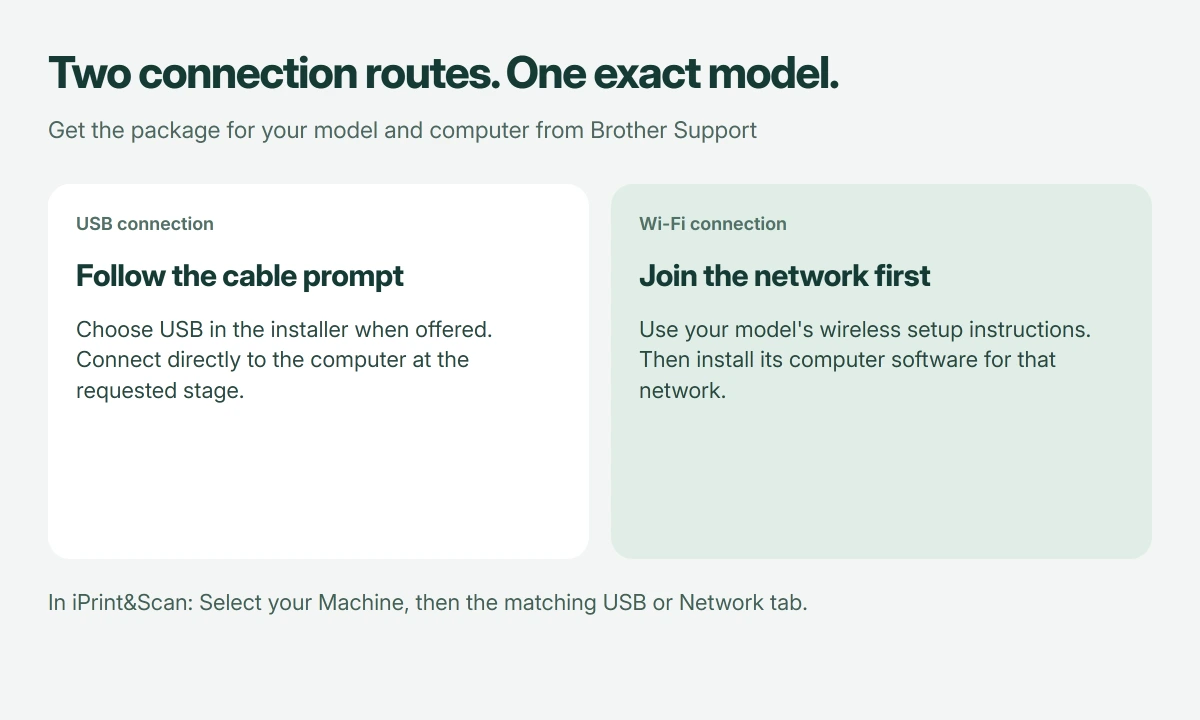
Download the package and follow its instructions. If it asks for the connection type, select USB, then connect the cable when prompted. Check the manual for the correct socket.
Brother's USB installation advice identifies connecting the cable too early as one possible reason setup stops at the connection screen.
If detection stalls, check the printer's display for an error and confirm the cable's socket. Brother also recommends trying another cable or computer USB port when its desktop software cannot find the machine.
Connect directly during this check. Its iPrint&Scan detection guidance advises removing hubs and docks from the connection path. A charging connection elsewhere on a device isn't a substitute for the printer's data socket.
For Wi-Fi, join the printer to your home network
Find your network name and password first. Brother says its support team cannot supply that password, so use the details for your own router or ask whoever manages the network.
For the models listed in Brother's wireless wizard guide, open Settings or Menu > All Settings > Network > WLAN > Setup Wizard.
Some models omit All Settings. Enable wireless networking if asked, select your home network, enter its password, then confirm. The documented success message is Connected.
If your controls differ, use the Quick Setup Guide for your model. A printer without that menu needs its own setup method; don't reset network settings simply to make this example fit.
Then install the model's software on the computer, selecting the wireless or network connection where prompted. Joining the printer to Wi-Fi and installing its computer software are separate parts of setup.
Microsoft says a wireless printer must share the Windows device's network in its printer installation guidance. Check that before blaming the driver.
Our wireless printer setup guide covers network checks and manual addition, including a printer on an isolated guest network that the computer cannot discover from the main network.
If iPrint&Scan opens without finding your machine
On a supported model, open Brother iPrint&Scan on the computer. Choose Select your Machine, then the USB or Network tab matching the connection you actually configured. Select the discovered machine and confirm with OK.
That selection is documented by Brother for its desktop app. The available printing and scanning functions depend on the model, so installing the app doesn't add capabilities the printer lacks.
I would check that tab before reinstalling. Searching the network tab won't help a printer that is connected only through a USB cable.
For a network-connected Mac, Brother lists System Settings > Privacy & Security > Local Network; allow Brother iPrint&Scan there if its permission is disabled, then search again.
Send a small print job to the selected printer
Open a document, choose Print, select the Brother entry matching your setup, and send one page. Check the physical result before assuming a completed installer means the whole connection works.
If the machine is listed but the job stays waiting, note its queue status and any message on the printer. That moves the problem from initial discovery to printing, so repeating the download isn't the next useful check.
The Short Version
Match your model and OS on Brother Support. For USB, follow the installer's cable prompt; for Wi-Fi, complete the printer's network setup. In iPrint&Scan, select the matching connection tab and the correct machine.
Where to Next
What is your Brother model, and are you connecting by USB or through a router? Tell me whether the printer is missing from the installer, from iPrint&Scan, or only from the Print dialog. Those are different places to start.

Isaac Smith is the founder and editor of PC Glance, a website that covers computers, laptops, and technology. He is a tech enthusiast and a computer geek who loves to share his insights and help his readers make smart choices when buying tech gadgets or laptops. He is always curious and updated about the latest tech trends.