

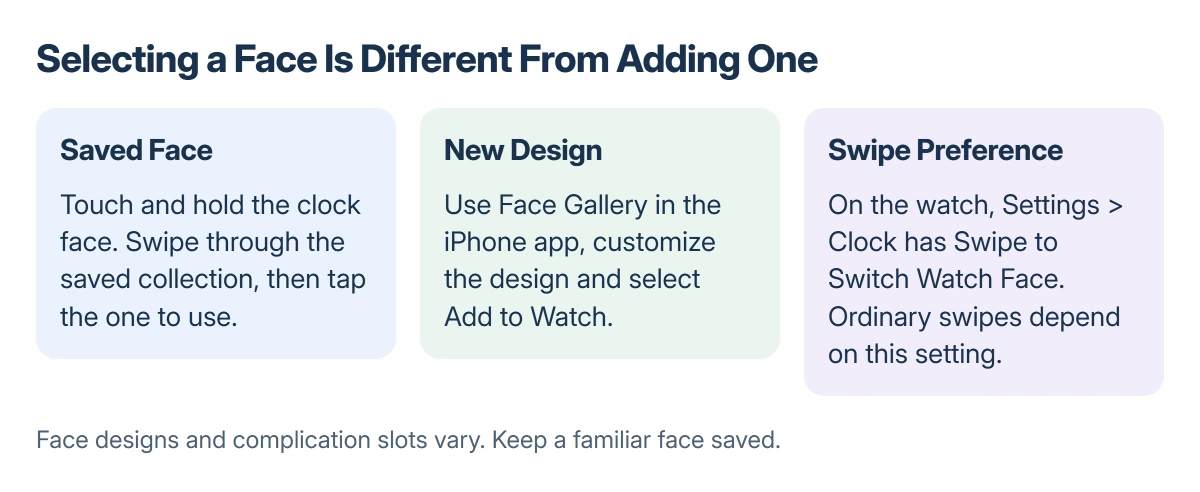
To change an Apple Watch face, touch the current clock display and hold your finger there. Swipe through the saved faces, then tap the one to use. A normal sideways swipe only switches faces when the separate swipe setting is enabled.
For a new design, use Face Gallery on the iPhone paired with the watch. Adding a design and selecting one already in the collection are different jobs.
Switch to a face already on the watch
Wake the watch and return to the clock face. Touch and hold the display until the face-selection view opens, then swipe to the design you want and tap it.
This changes the active face without deleting the others. Keep a familiar face in the collection while trying a different layout.
Status: Apple's current watch-face instructions checked 22 October 2026. Face Gallery labels and the separate swipe setting were verified in the guide; no watch was changed.
Apple documents the touch-and-hold method in its watch-face guide. It works independently of the optional swipe-to-switch setting.
To enable ordinary sideways switching, open Settings > Clock on the watch and turn on Swipe to Switch Watch Face. Leave it off if accidental swipes keep changing the face.
Add a design through Face Gallery
Choose Apple Watch from the iPhone's apps, then select Face Gallery. Choose a category, or use See All Watch Faces to browse the full list available there.
Apple's current instructions use Get, followed by the design options. Choose its color or style, then inspect the available complication positions.
A complication is a small feature from an app, such as weather or a timer. Tap a position and choose the information wanted there. Use Off when that position should stay empty.
When finished, tap Add to Watch. Apple says the added face enters the collection and becomes the watch's current face.
Check the result on the watch, especially small labels and the information you need at a glance. A visually appealing layout may offer fewer complication positions than a data-focused one.
Add a face without the iPhone
With the watch face showing, touch and hold the display. Swipe to the end of the saved collection and tap the add control.
Browse a category or All Watch Faces, then tap Get beside the design and Add. These are the labels in Apple's current guide; older watchOS layouts can present the gallery differently.
For complication changes on the watch, touch and hold the face and tap Edit. Swipe to the last edit screen, select a supported slot, then rotate the Digital Crown through its available choices.
To keep the edit, press the Digital Crown, then tap the face. Not every design offers the same slots. A missing choice can depend on the face, app or watch model, including the model limits on Apple's Steps complication.
Keep the collection manageable
In the iPhone's Apple Watch app, My Watch > My Faces shows the saved collection. Choose Edit there to rearrange its order.
To remove a face directly on the watch, touch and hold the current face, swipe to the unwanted design, swipe up and tap Remove. Removing a design from the collection does not erase the watch.
Apple states that a removed face can be added again later. Keep the designs you actually switch between near the start of the collection.
Changing a face is a layout choice, not a guaranteed battery repair. For unusually short runtime, follow the Apple Watch battery checks before assuming the design is the whole cause.
If a face or complication is absent despite meeting its requirements, note the watch model and watchOS version for Apple Support. Resetting the watch is an excessive first response to a missing design option.
The Short Version
Touch and hold the current face, swipe and tap to select a saved design. Add a new one through Face Gallery on the iPhone or the add control at the end of the watch's collection.
Ordinary swipe switching has its own setting under Settings > Clock.
Where to Next
Test the new face's readability and complication positions during normal use. Keep a familiar alternative saved until the replacement has the information you need.

Isaac Smith is the founder and editor of PC Glance, a website that covers computers, laptops, and technology. He is a tech enthusiast and a computer geek who loves to share his insights and help his readers make smart choices when buying tech gadgets or laptops. He is always curious and updated about the latest tech trends.