
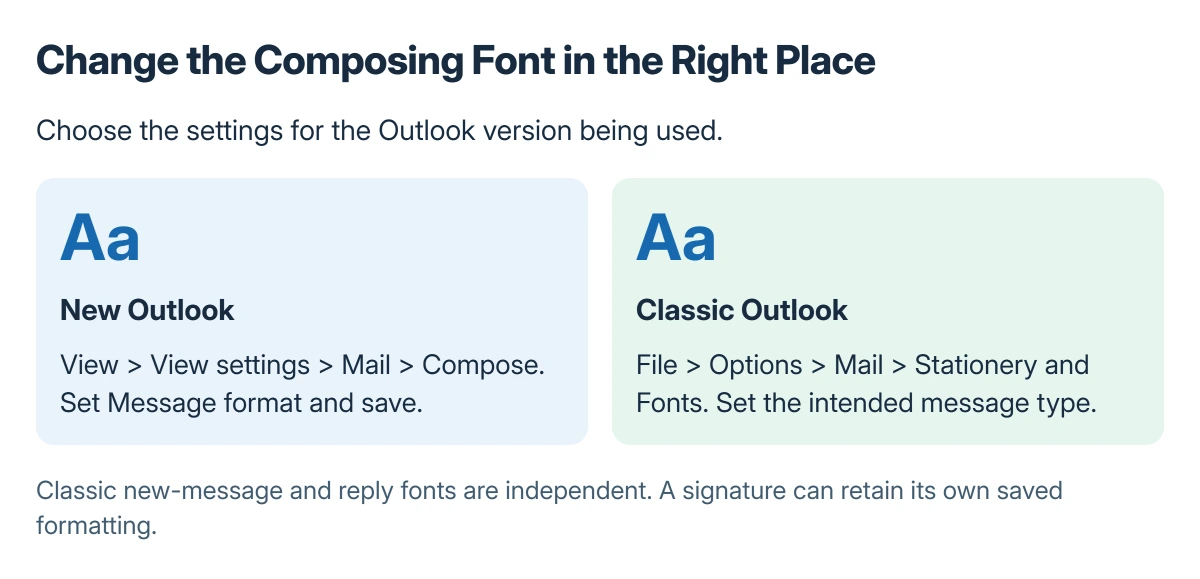
Change Outlook's default composing font in the settings for the version being used. New Outlook starts at View > View settings > Mail > Compose; classic Outlook uses File > Options > Mail > Stationery and Fonts.
These settings affect messages being written. Larger text for reading an incoming message, the font in the message list and a formatted signature are separate choices.
Set the composing font in new Outlook
Open View > View settings, choose Mail, then Compose. Under Message format, set the desired font, size and style, then select Save.
Microsoft documents this current route in its Outlook default-font instructions. Open a new message afterward to inspect the result.
Status: Outlook's new, classic and web composing-font routes checked 22 October 2026. Reading zoom and signature formatting were checked as separate settings; no mailbox preferences were changed.
Use a readable size and a common font for everyday mail. A visually unusual font on the sender's computer may not appear identically on the recipient's device.
Set new-message and reply fonts in classic Outlook
Choose File > Options > Mail, then Stationery and Fonts under Compose messages. On Personal Stationery, open Font for the kind of message being configured.
Review the preview, confirm that font dialog and accept the remaining settings dialogs. Start a fresh message to check the font without older text formatting getting in the way.
Microsoft says new-message preferences and reply/forward preferences must be set independently. A changed new-message font therefore does not establish that replies will use it too.
Change the Outlook signature format separately if only the closing block uses different styling. A pasted or saved signature can carry its own formatting within an otherwise correct message.
In Outlook on the web, check HTML message format
Open Settings > Mail > Compose. Under Message format, set composing to HTML, choose the default font and size and save.
Plain text does not carry the rich font choices in an HTML message. Check the composition format before deciding that saving the preference failed.
Microsoft states that the recipient's mail app substitutes an available font when the chosen one is not installed there. Choose formatting for readability rather than depending on one exact typeface appearing everywhere.
Use zoom when incoming text is too small
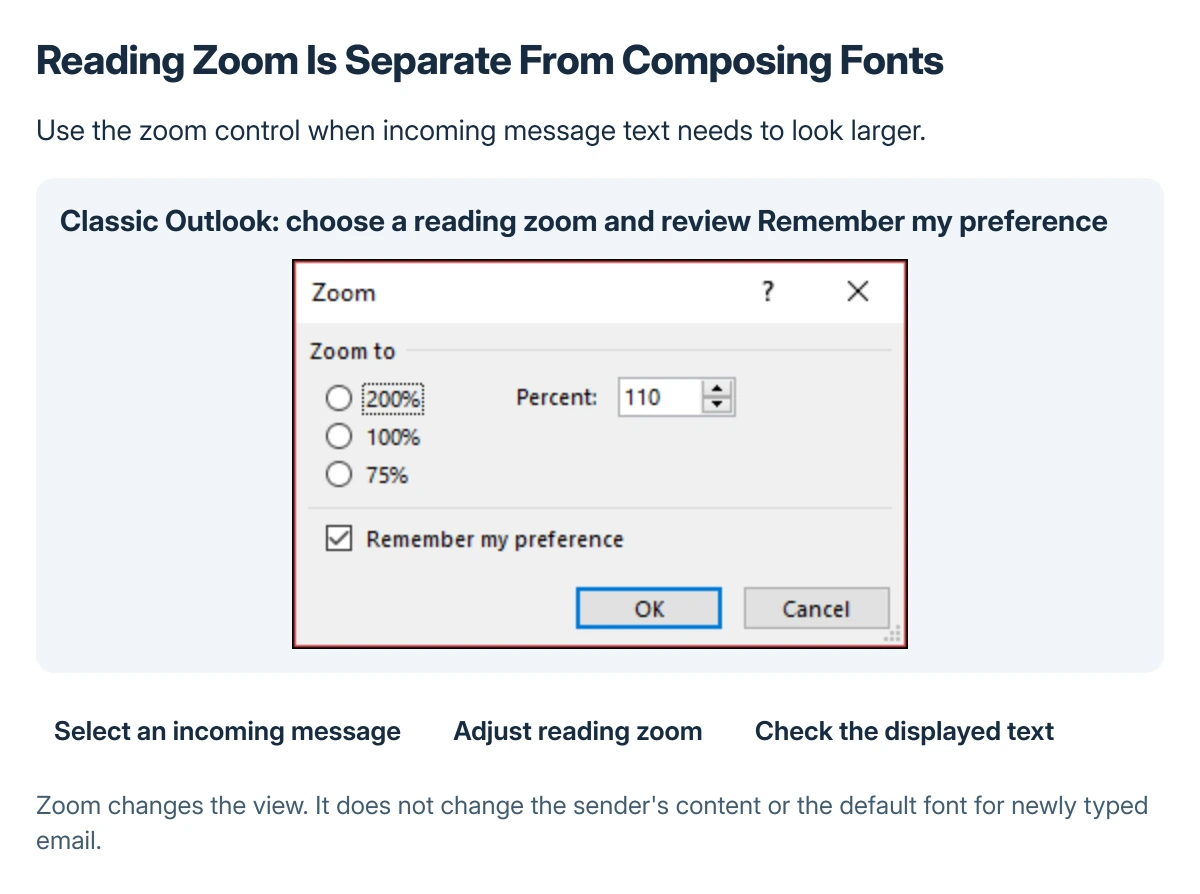
In new Outlook, select a message and use View > Zoom to change its reading size. Zoom adjusts the displayed size without changing the sender's content or the font used for composing.
Classic Outlook provides a Reading Pane zoom control. Microsoft's instructions also describe its Remember my preference option for applying a chosen reading zoom across messages.
Used with permission from Microsoft.
An Outlook automatic reply has a separate message to configure. Configure that absence message in its own settings to tell senders when you are away.
When a font change appears not to save
Test a newly composed message and a reply separately. Also distinguish typed text from a pasted block that already contains its own formatting.
If a fresh draft still ignores the saved preference, give Microsoft Support or IT the Outlook version, message format and which message type fails. A screenshot of the settings can help without including the mailbox's private contents.
The Short Version
Use Mail > Compose in new or web Outlook, or Stationery and Fonts in classic Outlook. Save, then inspect fresh typed text in a new draft.
Set replies independently in classic Outlook. Reading zoom, signatures and recipient-side font substitution explain different results and need their own checks.
Where to Next
Compare a new message with a reply before making more changes. That identifies the message type still using the old preference without altering unrelated display settings.

Isaac Smith is the founder and editor of PC Glance, a website that covers computers, laptops, and technology. He is a tech enthusiast and a computer geek who loves to share his insights and help his readers make smart choices when buying tech gadgets or laptops. He is always curious and updated about the latest tech trends.