
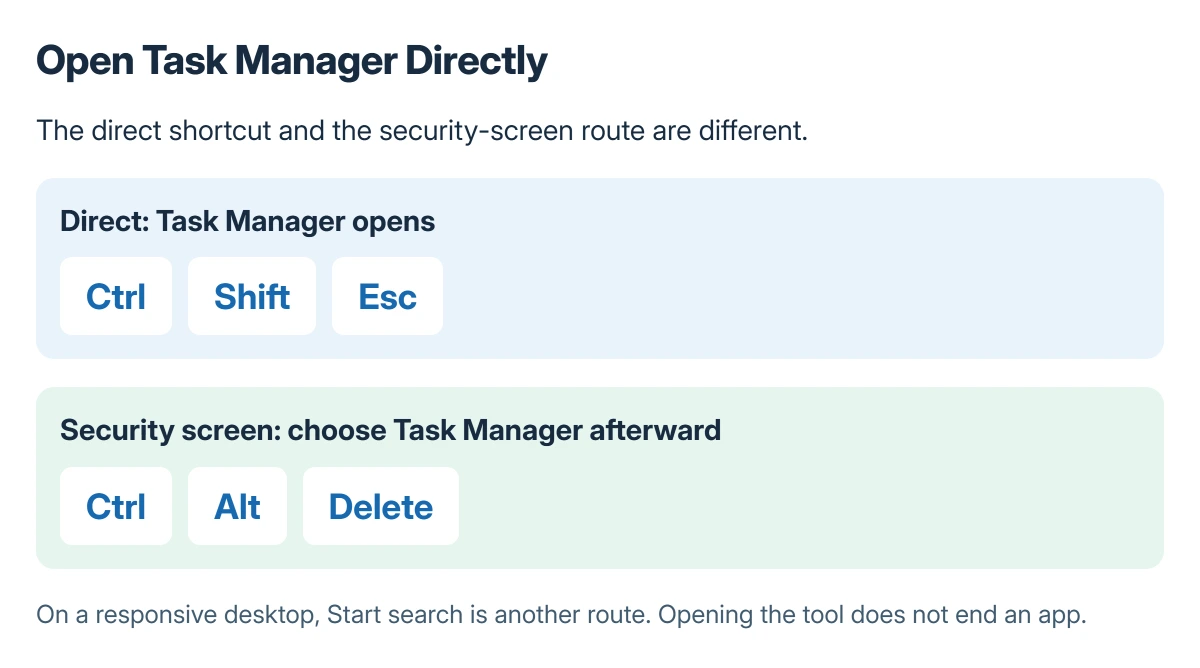
The Task Manager shortcut is Ctrl+Shift+Esc on Windows. Hold Ctrl and Shift, press Esc once and release; the combination opens Task Manager directly without first choosing it from the security screen.
Ctrl+Alt+Delete is another route, but it opens a screen where Task Manager must then be selected. Use that distinction when a frozen app makes the ordinary desktop difficult to reach.
Press the direct shortcut together
Hold Ctrl and Shift, then press Esc. Microsoft documents that combination in its Windows shortcut reference.
Wait for the window to appear before pressing it repeatedly. On a busy computer, repeated commands can make it harder to tell whether the first request has already been accepted.
Status: Windows Task Manager shortcuts, security-screen route and process-view purposes checked in Microsoft's support pages on 22 October 2026. No local process was opened, inspected or stopped.
If the problem occurs only when switching between apps, the Windows app-switching checks distinguish that behavior from a Task Manager shortcut failure.
Use the security screen or Start when needed
Press Ctrl+Alt+Delete, then select Task Manager from the security screen. Microsoft says that shortcut reaches the security screen rather than opening the manager immediately.
With a responsive desktop, open Start, type Task Manager and open the matching system tool. Microsoft's Windows support-tool instructions describe this search route too.
These are alternatives for opening the same tool. They do not repair a system that has stopped responding to both keyboard input and the security screen.
Choose the view that answers the question
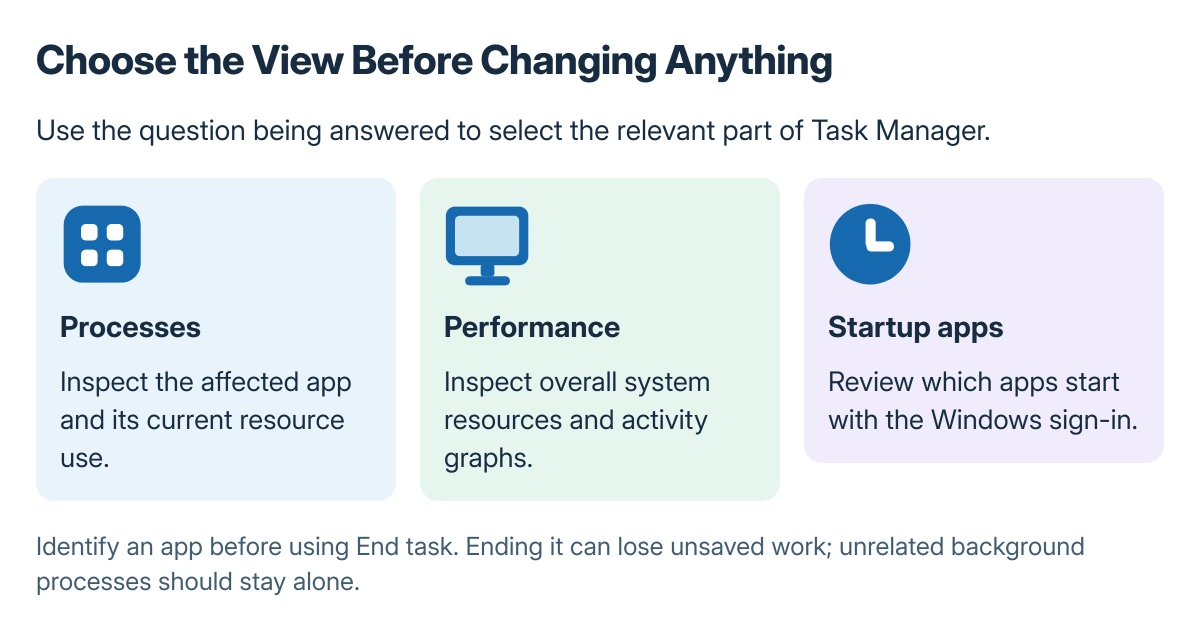
Use Processes to see running apps and their resource use. Performance shows the system's overall resource graphs rather than only one app's row.
Microsoft states that Task Manager separates app and background-process information from Performance, startup items and other views. On Windows 10, a compact window may first need More details to expose those views.
For an unfamiliar entry, the unknown-process checks help assess its name and file before taking action. A high number or unfamiliar name alone is not a reason to stop a Windows process.
Close a frozen app only after identifying it
If the aim is to stop one unresponsive app, select that app deliberately before choosing End task. Unsaved work in the stopped app can be lost, so a normal close remains preferable when it still responds.
Do not use End task on unrelated background services merely to reduce the process count. Opening Task Manager is a viewing action; terminating a process is a separate decision with consequences for its work.
When the window crashes or never appears
If Task Manager itself closes when More details is selected on Windows 10, the Task Manager crash guide addresses that particular pattern. Repeating the shortcut will not correct the cause of its crash.
For a persistent failure, report the Windows version and whether Start search or Ctrl+Alt+Delete can open it. On a managed PC, give an unavailable or restricted Task Manager to IT rather than changing policies without approval.
The Short Version
Ctrl+Shift+Esc opens Task Manager directly. Ctrl+Alt+Delete opens the security screen first; select Task Manager from there, or use Start search on a responsive desktop.
Choose Processes for the affected app and Performance for the whole system. Identify an app before ending it, because stopping it can discard unsaved work.
Where to Next
Decide what needs checking before changing anything in the window. The right view can answer a resource question without ending a process or altering startup settings.

Isaac Smith is the founder and editor of PC Glance, a website that covers computers, laptops, and technology. He is a tech enthusiast and a computer geek who loves to share his insights and help his readers make smart choices when buying tech gadgets or laptops. He is always curious and updated about the latest tech trends.