
Deleting a section break in Word joins two sections and can change their page layout. Show formatting marks, identify the actual section break, and keep a copy first.
The combined section takes its formatting from the section that came after the break.
Make a copy and show the section break
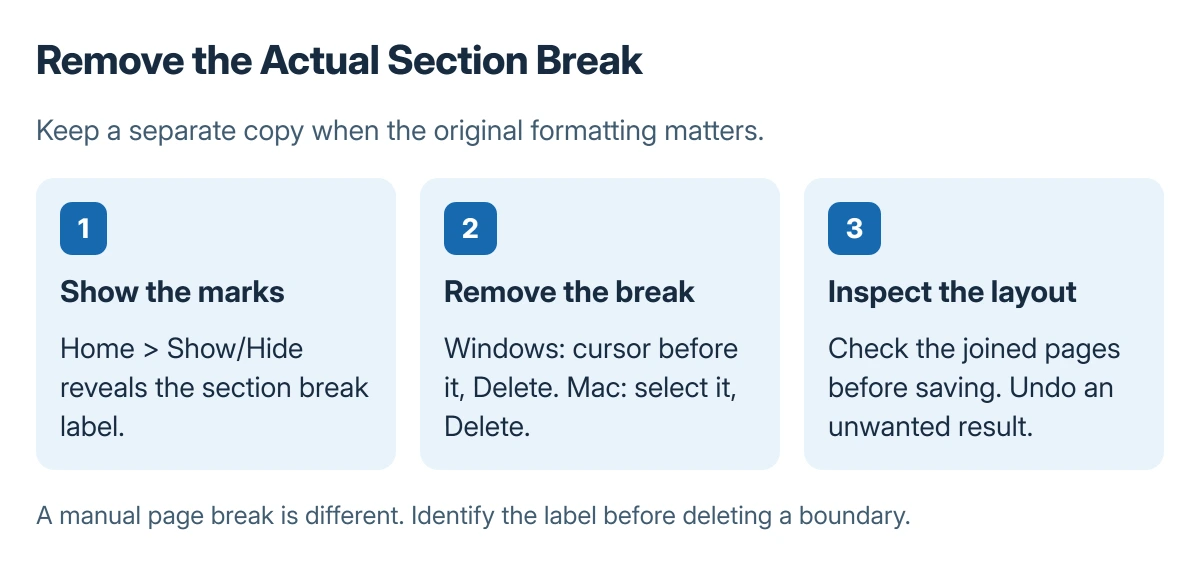
Use a separate copy of the Word document when the original layout matters. Open the copy, select Home > Show/Hide in desktop Word, and find the break label among the formatting marks.
Status: Microsoft-documented section behavior and delete controls. The layout examples are diagrams, and the document workflow was not operated here.
Microsoft documents several section types, including Continuous, Next Page, Odd Page and Even Page. The label tells you more than an empty area of the page does. A blank page is not proof of a section break.
The Word page deletion guide covers other causes of unwanted pages. A manually inserted page break and a section break have different jobs, so identify the label before removing anything.
Delete the selected break in desktop Word
In Word for Windows, place the cursor immediately before the section break, then press Delete. Microsoft's section break removal instructions give that position so the break itself is removed.
In Word for Mac, show the formatting marks, select the section break, then press Delete. Selecting the break is useful on a Mac keyboard because the Delete key normally deletes backward.
Inspect the surrounding text immediately. If text disappeared instead of the break, use Undo, then select the correct item before trying again. Save only after checking the page layout.
Check the formatting from the following section
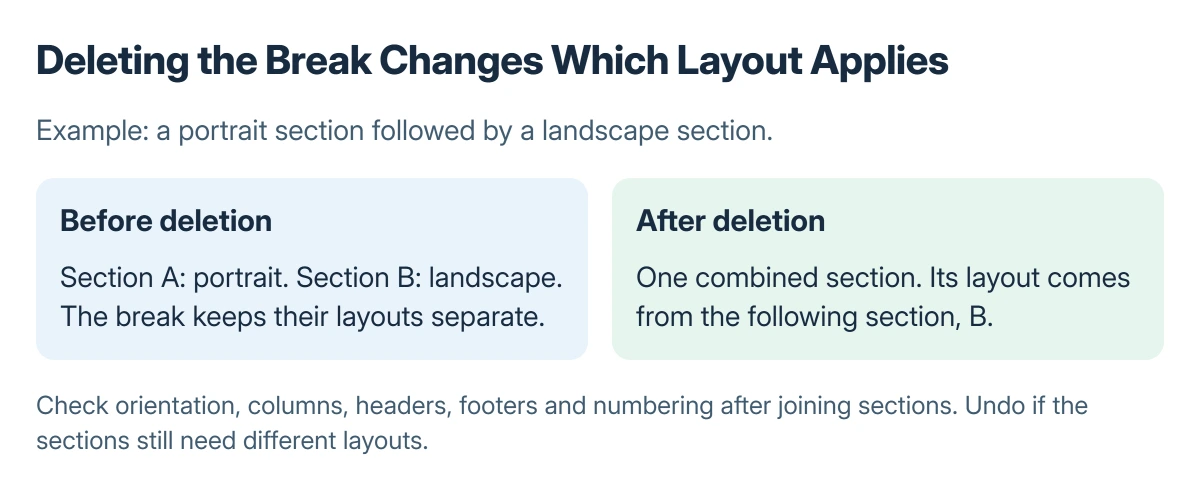
Microsoft says deleting the break combines the sections using the following section's formatting. Check page orientation, columns, headers, footers and page numbering where the sections joined.
For example, joining a portrait section to a following landscape section can apply the following section's layout to the combined material. That change does not mean the deletion failed; it is the documented consequence of joining sections.
If the result is wrong, undo the deletion before making further edits. Keep the sections separate when their page layouts need to remain different.
Microsoft states that Link to previous is the alternative when the goal is to reuse the preceding section's headers or footers. It is not a command for making every page-layout setting identical.
When the break is difficult to identify
Use desktop Word and keep formatting marks visible while checking the boundary. Avoid selecting a large block of text to remove one break.
If the document uses complex section numbering, compare the copy with the original before saving over any shared file.
The Short Version
Show formatting marks and remove the actual section break. The resulting section inherits the following section's formatting. Check the joined layout and use Undo if the separate sections are still needed.

Isaac Smith is the founder and editor of PC Glance, a website that covers computers, laptops, and technology. He is a tech enthusiast and a computer geek who loves to share his insights and help his readers make smart choices when buying tech gadgets or laptops. He is always curious and updated about the latest tech trends.