
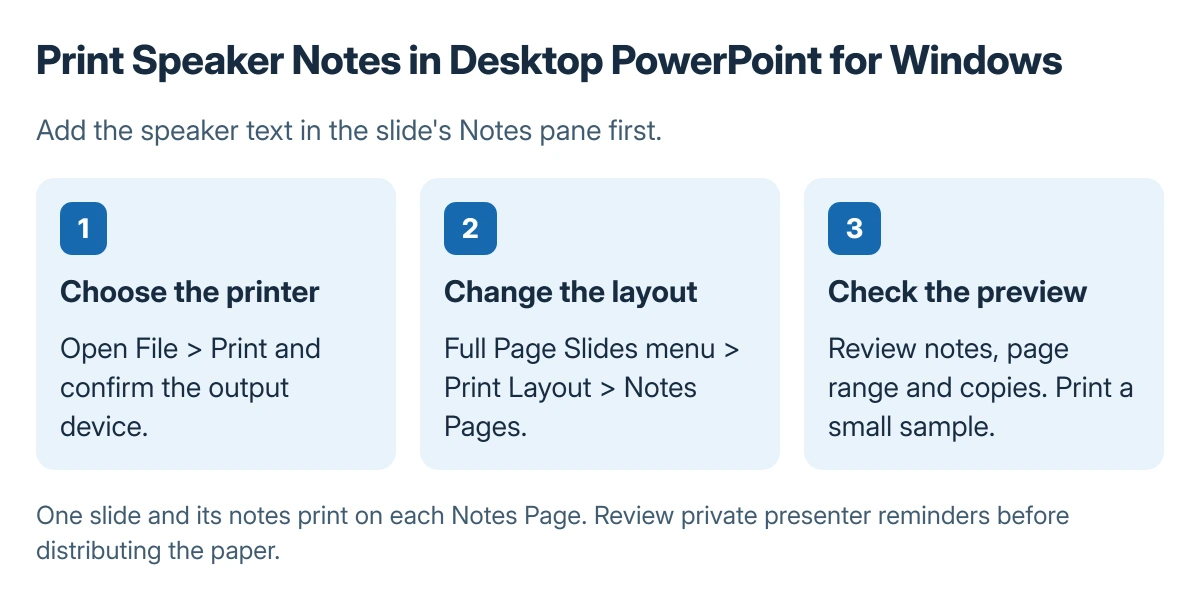
PowerPoint prints speaker notes when the print layout is Notes Pages. In desktop PowerPoint for Windows, open File > Print, then change the layout from Full Page Slides to Notes Pages.
Each printed page contains one slide with its notes, so check the preview before printing the full presentation.
Make sure the notes belong to the slide
Open the presentation in desktop PowerPoint for Windows. Select a slide and inspect its Notes pane. If that pane is hidden, use the window's lower Notes control, then add or edit the speaker text.
Status: Microsoft's Windows desktop printing procedure. Page artwork is a schematic, and no presentation or printer was operated here.
Microsoft documents that speaker notes are entered in the Notes pane. Text placed in a slide's text box is slide content, so it will not turn into speaker notes merely by selecting a different print layout.
Review the notes for information that should not be distributed. A presenter copy can include reminders or private details that do not belong in audience handouts.
Select Notes Pages in the Print screen
- Open File > Print.
- Select the printer.
- Open Full Page Slides under Settings.
- Choose Notes Pages under Print Layout.
- Check preview, range and copies, then Print.
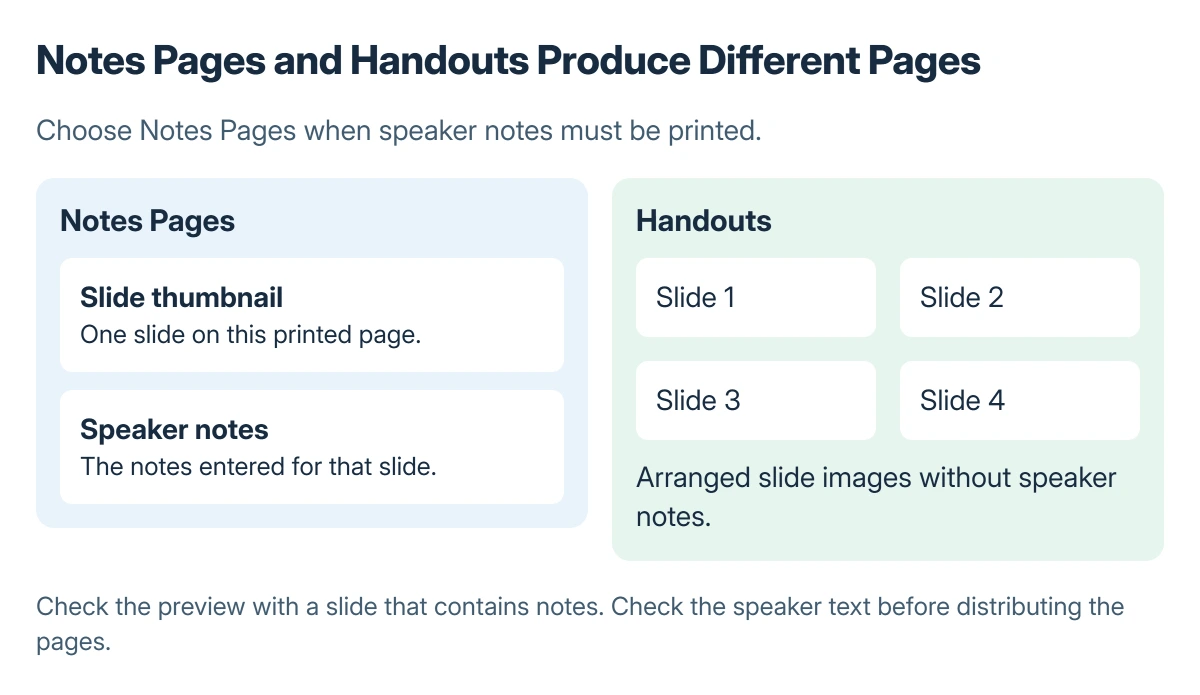
Microsoft says Notes Pages produces one slide per page with the speaker notes. Its speaker notes printing guide also states that the other layouts and Handouts options do not print those notes.
A six-slide handout is therefore the wrong choice when the requirement is six sets of speaker notes. Select Notes Pages even if a compact handout initially looks closer to the desired paper count.
Check one page before printing everything
Use the preview to inspect a slide that actually has notes. Confirm the note text is present and readable, then print a small sample before committing to a long deck. Check the physical page for clipped text or the wrong paper selection.
Microsoft states that the Print settings also control the slide range and copies. Choose the needed slides deliberately. An empty Notes pane will not acquire text during printing.
If the preview is correct but paper does not print, follow the printer checks for the output problem. If jobs keep going to a different device, check the Windows default printer setting and the printer selected inside PowerPoint.
If the layout menu is missing
Confirm that the file is open in the Windows desktop PowerPoint application. These steps do not describe a browser's Print command.
For a managed computer with missing printers or restricted printing, ask the administrator to check the installed printer and Office setup.
The Short Version
Add text to the slide's Notes pane, select File > Print, and choose Notes Pages from the print layout menu. Preview a slide with notes and test one printed page before printing the whole deck.

Isaac Smith is the founder and editor of PC Glance, a website that covers computers, laptops, and technology. He is a tech enthusiast and a computer geek who loves to share his insights and help his readers make smart choices when buying tech gadgets or laptops. He is always curious and updated about the latest tech trends.