

A calendar invitation in Outlook starts with a calendar event and named attendees. Open Calendar, create the event, add the people who should attend, and send it.
Saving a personal appointment or sharing an entire calendar does a different job.
Start an event in new Outlook or a browser
Choose Calendar and the intended calendar first, especially when several accounts are connected. Select New Event, enter a clear title, and use Invite attendees to add names or email addresses.
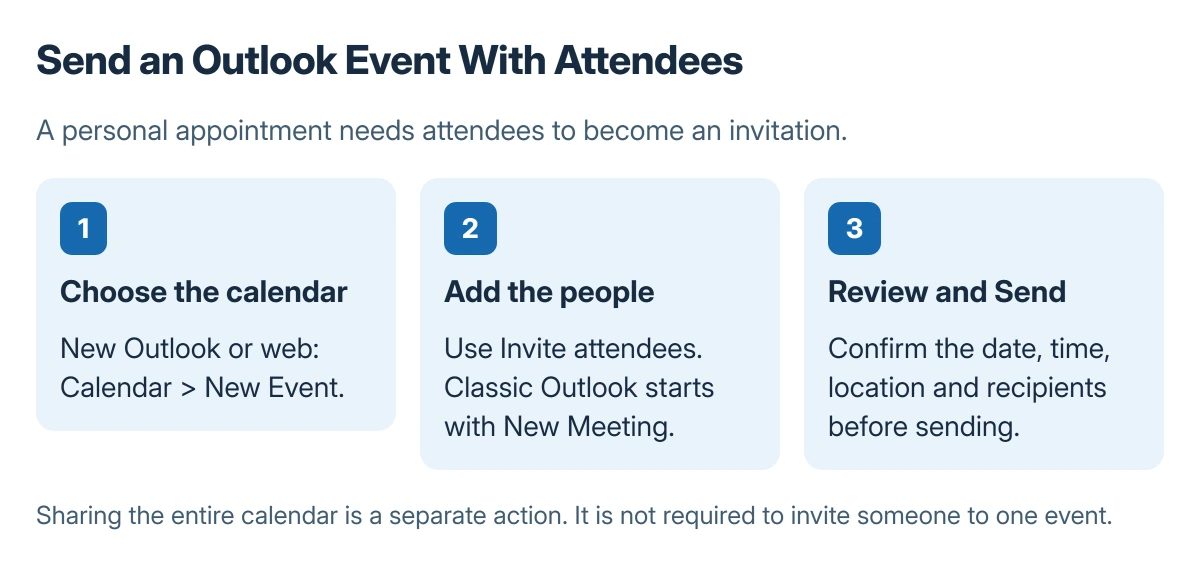
Status: Microsoft-documented Outlook calendar controls. Diagrams show the workflow, not a captured invitation. No invitation was sent to make this guide.
Microsoft documents New Event and Invite attendees for new Outlook. Add required and optional attendees as appropriate, then set the date, start time, end time and location.
In Outlook on the web, use Calendar and New event. Some work or school layouts offer New event > Event. The Microsoft meeting guide separates the Outlook versions so the right set of controls can be followed.
Check any Teams meeting option intentionally. Do not assume that a room location automatically creates an online joining link. Select Send when the details and recipients are correct.
Use New Meeting in classic Outlook
In classic Outlook for Windows, open Calendar and choose New Meeting. From Mail, New Items > Meeting is another route. Add attendees in To, then complete the subject, start and end times, and location.
Microsoft says Scheduling Assistant can help find a suitable time with Microsoft 365 or Exchange work or school accounts. It does not promise the same availability information for every external attendee or personal account.
Select Send to deliver the invitation. If names are difficult to distinguish, check their full email addresses. The Outlook contact list guide can help organize recurring groups, but review the actual attendee list for this meeting.
Review the invitation as an event
Confirm these details before sending: the correct date, local time and time zone, attendees, location or joining link, and whether the event repeats. A recurring appointment can otherwise send an unwanted series rather than one meeting.
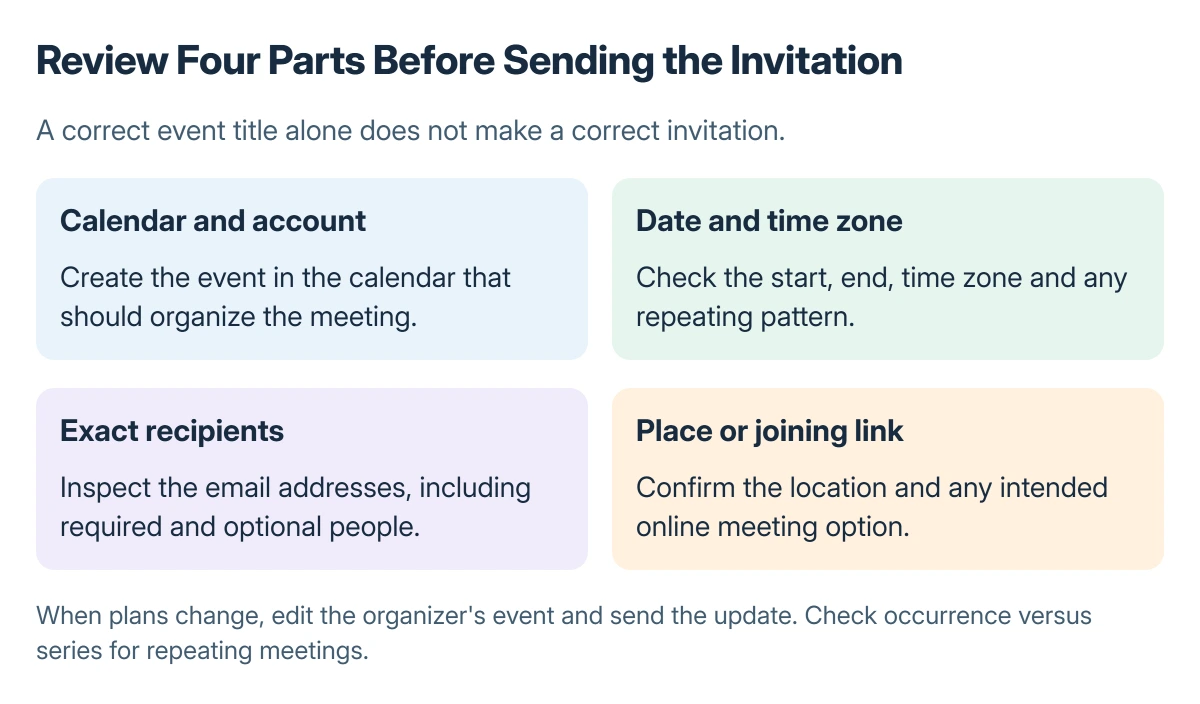
The calendar sharing controls give someone access to a calendar. They are not required just to invite that person to one event.
Send changes from the organizer's event
Open the meeting on the calendar where it was created. In new Outlook, make the changes and select Send to notify invitees. In classic Outlook, use Send Update for a meeting.
Microsoft states that a meeting's details must be changed by its organizer. Moving an invitation received from someone else does not reschedule other attendees' copies; ask that organizer to send the correct update.
For a repeating meeting, select the intended occurrence or series before editing. Check that choice again before sending a date or time change that could affect multiple meetings.
The Short Version
Create a calendar event, add attendees, check the details and send. Use New Meeting in classic Outlook. When plans change, edit the organizer's meeting and send an update to the people invited.

Isaac Smith is the founder and editor of PC Glance, a website that covers computers, laptops, and technology. He is a tech enthusiast and a computer geek who loves to share his insights and help his readers make smart choices when buying tech gadgets or laptops. He is always curious and updated about the latest tech trends.