
Changing work hours in Outlook tells colleagues your working days and times. Eligible work accounts support different daily hours through New Outlook or a browser; classic Outlook also has a simpler weekly setting.
Choose the setting for the schedule you need. After saving, check that the hours appear correctly instead of assuming that changing the calendar's visible week changed your availability.
Set daily hours in New Outlook or on the web
Use New Outlook, or sign into the work mailbox at outlook.office.com in a browser. Select Settings > Calendar > Work hours and location.
Select the working days, then use each day's time controls to set its start and finish. Microsoft documents this daily schedule in its work-hours instructions.
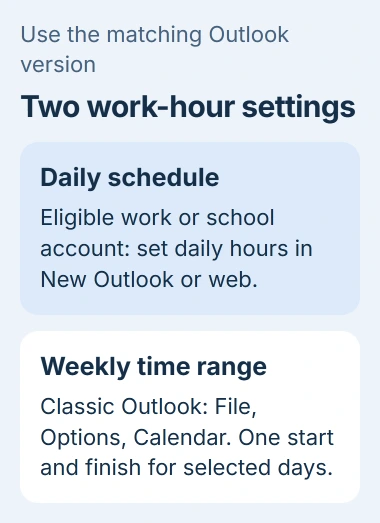
Status: Outlook daily and legacy schedules compared with Microsoft guidance on November 2, 2026. Modern setup requires an eligible work or school subscription. No mailbox was changed.
Location choices are separate from the hours. Set office or remote details only if you want to share them, then choose Save. Reopen the setting to confirm the intended days and times remain.
Microsoft says the modern feature requires a work or school account with a qualifying Microsoft 365 subscription. Its absence from a personal Outlook.com account does not establish an app fault.
Another route in New Outlook is Calendar > View > Calendar settings > Work hours and location, listed in Microsoft's calendar-view guide.
What changes in classic Outlook?
The classic Windows app uses File > Options > Calendar. Under Work time, select the days that form the work week and change Start time and End time. Confirm with OK.
Microsoft's classic calendar instructions describe these controls. The same start and end times apply across the selected workdays.
Changing First day of week changes how the calendar week is arranged. It is a different setting from choosing working days or altering the start time of the working day.
For different hours on different weekdays, configure the modern schedule through the eligible mailbox on the web. Classic's single pair of time controls cannot describe separate daily shifts.
Check which schedule other people are seeing
Microsoft states that legacy work hours approximate a modern schedule using its earliest start and latest finish. A colleague viewing legacy information can therefore see a wider range than one particular day's actual hours.
After modern hours have been configured, later legacy-hour edits do not overwrite them. Return to Work hours and location when the daily schedule needs another change.
Inspect your calendar profile or ask a colleague to check the displayed hours in Scheduling Assistant. The Outlook invitation guide explains the meeting workflow that uses availability information.
If a colleague needs continuing calendar access, use the calendar-sharing permissions for the desired level of detail. Altering work hours is not itself a calendar-sharing invitation.
Handle time away separately
For an absence, create a calendar event and set its availability to Out of office. The work-hours article documents that option separately from the recurring weekly schedule.
Work hours should not be treated as an automatic rule that declines every invitation outside the schedule. Check individual meeting requests and mark actual absences on the calendar.
If the saved hours still appear incorrectly, contact the organization's Microsoft 365 administrator. Include the mailbox, Outlook version, selected time zone and whether the discrepancy appears in modern or legacy hours.
The Short Version
New Outlook and web Outlook offer daily hours under Calendar's Work hours and location. The classic app uses File, Options, Calendar and Work time for one weekly time range. Check the saved schedule and mark absences separately.

Isaac Smith is the founder and editor of PC Glance, a website that covers computers, laptops, and technology. He is a tech enthusiast and a computer geek who loves to share his insights and help his readers make smart choices when buying tech gadgets or laptops. He is always curious and updated about the latest tech trends.