

Sharing an Outlook calendar lets another person view your availability without receiving your mailbox password. Open Calendar, choose Share calendar, select the intended calendar and add the person's email address.
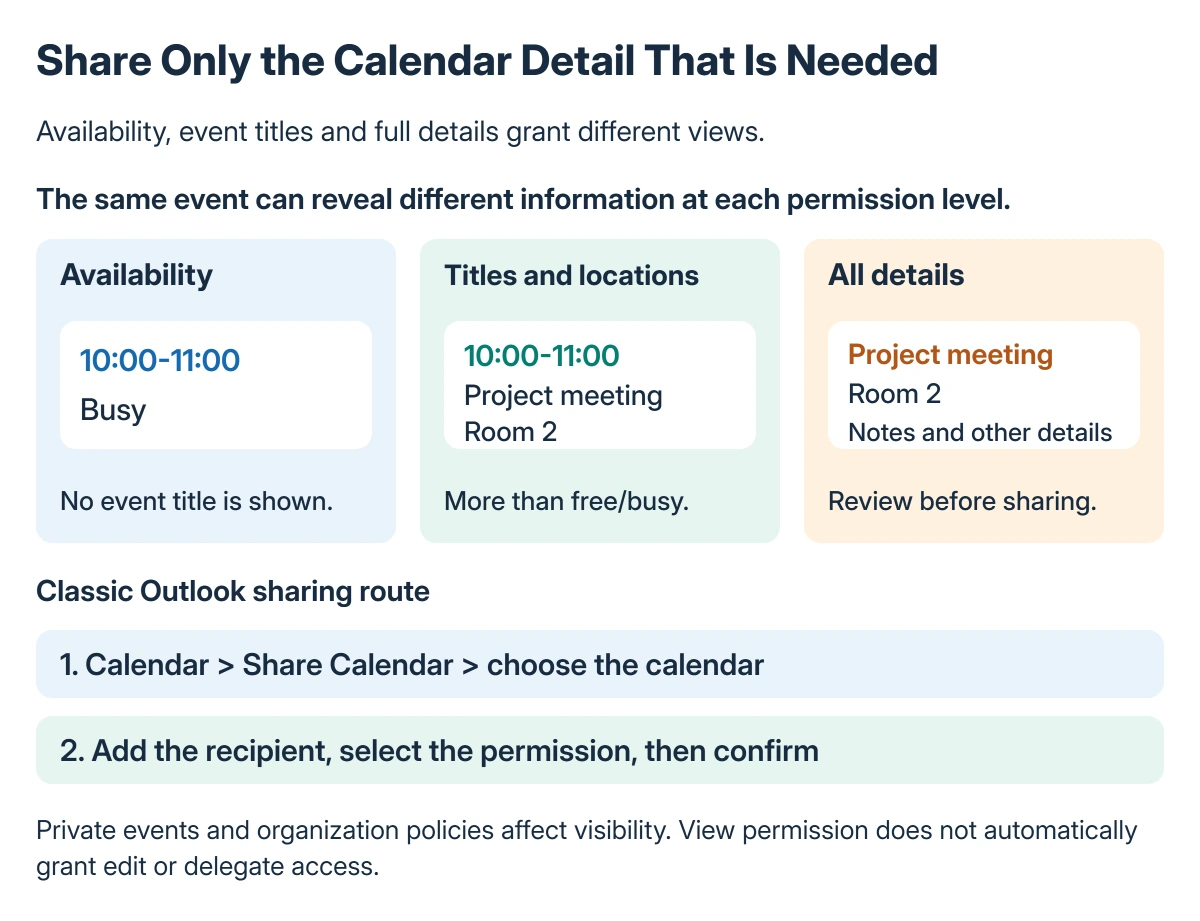
Choose how much they should see before sending the invitation. Availability only, titles and locations, and full event details are different permissions. Viewing a calendar does not automatically allow editing it.
Choose the calendar and recipient
In new Outlook for Windows, open Calendar, then use Home > Share calendar. If several calendars are available, choose the one that should be shared.
Type the person's email address or contact name and select the matching entry. Check the address carefully before granting access, especially when contacts have similar display names.
Status: Outlook calendar invitations and view-only permission levels checked 22 October 2026 against Microsoft documentation. No calendar, address book or invitation was accessed or sent.
Microsoft documents these controls in its calendar-sharing guide. The same page gives distinct instructions for classic Outlook and the web.
Pick the amount of information to reveal
Choose Can view when I'm busy when the recipient needs availability without meeting details. Choose Can view titles and locations when those fields should also be visible.
Can view all details provides the broader view of calendar items. Microsoft says this remains viewing permission, rather than permission to change the appointments.
Read the selected level beside the person's name, then choose Share. The recipient receives an email invitation and can add the calendar after accepting it.
If they need to edit events or respond to meeting requests on your behalf, use Microsoft's separate edit or delegate procedure. Do not treat full viewing access as a substitute for those permissions.
Classic Outlook uses Calendar Properties
From the Calendar folder, choose Home > Share Calendar and select the calendar. In Calendar Properties, choose Add to select the recipient.
Confirm the person in the Add Users dialog, then select their entry in Calendar Properties. Choose the level of details and confirm with OK.
Microsoft states that an invalid address, a Microsoft 365 Group or an external-user restriction can cause the calendar-cannot-be-shared error. Give that exact message to the administrator instead of sharing account credentials.
For a disabled sharing control, the same guide points to an organization's policy. Ask IT what sharing is permitted for that mailbox and recipient.
Send the invitation from web Outlook
In the browser, open Calendar > Home > Share calendar, choose the calendar and enter the recipient. Set their viewing level, then choose Share.
Check the accepted calendar in the recipient's list rather than assuming the invitation was enough. In new Outlook, Show all and People's calendars can help locate shared calendars that are not already selected.
Keep an imported file separate from a live shared calendar. The Outlook holiday-calendar guide explains why subscribing to a calendar and importing a fixed collection of events are different approaches.
Review access when the arrangement changes
In classic Outlook, open Calendar > Folder > Calendar Properties > Permissions. Select the person under the current sharing entries, choose Remove and confirm with OK to stop that access.
Microsoft notes that removing a shared view can take time to synchronize. Review the permission entry rather than immediately deleting and recreating the calendar itself.
Sharing also does not settle how reminders appear on another person's device. For alerts hidden behind other windows, use the Outlook reminder-display checks separately from sharing permissions.
If access still fails, send the administrator its exact error, the mailbox type, recipient domain and calendar name. Those details help distinguish an invitation problem from an organization restriction.
The Short Version
Choose the calendar, add the correct recipient and set the intended viewing level before sending the invitation. Full details still does not grant editing or delegate rights.
Classic Outlook uses Calendar Properties, and work accounts can restrict external sharing. Check the accepted view and review access when it is no longer needed.
Where to Next
Confirm the least detailed view that meets the recipient's needs. Recheck permissions when someone changes role or leaves the shared project.

Isaac Smith is the founder and editor of PC Glance, a website that covers computers, laptops, and technology. He is a tech enthusiast and a computer geek who loves to share his insights and help his readers make smart choices when buying tech gadgets or laptops. He is always curious and updated about the latest tech trends.