
A conference call on iPhone combines phone calls with Add People and Merge. Call the first person, wait for the connection, then add another person and merge the calls.
The carrier decides whether this feature works and how many people it supports.
Add the second person after the first call connects
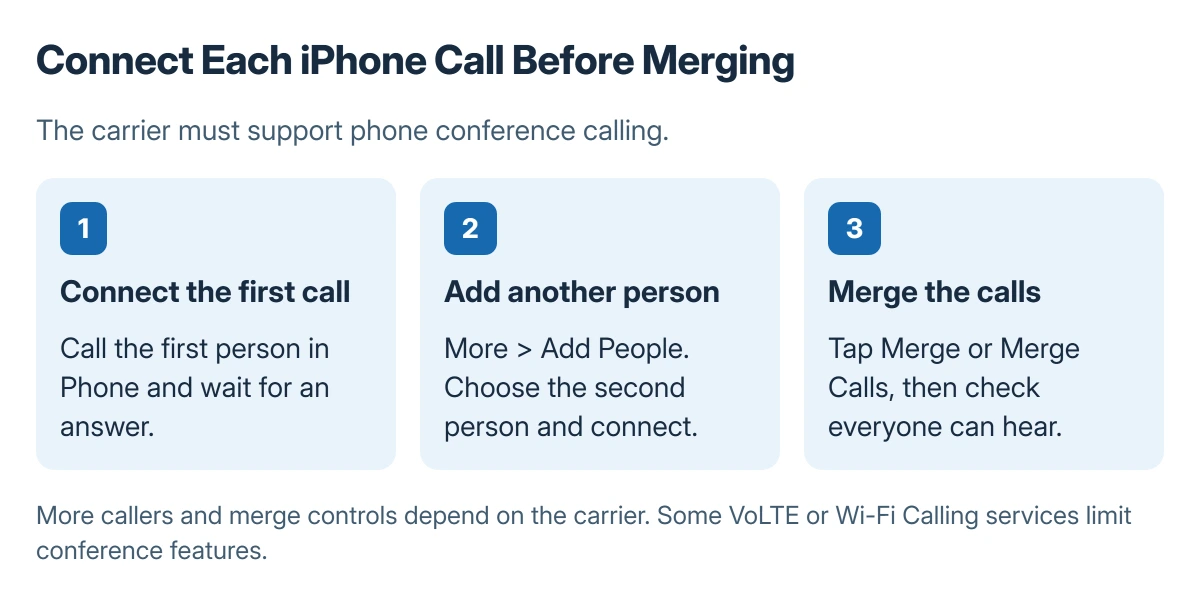
Start in the Phone app and call the first participant. Once connected, open More, then select Add People. Choose the second person and wait until that call connects before merging.
Status: Apple's current phone conference instructions. Carrier support determines availability. No call was placed or merged for this guide.
Apple documents this More and Add People route in its iPhone conference call instructions. On the connected second call, tap Merge or Merge Calls, as shown by the call controls.
Speak briefly to confirm that the connected participants can hear one another. Repeat the add-and-merge process for further callers only within the limit supported by the carrier.
If the first call does not connect at all, use the iPhone Call Failed checks first. Merging cannot fix a failed initial phone connection.
Check carrier support when Merge is unavailable
Apple says the number of participants and the ability to add, merge or disconnect callers depend on the carrier. Its headline mentions up to five people when supported; the available capacity still depends on the plan.
Apple states that conference calls, or parts of conference calling, may be unavailable over VoLTE or Wi-Fi Calling. A missing Merge control can therefore reflect the service being used, rather than a damaged iPhone.
Ask the carrier whether the current line and calling service support conference calling. Describe whether Add People is absent, the second call fails, or both calls connect but cannot merge. Those are different failures to check.
Do not erase the phone or reset all settings merely to look for Merge. The carrier should first confirm that the feature is provided on the line.
Know what participants can see
Apple's support page says only the person who started the conference can see all participant names. If a participant adds someone else, that participant can see the name they added plus the conference initiator.
Introduce the participants aloud so the group knows who has joined. The display is not a reliable substitute for telling the people on the call that another person has entered the conversation.
Use an internet group call when the line cannot merge
A group call in an internet calling app is a separate service. The FaceTime link instructions for Android participants explain one option when the group can use compatible devices and an internet connection.
Check the alternative's requirements with the other participants before starting. It does not enable the carrier's missing Merge button inside a normal cellular call.
The Short Version
Connect the first call, choose More > Add People, connect the second call, and tap Merge. Check with the carrier if the controls or participant count are limited; internet group calling is a separate option.

Isaac Smith is the founder and editor of PC Glance, a website that covers computers, laptops, and technology. He is a tech enthusiast and a computer geek who loves to share his insights and help his readers make smart choices when buying tech gadgets or laptops. He is always curious and updated about the latest tech trends.