
A Chromebook DHCP lookup failure concerns the network address it needs to communicate. Test a second device on that Wi-Fi, then try the Chromebook on another trusted network. Compare which combination fails.
Changing the Google Account password does not repair address assignment.
Compare the network before changing settings
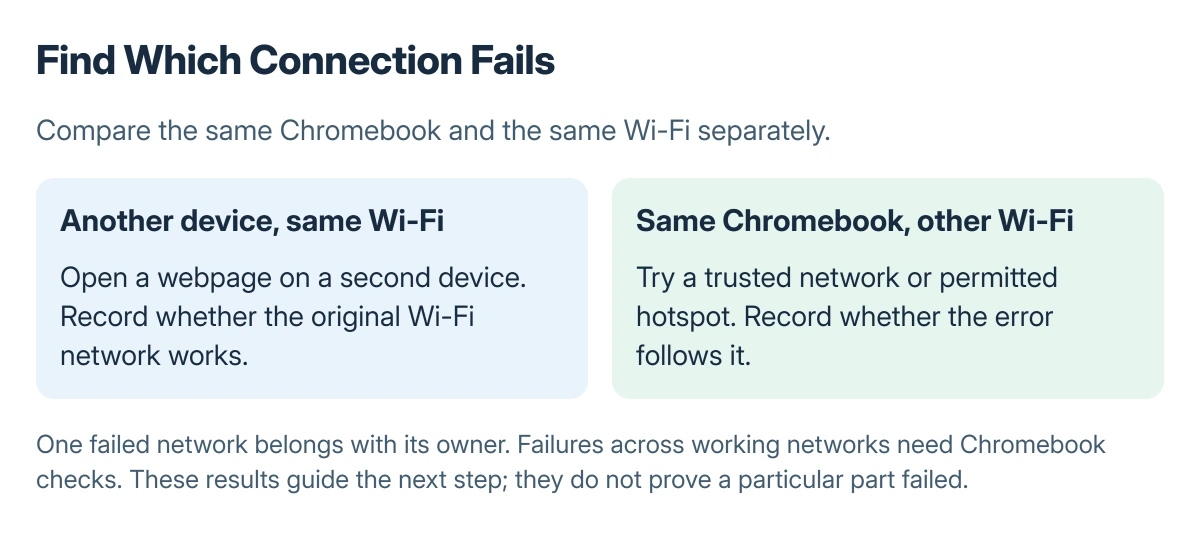
Connect another device to the affected Wi-Fi and try opening a webpage. Then try the Chromebook on a different trusted Wi-Fi connection, such as a phone hotspot if your data plan permits it.
Status: Google's connection and Diagnostics instructions checked 23 October 2026. These are supported checks, not a confirmed repair for every DHCP failure. No Chromebook was tested here.
Google says to test the Chromebook after each connection troubleshooting step. Use its connection help for the matching connection type. A failure on only one network is a reason to involve that network's owner before erasing the computer.
If the connection works but account setup still reports Network Not Available, use the Chromebook account-setup checks. Account setup failing after a working connection needs different checks from address assignment.
Save the connection test details
Open Settings > About ChromeOS > Diagnostics. Select the connection information and let its tests finish. The Connectivity checks are documented by Google; they run automatically for the default connection method.
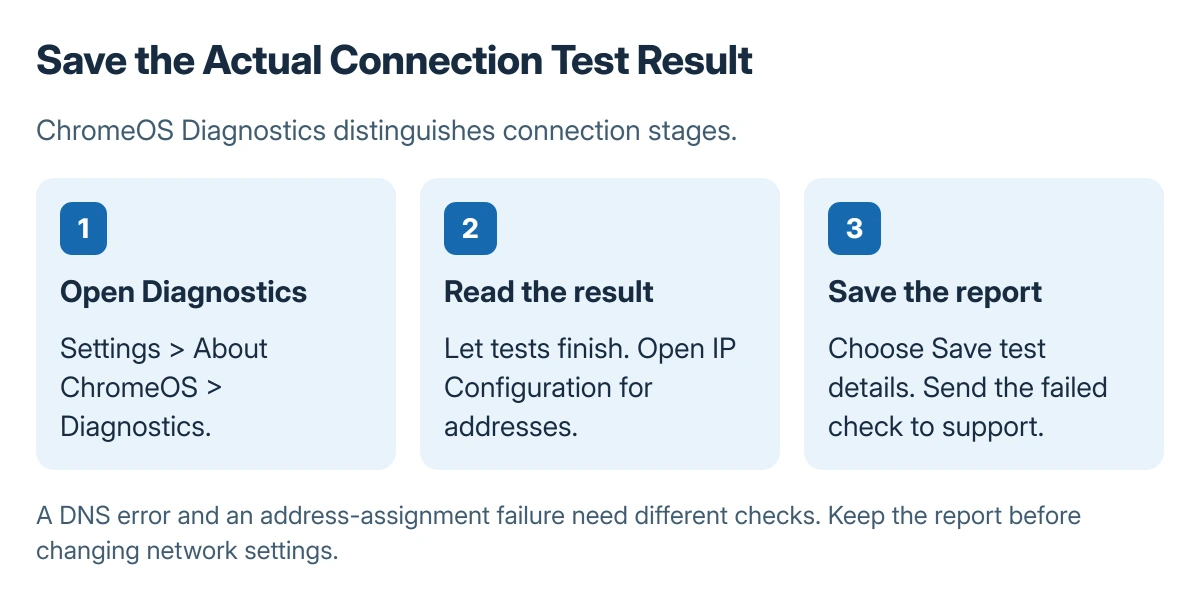
Open IP Configuration to inspect address information. Choose Save test details to keep a report. Record the exact failed check rather than describing every connection problem as DHCP.
Google states that Diagnostics separates DNS errors from other connection failures. Use its linked DNS instructions if that is the failed test; a naming failure is different from obtaining the network address.
Restart and reconnect to the saved Wi-Fi
Restart the Chromebook and reconnect. If that network still fails, confirm its password is available before forgetting it. School and work networks may require credentials or certificates from an administrator.
Google's saved-network route is Settings > Network > Wi-Fi > Known networks. Use More > Forget beside the intended network, then select the network again and enter the correct details.
For a home network that fails on several devices, ask its owner to restart the router using the maker's instructions. Do not change DHCP ranges, DNS addresses or security settings at random to make the message disappear.
The network owner can use the router's local administration page when checking its settings. That login is separate from a Google Account and should be used with the owner's permission.
Escalate with the comparison and report
Give the administrator the error, saved test details, and which device-network combinations worked. On a managed Chromebook, the administrator should check network access and policy.
When the failure follows the Chromebook across working networks, contact its manufacturer with the report. Google's connection instructions end with manufacturer help when the listed checks do not restore access.
The Short Version
Compare devices and networks, save Diagnostics results, then restart and reconnect. Keep Wi-Fi credentials before forgetting the network. Send persistent failures and test details to the administrator or manufacturer.

Isaac Smith is the founder and editor of PC Glance, a website that covers computers, laptops, and technology. He is a tech enthusiast and a computer geek who loves to share his insights and help his readers make smart choices when buying tech gadgets or laptops. He is always curious and updated about the latest tech trends.