
Backing up Android photos uses the Google Photos app's own Backup control. Open the app, check the signed-in account, then use Profile picture > Photos settings > Backup. Turn backup on and select the device folders that should be included.
The phone's general backup switch does not replace this photo check.
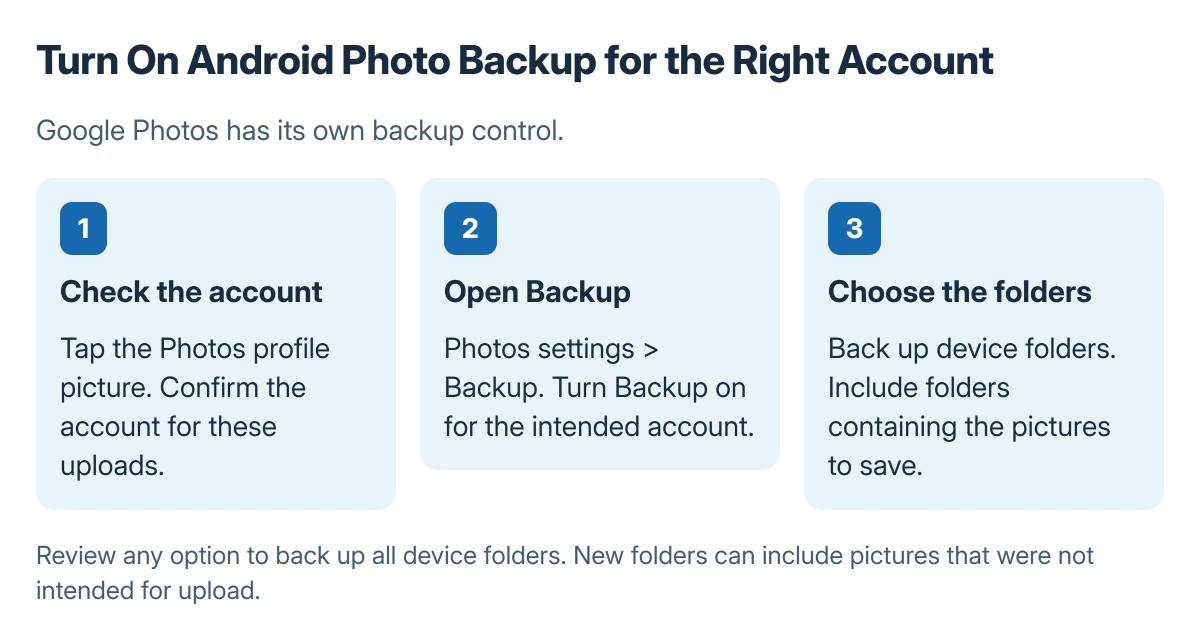
Choose the account before turning backup on
Open Google Photos and tap the profile picture or initial. Confirm the account that should hold the pictures, then open Photos settings > Backup and turn Backup on.
Status: Google's Android Photos backup instructions checked 23 October 2026. Account, folder and individual-photo checks are separate. No private photos or account were accessed here.
Google says photos can back up to only one Google Account at a time. Its Android photo backup page describes changing that account through the profile or initial under Account & Storage in Backup settings.
Read the account name rather than relying on the profile picture alone. For other device information, the Android phone backup guide explains what the separate system backup covers.
Include the device folders that matter
Inside Backup, open Back up device folders under Settings. Turn on the folders containing pictures that should be saved, such as screenshots or images from another app. Leave unwanted folders off.
Google adds an optional Back up all device folders control. When enabled, it can also include new folders later. Review that choice if other apps save pictures that should stay only on the phone.
An additional computer copy of phone photos is separate from cloud backup. Confirm that transferred files open before relying on the computer copy.
Confirm the upload and an individual picture
Tap the profile picture to inspect progress. Backup complete means the pending upload has finished for the chosen backup settings. Waiting, paused or off states need to be resolved before treating the photos as saved.
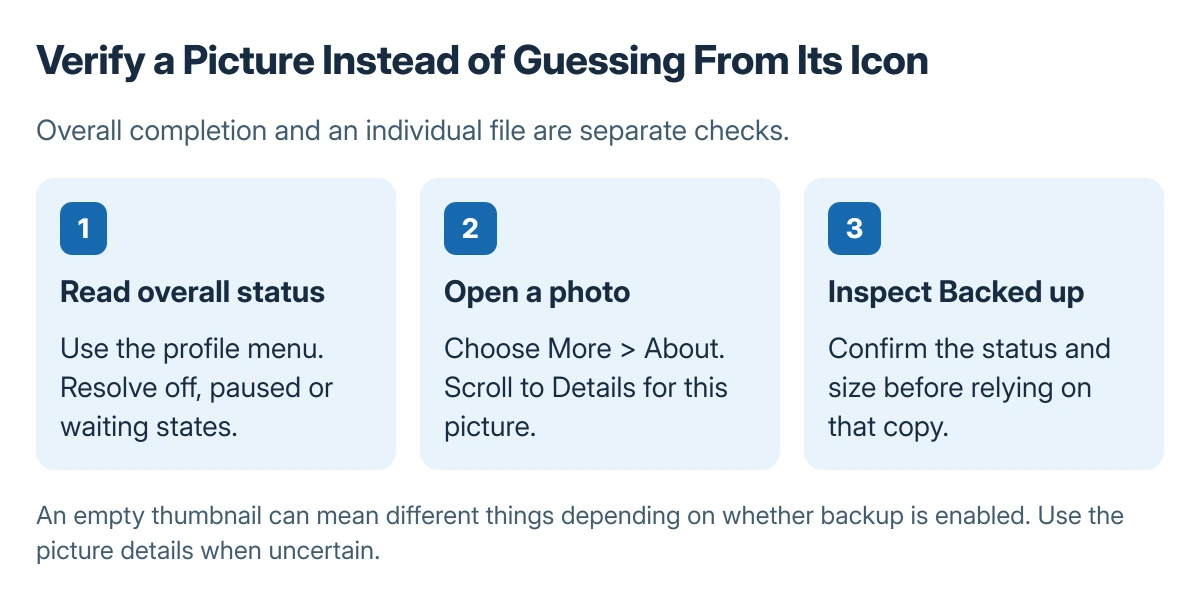
Open an important photo, choose More > About, and scroll to Details. Google states that a backed-up item shows its backup status and size under Backed up. This is clearer than guessing from a thumbnail icon.
Thumbnail meanings change depending on whether backup is on or off. Check the item's details when its status is uncertain, especially before deleting a local copy or resetting the phone.
Resolve storage or connection limits first
Google Account storage is shared with Drive and Gmail. If it is full, inspect the storage use or arrange more space before expecting further uploads. Keep original files until their backup is verified.
In Backup, review the cellular-upload options for limits, videos and roaming. A Wi-Fi-only choice needs a working Wi-Fi connection. Do not enable roaming uploads without understanding the carrier's charges.
For a photo that remains unsaved, note its status and file type and consult Google Photos help. A successful upload of one picture does not prove every selected folder finished.
The Short Version
Choose the right Photos account, turn on Backup and select the needed device folders. Wait for completion, then inspect important photos through More and About. Check storage and connection limits when uploads pause.

Isaac Smith is the founder and editor of PC Glance, a website that covers computers, laptops, and technology. He is a tech enthusiast and a computer geek who loves to share his insights and help his readers make smart choices when buying tech gadgets or laptops. He is always curious and updated about the latest tech trends.