
Greenshot screen capture starts from its tray menu: choose Capture region, drag around the area needed, then release. Open the result in the editor to crop or mark it. Save a file before closing; a clipboard copy is separate.
Capture a region from the Greenshot menu
Get the Windows application from Greenshot's official download page if it is not installed. Once it is running, right-click its notification-area icon. Expand the taskbar's hidden-icon area if necessary.
Choose Capture region. Hold the mouse button at one corner of the wanted area, drag to the opposite corner, then release. Region selection is documented by the vendor alongside its window and fullscreen modes.
Status: Greenshot's Windows capture and export instructions checked on 24 October 2026. The download page lists stable release 1.3.328; no app was installed or screen captured here.
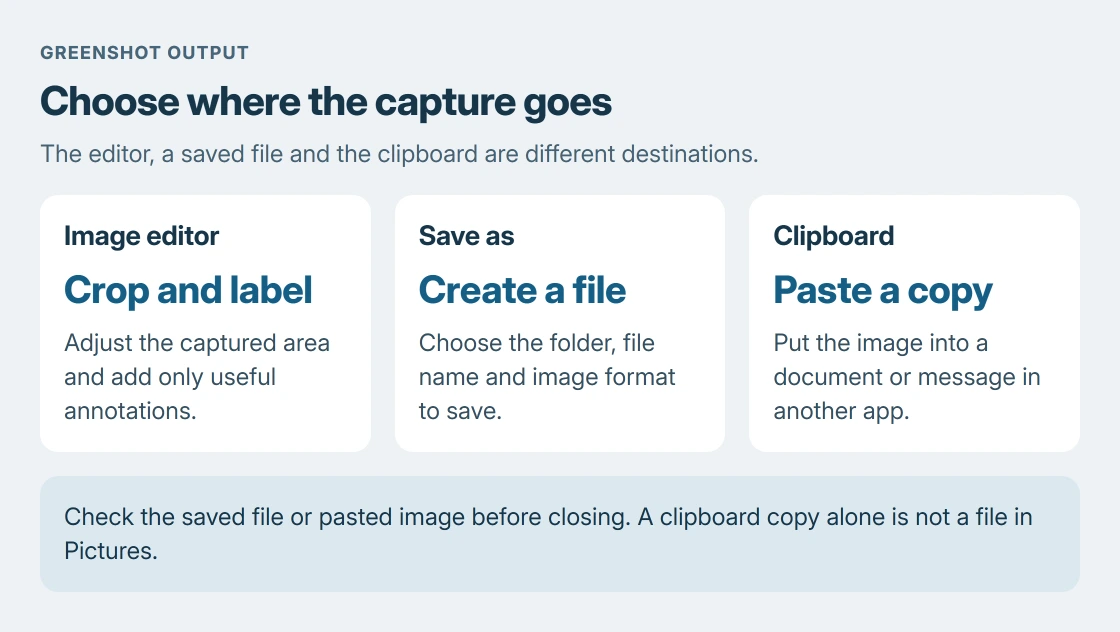
Choose Open in image editor in the destination picker. If your settings already send captures straight to the editor, it opens without that extra choice. Other configured destinations can save or copy the capture instead.
Choose a window or whole screen when that fits better
Use Capture window when the application window is the subject. Move the pointer onto the required window and click when it is selected. Check the selection before accepting so another window does not enter the capture.
Capture fullscreen captures the complete screen. For a small error message, region capture usually removes the need to crop the rest of the desktop afterward.
Greenshot's documented default shortcuts are Print Screen for a region, Alt + Print Screen for a window and Ctrl + Print Screen for fullscreen. Custom preferences or another app can change which program receives a key.
If a shortcut opens Windows' capture interface instead, use Greenshot's menu to finish the immediate job. The Windows screenshot choices explain the built-in routes separately.
Crop first, then add only the annotation needed
In the editor, use the Crop tool to select the useful area and apply the crop. Remove unrelated windows, names and surrounding desktop space where they are unnecessary to the explanation.
Use the text or shape tools for a short label or a visible control. The crop-first recommendation is ours: a tighter subject needs fewer annotations and remains easier to read when the image is displayed smaller.
For private information, keep it outside the captured area whenever possible. Check the entire finished image before sharing, including the title bar, account menus and notifications caught in the background.
Save a file or paste a copy deliberately
Choose File > Save as in the editor. Pick the folder, file name and format, then save. Ctrl + Shift + S opens Save as; Ctrl + S saves the current image or asks for a location if it has not been saved yet.
Choose Copy image to clipboard when the destination is a document or message you are composing. Greenshot documents Ctrl + Shift + C for that editor action. Paste into the receiving app and verify the image appears there.
A clipboard copy does not by itself create an image file in Pictures. To confirm a saved file, open its chosen folder with Windows + E, which Microsoft documents in its File Explorer guide.
If the menu works but a hotkey does not, check Greenshot's shortcut preferences and competing capture apps. If Greenshot cannot capture even from its menu, report the app version and behavior through its official support links.
The Snipping Tool repair page concerns Windows' own application. Reinstalling that app is not a repair for a Greenshot editor or export error.
The Short Version
Use Capture region from Greenshot's tray menu, drag the selection and open the editor. Crop or annotate as needed. Save as creates a file; the clipboard option prepares a paste. Check the result in the chosen destination.

Isaac Smith is the founder and editor of PC Glance, a website that covers computers, laptops, and technology. He is a tech enthusiast and a computer geek who loves to share his insights and help his readers make smart choices when buying tech gadgets or laptops. He is always curious and updated about the latest tech trends.