
A CPU stress test checks calculations under sustained load. In OCCT, choose CPU under Stability Testing and watch errors and temperature. CPU + RAM includes memory, so its failure cannot identify the processor alone.
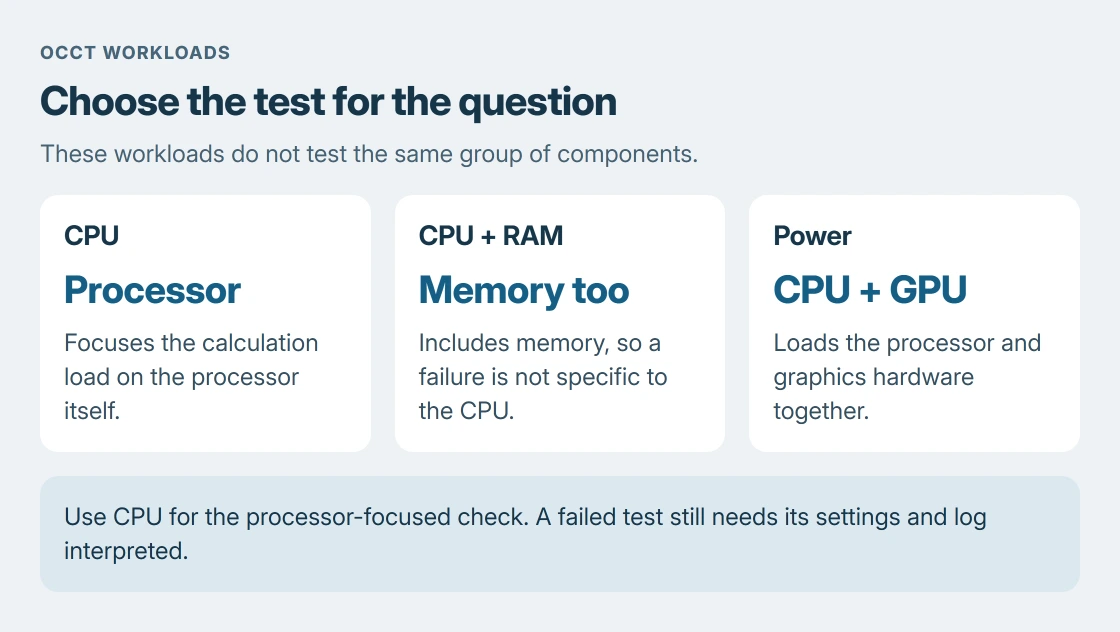
Choose CPU rather than a combined workload
Download OCCT from its official download page. Open the application and choose Stability Testing, then CPU. This workload is documented by the vendor as concentrating on the processor.
The CPU test concentrates on the processor. CPU + RAM also involves memory; Power loads both the processor and graphics hardware. Select the workload that answers the problem being checked instead of starting every test together.
Status: OCCT's CPU, duration and result documentation checked on 24 October 2026. No stress test, installation or hardware change was performed on this laptop.
Save open work before starting. A computer with an unresolved stability problem can freeze or restart during testing. A laptop already shutting down from heat needs the cooling checks before adding a deliberate load.
Set a fixed duration and leave advanced controls alone
For an initial check, choose Fixed duration and enter 10 minutes. That starting duration is ours, chosen to observe the machine before committing to a longer run. It is not a certification threshold or a guarantee of stability.
Leave instruction-set and thread controls on Auto unless a support technician has requested a particular configuration. Start with Normal mode rather than increasing the load to Extreme merely to produce a higher temperature.
OCCT describes Variable load as changing the calculation operands, while Steady keeps the same set. Record which one was selected. Different workload settings can produce different outcomes on the same machine.
Check the test name and duration, then select Start. Stay with the PC for the initial run. The test has a stop control; a timer is not a reason to continue through a warning or error.
Watch the log as well as the temperature graph
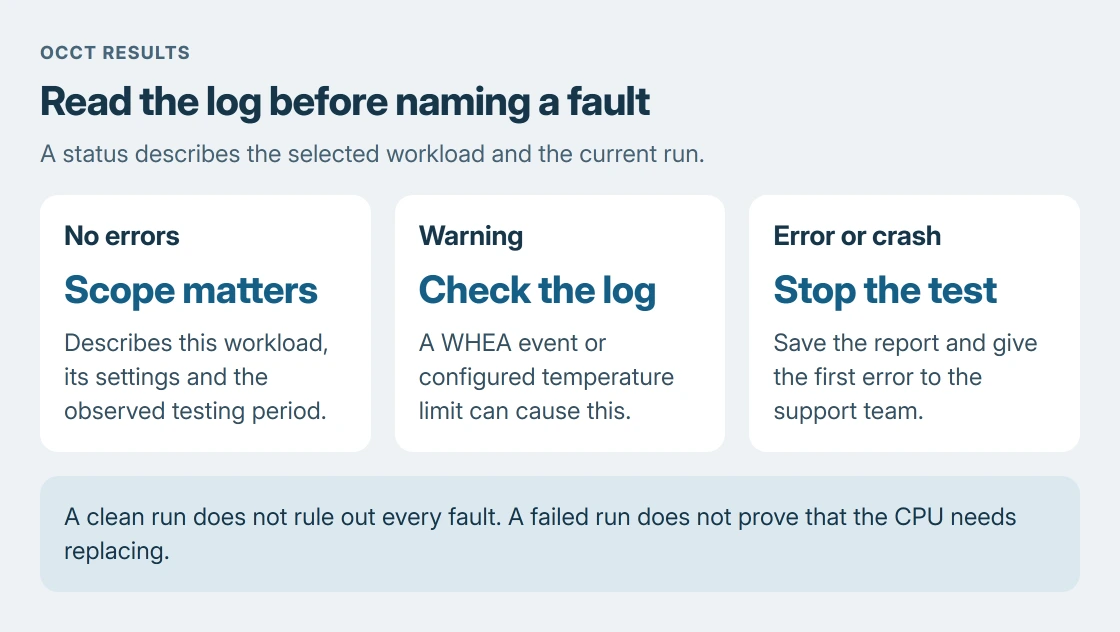
The execution screen reports the running test, elapsed time and events. OCCT's green status means no errors have been detected so far. It is a running status, not a lifetime health certificate.
A yellow warning can indicate a WHEA event or the configured temperature limit. A red error can mean a calculation error or a crashed test. Stop and read the log entry that accompanies the status.
Use the correct sensor when judging heat. The Windows temperature explanation distinguishes a firmware thermal zone from a CPU reading. Compare a processor sensor only with that exact processor's published limit.
There is no single temperature cutoff in this guide. If the test reaches its configured limit, reports errors, freezes or restarts the computer, stop testing and keep the available details for support.
Save the report and describe what actually failed
After a test stops, use Save report. OCCT documents a PNG report for Personal edition; other editions provide additional formats. Include the test settings and the first error rather than sending only the highest temperature.
For a support request, collect the processor and PC model. Microsoft documents Settings > System > About in its device-information guide.
A failed calculation establishes instability during that workload. It does not prove that replacing the CPU will fix it. Power delivery, configuration and other hardware can affect a result, particularly with CPU + RAM or Power selected.
A clean run means no errors were detected with those settings during that period. If everyday crashes continue, give the report and original symptom to the computer maker or a technician. Longer testing alone does not establish the cause.
The Short Version
Select OCCT's CPU test, set a fixed duration and monitor the run. Stop for errors or warnings and save the report. A pass describes those settings and that testing period; a failure needs interpretation before replacing hardware.

Isaac Smith is the founder and editor of PC Glance, a website that covers computers, laptops, and technology. He is a tech enthusiast and a computer geek who loves to share his insights and help his readers make smart choices when buying tech gadgets or laptops. He is always curious and updated about the latest tech trends.