
AULA keyboard software should come from the exact model's entry on aulastar.com. Check AULA HUB for supported keyboards, including the F75, or use the model's separate download.
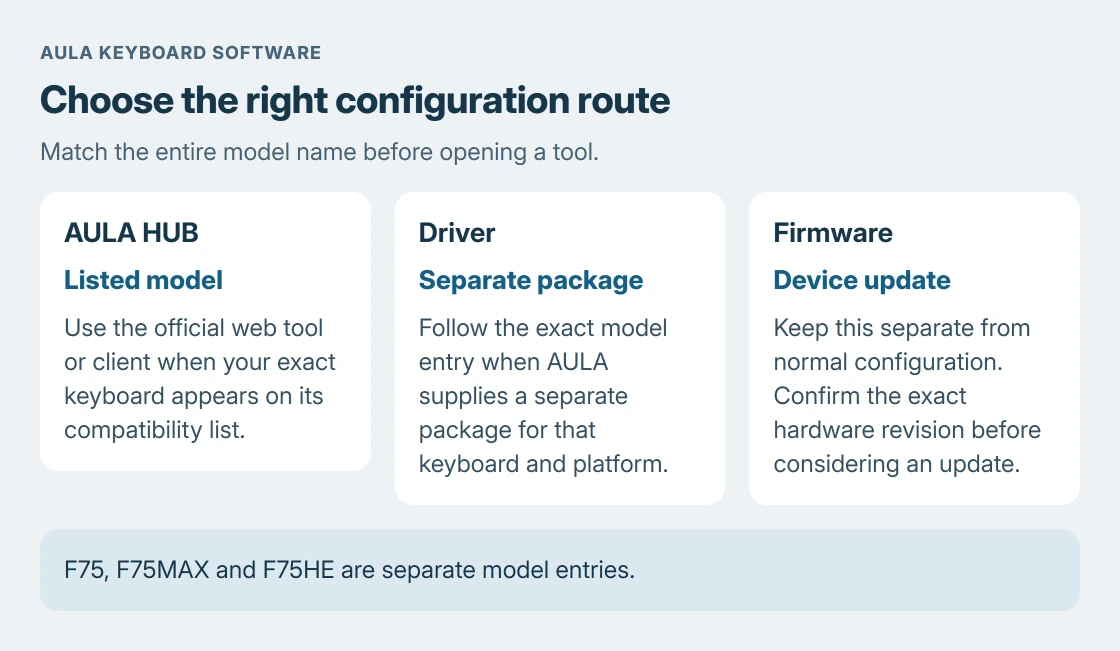
F75, F75MAX and F75HE are different entries, so match the full label before choosing.
Match the keyboard before choosing a download
Read the model printed on the keyboard or its packaging. Keep every suffix. A similar product name does not establish that its configuration software or firmware fits another board.
Open AULA's driver directory. It separates Driver and Firmware for models such as F75 and F75MAX. Choose the configuration route when changing keyboard settings; a firmware download is a different operation.
Status: AULA's model directory, HUB compatibility list and F75 FAQ checked October 24, 2026. No keyboard package was installed or firmware changed.
The model-specific download route is documented by the vendor. Its F75 FAQ directs readers through Downloads to the corresponding model and its Google Drive link.
Follow that link from AULA's page. A file hosted on Google Drive is not automatically unofficial, but the vendor's model page should be the starting point.
Use AULA HUB when the full model is listed
Open the official AULA HUB page. Its current mechanical-keyboard list includes F75, F87, F87 PRO V2, F99 and F108 PRO V2. Compare the current list with your board's complete label.
Choose Enter AULA HUB WEB for browser configuration. AULA lists Chrome, Edge and Opera as supported browsers and says completed configuration is saved automatically. The same page also offers a downloadable HUB client.
Start with one reversible setting, such as a lighting choice, when that control is offered. That recommendation is ours: a visible change confirms the software is addressing this keyboard before more important assignments change.
Reopen the configuration and check the selected setting. If the board never appears, use its model-specific manual and support route rather than selecting a similar model to force detection.
Use the separate package when the model requires it
Return to Downloads, locate the exact keyboard, and follow its Driver link. Read any platform and connection instructions supplied with that package before running it. Do not assume every AULA release uses the same connection mode.
Microsoft says ordinary device drivers can be updated through Device Manager. That Windows process does not identify which AULA configuration package matches a particular keyboard.
Keep the firmware entry separate. Changing lighting or a key assignment is not, by itself, a reason to replace the keyboard's firmware. Ask AULA about the precise model and revision if the required package is unclear.
A missing Windows key may only need the F75 shortcut
For an F75, AULA's FAQ specifies Fn + W for Windows mode and Fn + Win to unlock the Windows key. Use those model-specific checks before treating that one key as a failed software installation.
The Windows key troubleshooting guide covers other brands and a Start menu that fails even though shortcuts still work. An F75 shortcut should not be generalized to every AULA keyboard.
If the entire keyboard cannot type, check the selected connection mode and try another computer port, as AULA instructs. The broader keyboard typing checks help distinguish a device fault from an application problem.
For software that still cannot recognize a working board, send AULA support the full model, connection mode, operating system and package name.
Include whether ordinary typing works. Those details separate configuration detection from a completely disconnected keyboard.
The Short Version
Match the complete AULA model. Use HUB only for a listed device, or follow that model's Driver download. Keep Firmware separate. On an F75, check Windows mode and the Fn + Win lock before reinstalling anything.

Isaac Smith is the founder and editor of PC Glance, a website that covers computers, laptops, and technology. He is a tech enthusiast and a computer geek who loves to share his insights and help his readers make smart choices when buying tech gadgets or laptops. He is always curious and updated about the latest tech trends.