
OpenTabletDriver needs a supported tablet and a working USB data connection before changing its settings can help. Bluetooth detection is not supported.
On Windows, check the tablet's model code, install the required desktop runtime, and extract a fresh driver folder.
Check the model code and USB connection
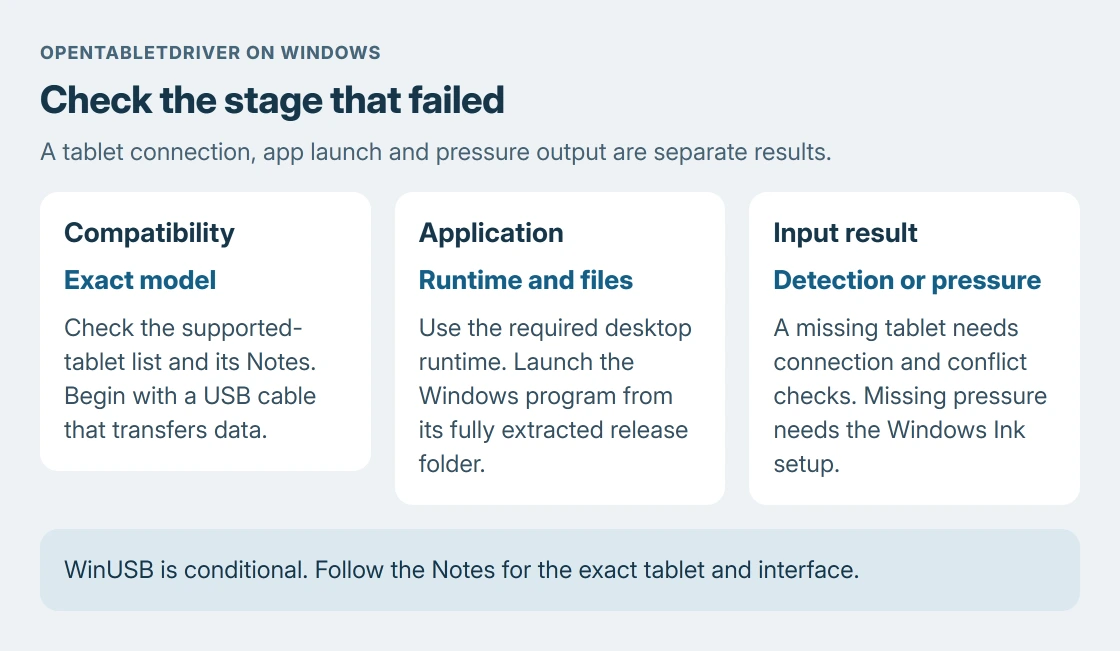
Search the supported-tablet list using the identifier on the tablet's back or box. Check its Status and Notes, not just the brand. Different hardware revisions can have different support.
The USB requirement is documented by the vendor. Its general FAQ rules out Bluetooth and describes only partial support for wireless receivers. Begin with a cable that transfers data.
Status: OpenTabletDriver 0.6.7 Windows instructions and tablet notes reviewed October 24, 2026. No tablet driver, runtime or plugin was installed here.
Try another USB port or data cable if the device does not connect. If Windows shows a warning on it, record the Device Manager error number before replacing drivers. Windows detection and OTD detection are separate results.
Extract a fresh Windows copy
Follow the project's Windows installation guide. The current x64 release requires .NET 8.0 Desktop Runtime x64. Microsoft says the desktop runtime supports Windows desktop applications.
Use the linked desktop-runtime installer, rather than assuming an installed SDK or a different runtime version satisfies this particular requirement.
Download OpenTabletDriver-0.6.7_win-x64.zip from the installation page. Extract it into its own folder, then open OpenTabletDriver.UX.Wpf.exe there. Do not run it from the ZIP preview.
For an upgrade, use a new directory instead of dropping the release over old program files. This keeps versions from being mixed. Keep the application files together and launch OTD normally, without Run as administrator.
The project specifically warns against running OTD elevated. A failure to detect the tablet is not a reason to increase its privileges.
Split launch failures from missing-tablet failures
The application does not open
Check the required desktop runtime and extracted program files first. Launch the executable from that folder so it can find the rest of its release.
The application opens but the tablet is absent
A supported tablet that remains undetected needs the project's Windows detection checks.
Other tablet drivers can interfere. Preserve their settings before following OTD's linked TabletDriverCleanup instructions, because removing the old driver changes how other tablet applications work.
The suggestion to preserve the manufacturer's working setup is ours; confirm compatibility before removing it. The Windows driver guidance explains why unrelated working drivers need no change.
Only install Zadig's WinUSB when the exact tablet's Notes explicitly require it. Some entries name a particular interface. The supported-tablet list is not a list of devices that all need WinUSB.
For a daemon connection timeout, first check that OpenTabletDriver.Daemon.exe and OpenTabletDriver.UX.Wpf.exe remain in the same extracted folder. The Windows FAQ gives additional settings-recovery steps if that check passes.
Enable pressure output for a drawing application
A moving pointer with no pressure is different from an undetected tablet. OTD's Windows FAQ directs pressure users to VMulti, the Windows Ink plugin, and the drawing application's Windows Ink configuration.
Follow those linked instructions for the application in use. Pointer movement alone does not establish that pressure reaches the drawing program.
Restart mapping after a monitor change
The general FAQ also says absolute mapping can become wrong after changing monitor resolution, position or connections. Restart OTD after that change, then verify its mapped area.
Reinstalling the USB driver is not the first response to changed display geometry.
If a listed tablet remains undetected, use the project's support or GitHub links with its exact model and OTD logs. State whether the app opens and whether Windows recognizes the USB device.
An unsupported model needs a support request rather than a guessed configuration.
The Short Version
Confirm the exact tablet, use USB, and launch the fully extracted Windows release with its required runtime. Check conflicts for missing detection. Follow the tablet's own WinUSB note, and handle pen pressure separately once input works.

Isaac Smith is the founder and editor of PC Glance, a website that covers computers, laptops, and technology. He is a tech enthusiast and a computer geek who loves to share his insights and help his readers make smart choices when buying tech gadgets or laptops. He is always curious and updated about the latest tech trends.