
A Sony camera can appear as Sony Camera (Imaging Edge) in a meeting app after Imaging Edge Webcam is installed and the camera is configured for USB remote shooting.
Check compatibility first: Sony's current Windows download supports Intel and AMD processors, excluding ARM PCs.
Confirm the computer and camera are supported
Open Sony's Imaging Edge Webcam download page. Check both Supported OSes and Supported Cameras. A Sony camera with a USB socket is not automatically compatible.
The current Windows listing specifies Windows 11 on Intel or AMD. A Snapdragon Windows laptop uses ARM and falls outside that listing. The Mac download has separate requirements; it currently lists Apple silicon, excluding Intel Macs.
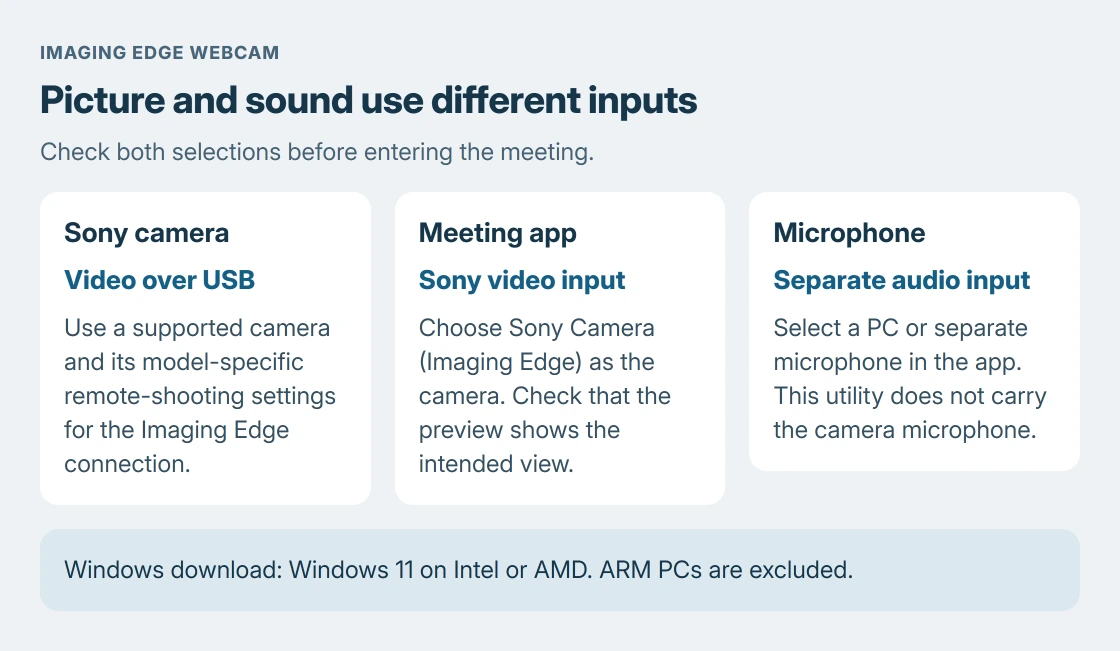
Status: Sony's current download requirements and USB setup checked October 24, 2026. Windows 11 is the focus. No camera, meeting or installer was operated.
Install the Windows package from that page and restart the PC when prompted. Sony explains that the result is a camera choice inside a conferencing service. The absence of a normal desktop launch icon does not show that installation failed.
Configure the camera's USB remote connection
Use the model selector in Sony's setup instructions. The menu paths differ by camera; PC Remote and a camera's separate USB streaming mode are not interchangeable instructions.
For the original ZV-E10, its PC Remote controls sit under MENU > Network. Sony's webcam instructions specify:
- Open Smartphone Connect > Smartphone Connection and select Off.
- Open PC Remote Function > PC Remote and select On.
- Set PC Remote Function > PC Remote Cnct Method to USB.
Those are original ZV-E10 steps. Select the ZV-E10M2 group instead for that model. Do not apply a menu path just because the camera's name starts the same way.
Close Imaging Edge Desktop (Remote) if it is running. Connect the camera and PC with the supplied USB cable, then use movie mode for the ZV-E10. Sony gives a different startup sequence for some older cameras.
For any other model, keep the steps documented by the vendor for that camera open while you set it up.
Select the Sony video input and a separate microphone
Open the meeting application's camera settings and select Sony Camera (Imaging Edge). Check the preview before joining. A working laptop webcam preview does not confirm that the Sony input is selected.
Choose the microphone separately. Imaging Edge Webcam does not carry audio from the camera's microphone or a microphone connected to the camera. Use a computer microphone or another input available to the meeting app.
Run the Windows microphone check on that audio input. That step is ours, not Sony's: this USB route carries only the picture.
Sony specifies 1024 x 576 video for this utility. A camera's 4K recording capability is not the output resolution of Imaging Edge Webcam.
Recover an interrupted picture before reinstalling
For a frozen live view on Windows, Sony's troubleshooting FAQ gives this recovery order:
- Stop video in the conferencing application.
- Open Start > Imaging Edge Webcam > USB Reset.
- Switch the camera off and back on.
- Start the meeting application's video again.
If that fails, turn off the camera and restart the computer. For access failures, Microsoft says desktop applications need camera permission; the Windows webcam guide covers that permission layer.
Contact Sony support if the supported camera still cannot supply a preview. Include its model, Windows version, processor type and whether USB Reset changed the result.
That is more useful than reinstalling a package on an unsupported processor.
The Short Version
Check Sony's current camera and computer lists, install the utility, and follow the camera's own USB remote instructions. Select Sony Camera in the meeting app and a separate microphone. Use USB Reset for an interrupted Windows preview.

Isaac Smith is the founder and editor of PC Glance, a website that covers computers, laptops, and technology. He is a tech enthusiast and a computer geek who loves to share his insights and help his readers make smart choices when buying tech gadgets or laptops. He is always curious and updated about the latest tech trends.