
A JADENS printer missing from its app can have a denied Bluetooth permission or need QR pairing. Match the app to the model, allow discovery, and check for a connection code on the self-test sheet.
The phone app and a Windows printer driver are different setup routes. Choose the instructions for the device sending the label.
Get the app that matches the printer's instructions
Start at JADENS' app download page. It lists new and old Jadens Printer apps as well as PrintGo and Printat. Follow the model's current instructions rather than choosing solely by a similar icon.
The replacement app was documented by the vendor in October 2024, with a warning that new boxes might still contain older instruction cards. An old printed card can therefore describe a different app layout.
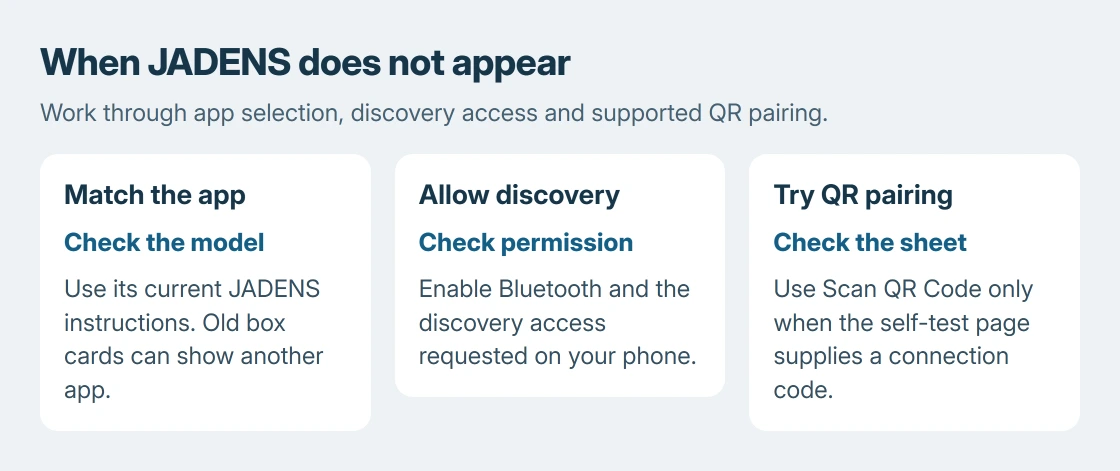
Status: JADENS app, permissions and QR connection guidance checked October 25, 2026. Model-specific button instructions come from JADENS. No printer was paired or tested.
For computer printing, use the manufacturer download route and select the exact printer model's Windows or Mac package. Installing the mobile app does not add a Windows printer queue.
Allow discovery before searching again
Turn on the printer. Enable Bluetooth on the phone, then open the app's add-printer control. Select the printer matching the model and identifying suffix, especially when several label printers are nearby.
On Android versions offering Nearby devices, open Settings > Apps > Jadens Printer > Permissions > Nearby devices and choose Allow if access was denied. Reopen JADENS and repeat discovery.
Google says permissions can be changed in each app's settings. Older Android versions can request Location for Bluetooth discovery instead; follow the permission relevant to that phone and app.
On iPhone, check Settings > Apps > Jadens Printer > Bluetooth when the app cannot search. A Wi-Fi model can also require Local Network access. That network permission is not a claim that every JADENS printer supports Wi-Fi.
Use the printed QR code when ordinary discovery fails
JADENS' September 2026 QR connection instructions provide a different route for a missing printer. It works only if the printer's self-test sheet actually contains the code.
Print that sheet using the model-specific action:
| Model | JADENS' self-test action |
|---|---|
| 568P or 668BT | Press power three times in quick succession |
| 168BT or 268BT | Hold power about two seconds; release after two beeps |
| C10 | Quickly press power four times |
| PD-A4 or JD-166 | Quickly press power twice |
In Jadens Printer, tap + or Add Printer, select Scan QR Code, and scan the sheet. Complete the pairing prompts. The vendor says this reads pairing information without relying on the ordinary Bluetooth search.
A model name in that table does not guarantee every unit has QR support. If the sheet has no code, return to the app's standard model-selection method or contact JADENS. Do not scan a shipping label's barcode as a substitute.
Separate connection success from label alignment
The decision to check one label before a batch is ours. Open it and inspect the size and orientation before printing. Our first-print checks explain why the selected destination and preview matter for computer jobs too.
For 268BT, 168BT, 468BT and 328BT, JADENS documents paper calibration after changing labels. Load the printing face upward, adjust the guides, and close the cover. Let startup finish before using the feed control.
Its calibration procedure says to hold Feed about two seconds and release at one beep. Correct learning stops the label at the tear position.
That one-beep calibration action differs from a two-beep self-test. Use the instructions for the actual model instead of holding the button until something prints.
If connection still fails, send JADENS Support the printer model, phone OS, a photograph of the self-test page and the app's error. Those are the details its QR guide requests, and they establish whether that connection route is supported.
The Short Version
Match the app to the printer, allow discovery, and try QR pairing only when the self-test supplies a code. Then inspect the label layout and run the correct paper-learning action for feed trouble.

Isaac Smith is the founder and editor of PC Glance, a website that covers computers, laptops, and technology. He is a tech enthusiast and a computer geek who loves to share his insights and help his readers make smart choices when buying tech gadgets or laptops. He is always curious and updated about the latest tech trends.