
Live wallpaper for a PC needs an app that can play animated content on the desktop. Install Lively through its official download page, try a supplied wallpaper, then set its pause options before adding a large video.
The app handles playback behind the desktop icons. Its performance depends on the wallpaper: a simple moving background can demand much less than an interactive scene with complex effects.
Install Lively and try a supplied wallpaper
Open the Lively project's download page and follow its Microsoft Store link. The project also offers a Windows installer. Choose one distribution for this setup.
The installation choices are documented by the vendor. The Store distribution handles its dependencies; the separate installer can request additional components during setup.
Status: Lively's setup, video and performance documentation checked October 25, 2026. These are published app procedures; Lively was not installed or tested on this PC.
Open Lively and select a wallpaper from its library. Return to the desktop to check that it moves behind the icons. Start with an included item so an unsupported personal video is not part of the first check.
Use Screen configuration in Lively to choose the display when several monitors are connected. Check the intended monitor before importing more wallpapers; selecting content and selecting its destination are separate choices.
Add a video without losing its source file
Lively supports video wallpapers through its bundled player. Keep a personal video in a permanent folder, then drag it into the Lively window and complete the import prompts. Use material you have permission to use.
The project's missing-file explanation matters here: ordinary imported files can remain linked to their original location. Moving or deleting that file can break the wallpaper.
A Lively wallpaper ZIP package is handled differently. Do not assume that importing a loose video made a second permanent copy. If a file-not-found message appears, restore the original file or import it again from its final folder.
Leave the default mpv video player selected for the first attempt. The video documentation recommends it and says the Store distribution does not support installing additional player plugins.
Pause animation during work and on battery
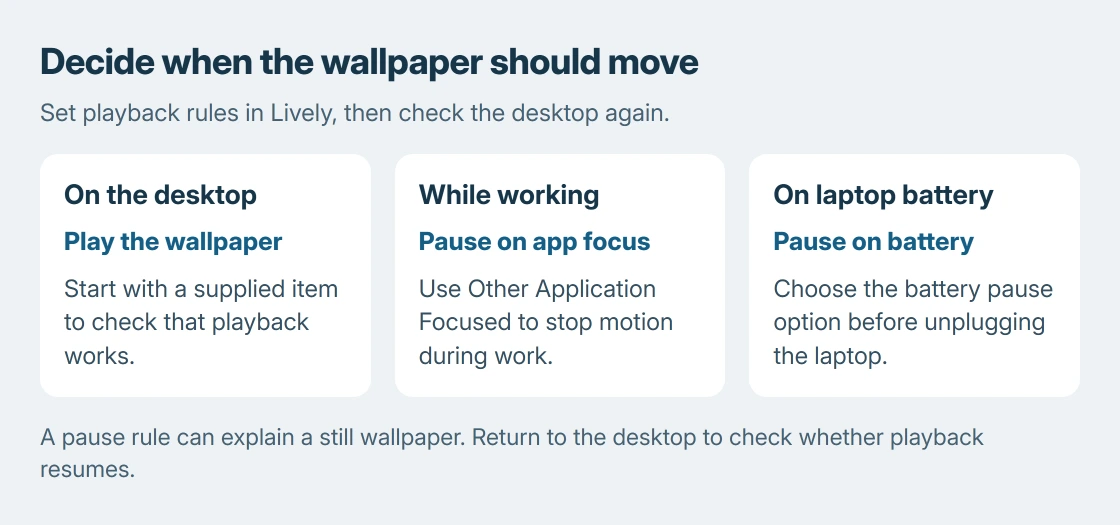
Open Settings > Performance > Wallpaper Playback in Lively. To stop animation while another application is active, set Other Application Focused to Pause. Enable the battery-power pause option on a laptop.
Lively's performance guide also documents automatic pausing for fullscreen applications. A wallpaper stopping during a game can therefore be the configured behavior, rather than a failed installation.
Minimize the other application and check playback again. If it resumes on the desktop, the pause rule explains the change. If animation stutters while visible, compare a simpler wallpaper before changing Windows settings.
The comparison is ours: repeat the same task after quitting Lively from its tray icon. An improvement helps connect the slowdown to the animated background. Persistent slowness needs the broader Windows performance checks.
How do I return to a still background?
Quit Lively from its notification-area icon. Microsoft documents choosing a still picture through Windows background settings: open Settings > Personalization > Background, then choose Picture.
The Windows theme and wallpaper controls explain picture fitting and the difference between a background and a complete theme. Those settings remain useful when animation is unnecessary.
If a supplied wallpaper also fails, right-click Lively's tray icon and choose Report Bug > Create log report file. Send the report through the project's issue tracker with the app version. State whether one wallpaper or every item fails.
The Short Version
Install Lively from the project's Store or installer link and test a supplied wallpaper. Keep imported videos in a permanent folder. Configure playback pauses, then compare with Lively closed if the PC feels slower.

Isaac Smith is the founder and editor of PC Glance, a website that covers computers, laptops, and technology. He is a tech enthusiast and a computer geek who loves to share his insights and help his readers make smart choices when buying tech gadgets or laptops. He is always curious and updated about the latest tech trends.