
Windows 10 adjusts a laptop's screen brightness from Action Center or Settings > System > Display. Open Action Center beside the taskbar clock and move its brightness slider. An external monitor usually needs its own controls instead.
Move the slider in Action Center
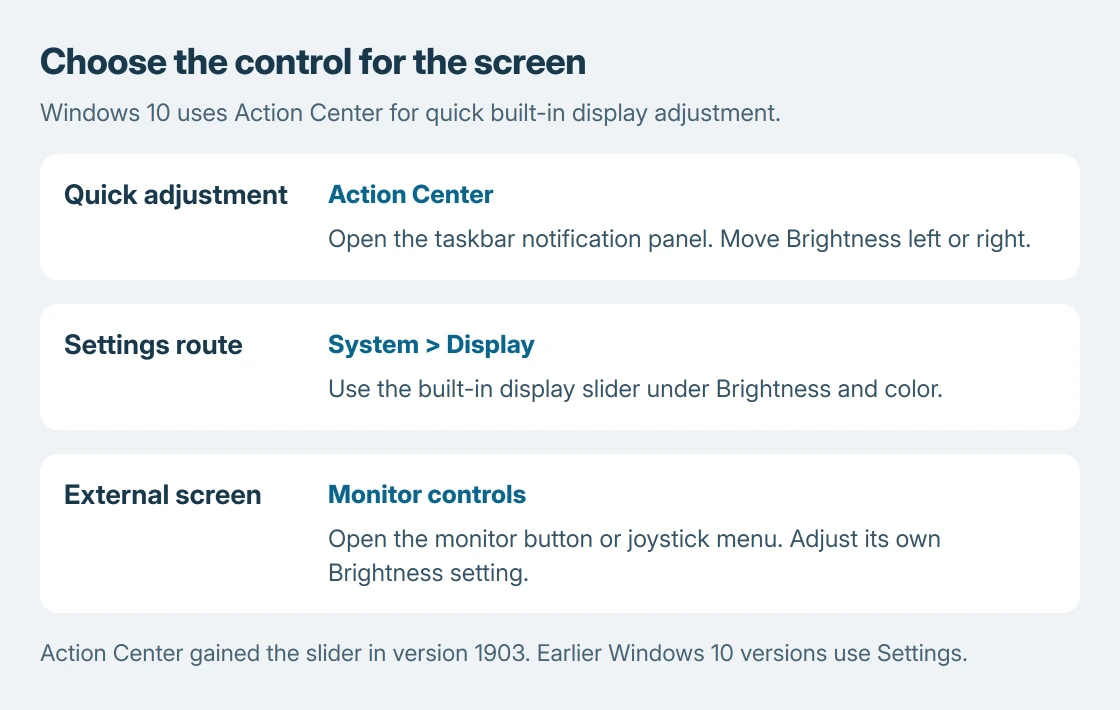
Select the notification-shaped Action Center icon beside the clock. Move Brightness left to dim the built-in screen or right to brighten it. The screen should respond while the slider moves.
Microsoft says this Action Center slider arrived in Windows 10 version 1903, in its brightness instructions. Earlier versions use the Settings route.
Status: Windows 10 brightness paths checked with Microsoft's version-specific instructions October 25, 2026. These are Windows 10 controls, not Windows 11 Quick Settings.
The panel's presence does not guarantee that every connected screen responds. Test the laptop display and attached monitor separately before deciding the control has failed.
Use Display settings for a precise adjustment
Open Start > Settings > System > Display. Under Brightness and color, move the slider for the built-in display. Leave the screen at a comfortable level for the room rather than choosing a universal percentage.
Some PCs show Change brightness automatically when lighting changes. Clear that checkbox for manual control, or select it to use the light sensor.
That option depends on hardware. Its absence does not mean Windows needs repairing, and it is separate from brightness that follows a dark or light picture.
The comparison is ours: adjust the level while reading ordinary text, then check it again under the lighting where the laptop will be used. A percentage copied from another display will not tell you what is comfortable on this one.
Use the monitor menu for an attached display
For a desktop monitor, open its physical button or joystick menu and find Brightness. Consult that model's manual if the control has another name. The laptop slider can change its panel while leaving the attached screen unchanged.
A genuinely absent laptop control belongs to the missing brightness slider checks. That page covers display-driver problems without treating an external screen as a failed laptop panel.
Separate battery dimming from a changing picture
Microsoft documents reduced brightness as one effect of Battery Saver. If the change happens when battery saving starts, check that feature before repeatedly moving the slider.
A different pattern, where opening a dark app dims the display, needs the content-dependent brightness settings. A graphics driver's power-saving control can be involved even without a Windows light-sensor checkbox.
If the built-in slider moves but the panel never responds, give the laptop maker the model, Windows version and display-driver details. For an external monitor whose own brightness control fails, contact its manufacturer.
The Short Version
Use Action Center on Windows 10 version 1903 or later, or open System > Display. Adjust external monitors through their own menus. Check battery saving or graphics settings when the level changes again by itself.

Isaac Smith is the founder and editor of PC Glance, a website that covers computers, laptops, and technology. He is a tech enthusiast and a computer geek who loves to share his insights and help his readers make smart choices when buying tech gadgets or laptops. He is always curious and updated about the latest tech trends.