
A Logi wireless keyboard must be paired through its supported connection: Bluetooth, Logi Bolt or another model-specific receiver.
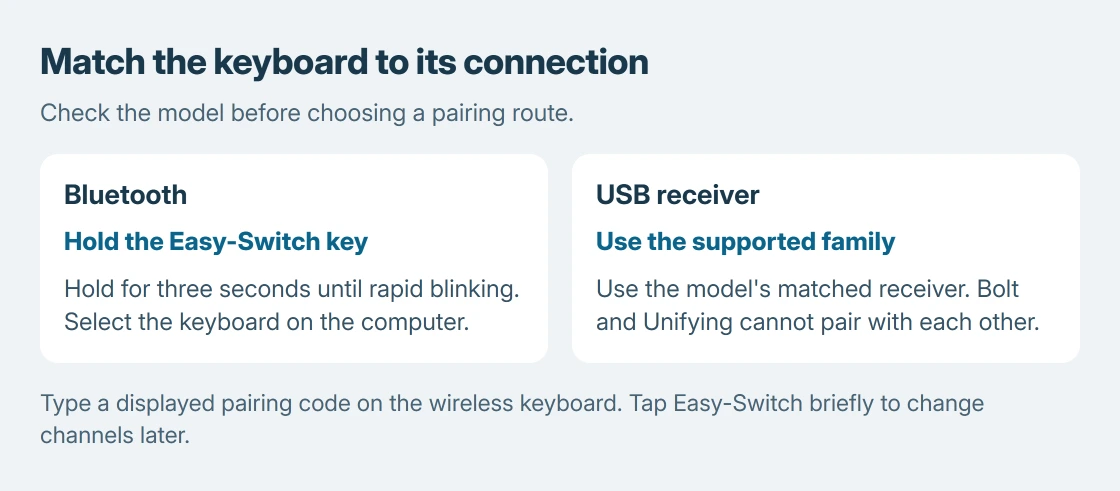
On an Easy-Switch model, hold the chosen channel key for three seconds until its light blinks rapidly, then add the keyboard on the computer.
A short press only changes channels. It does not start a new Bluetooth pairing, and a receiver from another Logitech family is not automatically compatible.
Identify the connection supported by the keyboard
Check the keyboard's model and supplied receiver before downloading pairing software. Logitech's K950 setup page gives two routes for that model: direct Bluetooth Low Energy or its Logi Bolt receiver.
The K950 is one documented example, not a promise that every Logi keyboard supports both. A receiver-only model needs its specified receiver. A missing Bluetooth listing is not evidence that any USB dongle will work.
Status: Logitech Easy-Switch, K950 and receiver-compatibility instructions checked October 25, 2026, with Microsoft's Windows pairing steps. No keyboard pairing was changed.
Logitech says Bolt devices cannot pair with Unifying receivers, and the reverse also fails, in its receiver compatibility answer.
Pair an Easy-Switch keyboard over Bluetooth
Turn the keyboard on and check its batteries or charge. Choose the numbered channel intended for this computer. Use an unused channel when preserving another computer's connection.
Hold that channel's Easy-Switch key for three seconds, until its LED blinks quickly. This discovery step is documented by Logitech.
Microsoft documents the Windows side in its Bluetooth pairing instructions:
- Windows 11: open the taskbar's Network, Sound or Battery group. Open the Bluetooth device selector and choose the keyboard under New devices.
- Windows 10: open Settings > Devices > Bluetooth & other devices > Add Bluetooth or other device > Bluetooth. Select the keyboard from the discovered devices.
Follow any pairing prompt. On the K950, type the displayed numbers on the K950 itself, then press Enter. Its Easy-Switch light stops blinking when paired.
Open a text field and try ordinary letters. The completion check is ours: establish actual typing after pairing before adjusting shortcuts or installing customization software.
Use the supplied K950 Bolt receiver in its setup order
For a new K950, Logitech specifies inserting the supplied Logi Bolt receiver first, then removing the keyboard battery pull-tab. The keyboard turns on and pairs; channel 1's white light stops blinking when connected.
Keep that sequence specific to the K950. A previously paired keyboard or replacement receiver can need its model's pairing process instead. The shared Logi branding does not establish that an arbitrary receiver was paired at the factory.
If letters work but symbols are wrong, check the Windows input layout. Pairing and language selection solve different problems.
When the receiver connects but typing still fails
Logitech's Bolt troubleshooting guidance calls for connecting its receiver directly to the computer rather than a hub or dock. Check battery power and bring the keyboard closer.
Once typing works, a few dead keys need the individual key test rather than another whole-keyboard pairing attempt.
For failure through the documented connection after these checks, contact Logitech with the keyboard model, receiver family, LED behavior and operating system. Those details determine which pairing procedure applies.
The Short Version
Match Bluetooth or the receiver to the keyboard. Hold Easy-Switch to pair; tap it to switch computers. Type a displayed code on the wireless keyboard. The K950's first-use Bolt sequence applies to that model.

Isaac Smith is the founder and editor of PC Glance, a website that covers computers, laptops, and technology. He is a tech enthusiast and a computer geek who loves to share his insights and help his readers make smart choices when buying tech gadgets or laptops. He is always curious and updated about the latest tech trends.